I’m excited to share what our team was working on recently and the updates we released in OpenBOM earlier this week. Our team has continued focusing on a simple principle: make OpenBOM easier to use in everyday engineering and procurement workflows. Many of the improvements in this update come directly from customer feedback—small operational gaps that become very visible when teams manage real production data, revisions, and orders.
This release introduces several practical enhancements across BOM management, ordering workflows, dashboards, integrations, and overall system performance. One of the highlights is the ability to generate orders directly from specific BOM revisions, giving procurement teams better control over what exactly is being ordered for production. Alongside this, we added clearer dialogs for order creation and release, new filtering capabilities for Orders and POs, improved item and BOM management operations, and performance improvements that significantly speed up working with large multi-level BOMs.
We also continued improving integrations with systems such as Autodesk Fusion and PTC Onshape, enhanced the extensibility of User Defined Commands, and refined the File Manager capabilities for managing CAD and design files.
As always, our goal is to improve clarity, reduce clicks, and make OpenBOM a more reliable operational backbone connecting engineering, procurement, and manufacturing teams.
Let’s take a look at what’s new.
Create Order from BOM Revision
Another popular request and practical if you are creating a Revision of a BOM before ordering parts for production. The Orders function can now be invoked from a BOM Revision, and the Order will be calculated based on the content of the Revision.
All Order and Purchase Order operations are supported.
To create an Order from the Revision:
- Create or select a BOM revision.
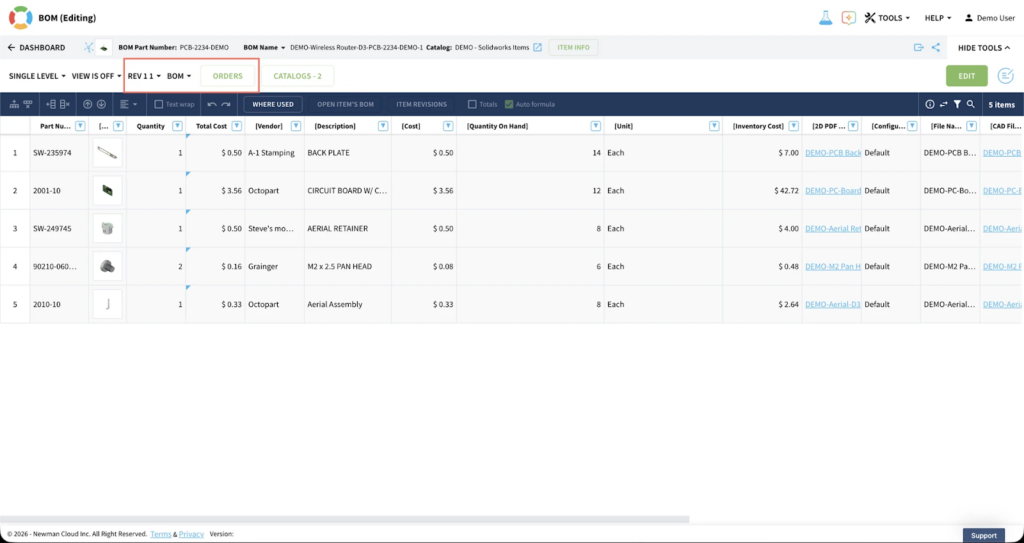
- Click the “ORDERS“ button to open the BOM’s “Orders“ panel.
- Click “Create“ to open the “Create order“ dialog.
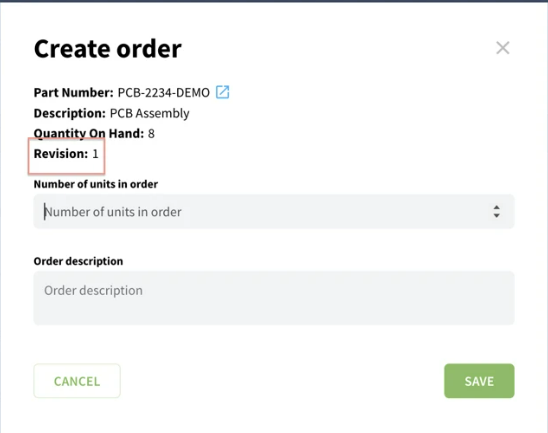
- The dialog shows the selected Revision number, indicating the Order will be created for that BOM Revision.
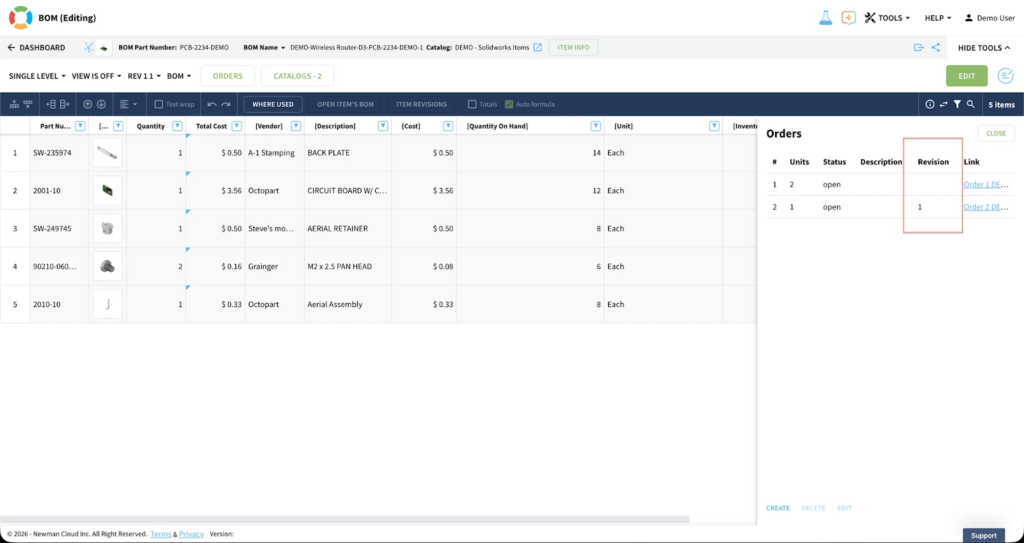
- After creation, the Order appears in the “Orders“ panel with the “Revision“ column displaying the Revision number.
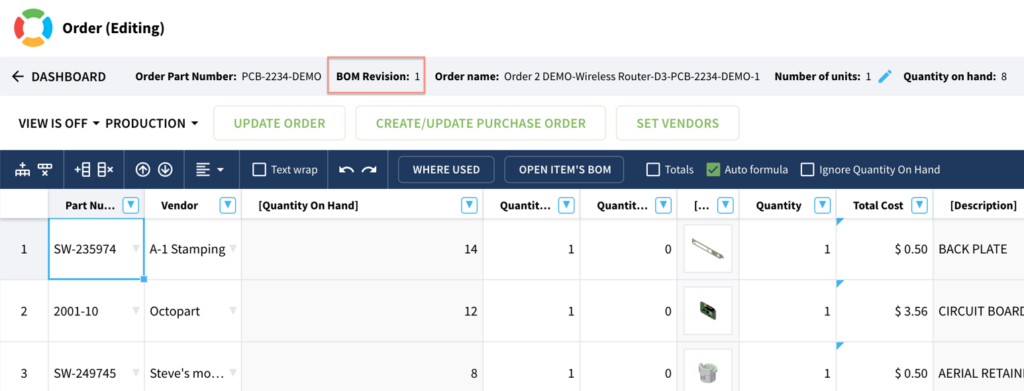
- Opening an Order shows a “BOM Revision“ property at the top, confirming creation from the Revision.
Note all data except Quantity on Hand will be taken from the Revision. Quantity on Hand values are always calculated from the current inventory.
The Orders button is available when a BOM revision is selected.
The selected Revision number is displayed in the “Create order“ dialog.
The “Revision” column in the “Orders” panel displays a revision number.
The Order created from a BOM Revision displays a “BOM Revision“ property.
Simplify BOM/Item Relationships – Delete Command
We have added additional information when Removing an Item with BOM(s) from a Catalog. This allows you to Remove ALL the corresponding BOMs for a single part number (or multi-select several Items) in one operation. Previously, it was a two-step operation.
With this release, when you Remove an item (or Items) from the Catalog, and those Item(s) have one or more BOMs associated with them, an informational dialog will appear indicating what is going to happen. All associated BOMs will be listed for the selected Items. After confirming BOM deletions, you will receive a report detailing the actions taken.
Note below: 6101231 has TWO BOM types (BOM & SBOM); both will be removed along with the Item.

Watch the video with the demo:
Orders Dashboard Filtering for Open and Released Orders
One of the more popular requests lately has been an easy way to see Open vs Released Orders. Well, it’s finally here! Enjoy.
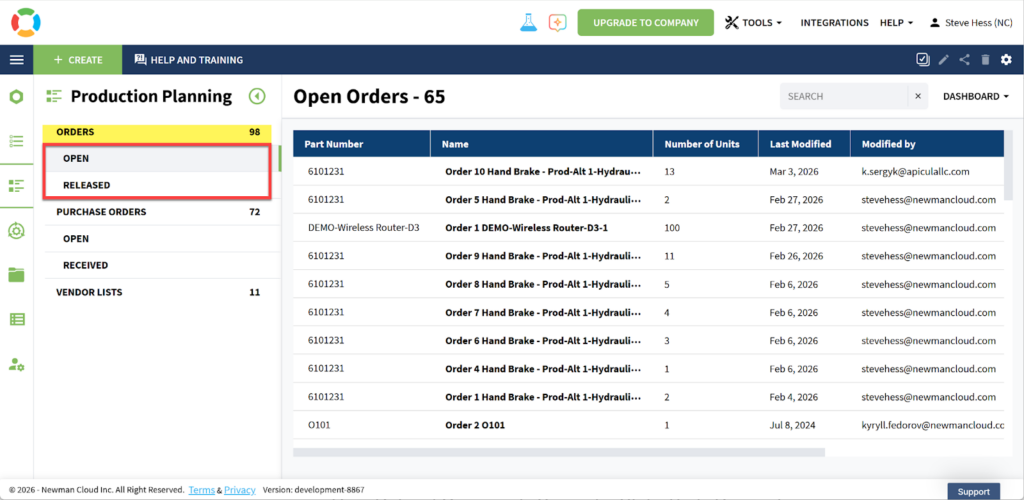
Watch the video of how it works:
The “Release to production“ Dialog Improvements
We improved the dialog and now it shows more useful information – BOM Part Number with a link to the BOM that created the Order
- The BOM Item description
- Item’s Quantity on Hand
- Number of units ordered
This improves clarity and control over the Order release process.
Within an open (not released) Order, select “Release to production“. This opens the dialog showing additional details only for orders created from the BOM. Submitting updates the related “Quantity on Hand” values
The “Create Order“ Dialog Improvements
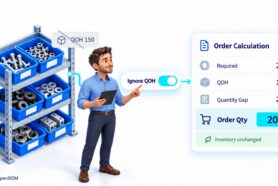
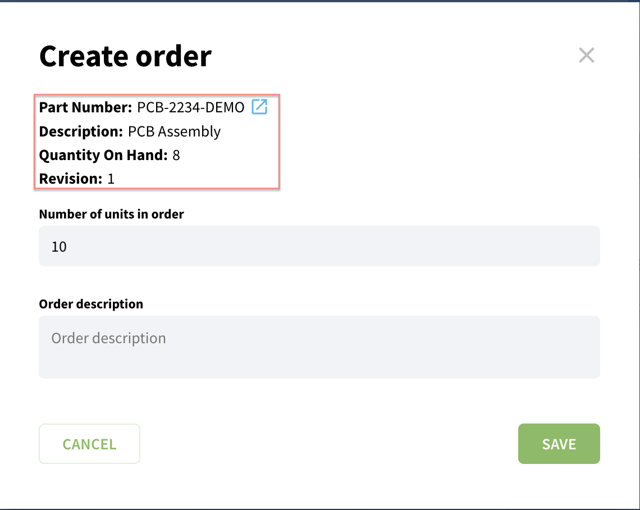
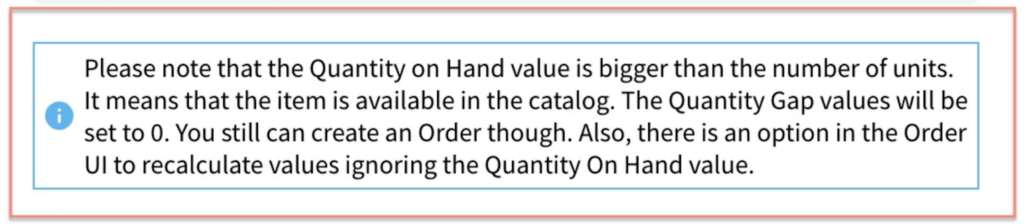
The Create Order dialog now displays more useful information. Including an indication when you have sufficient quantity On Hand. This improves clarity and control during Order creation.
- BOM Part Number;
- The BOM Item description
- Item’s Quantity on Hand
- Selected Revision number (if any)
The “Create order” dialog includes additional BOM and catalog data. If a revision is selected, it also appears in the dialog.
In the event your Order quantity is less than the Quantity On Hand, you will receive the following warning indicating that you have sufficient Quantity On Hand.
The “Order“ User Interface Improvements
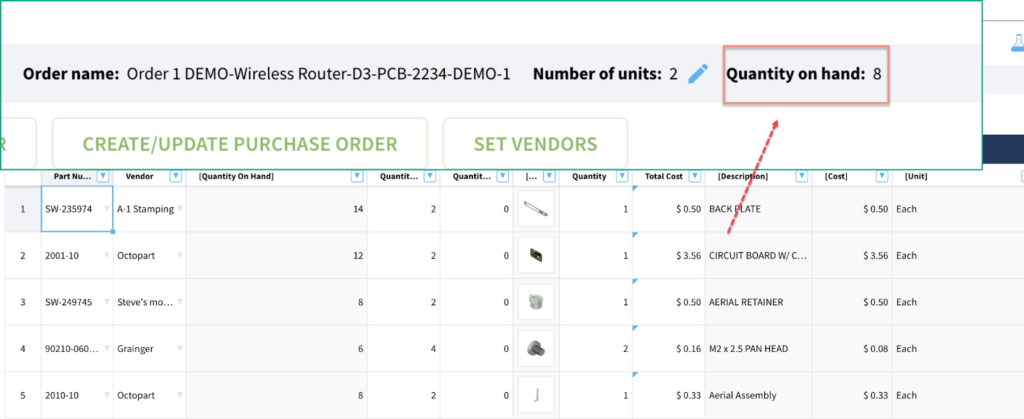
The Order Screen displays more useful information
User-Defined Commands Support a Static Body Parameter
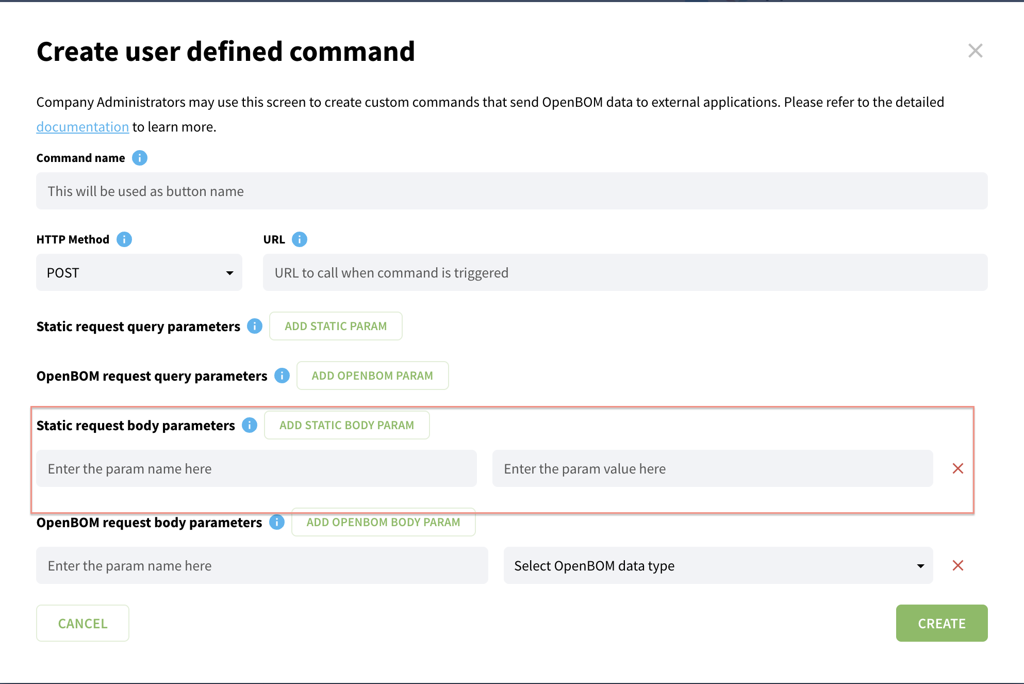
The User Defined Command now supports adding a static body parameter in addition to the OpenBOM body parameter. This enables the inclusion of extra data in POST and PUT request bodies.
In the “Create/Update user-defined command” under “Static request body parameters,” click the “ADD STATIC BODY PARAM” button. Two inputs appear: one for the parameter name and another for its value. Users can add multiple parameters as needed.
OpenBOM Integrations
The following improvements and changes were made to the PDM and CAD Integrations in the last update.
Workspace Manager Renamed to File Manager
The Workspace Manager has been renamed to File Manager. This changes serves to clearly identify the product’s purpose, to manage CAD & related design files. As you can see on the picture below, it simplifies the user experience and make it easier to understand the functionality.

Autodesk Fusion – Collaborative Hubs
IMPORTANT: Recently, Autodesk updated most Fusion users to something called a “Collaborative Edit Hubs”. The new hub type promises a lot of improvements and for some, may be a benefit.
However, Autodesk Fusion API was impacted which leads to some unfortunate behavior change – it may slow operations in OpenBOM such as setting part numbers and creating STEP files for Assemblies to name a few. We have added some messaging to the OpenBOM for Fusion integration to help sign-post where you may expect some delays, and are working closely with Autodesk to resolve these issues.
PTC Onshape
We brought several improvements to OpenBOM Onshape integration in this release.
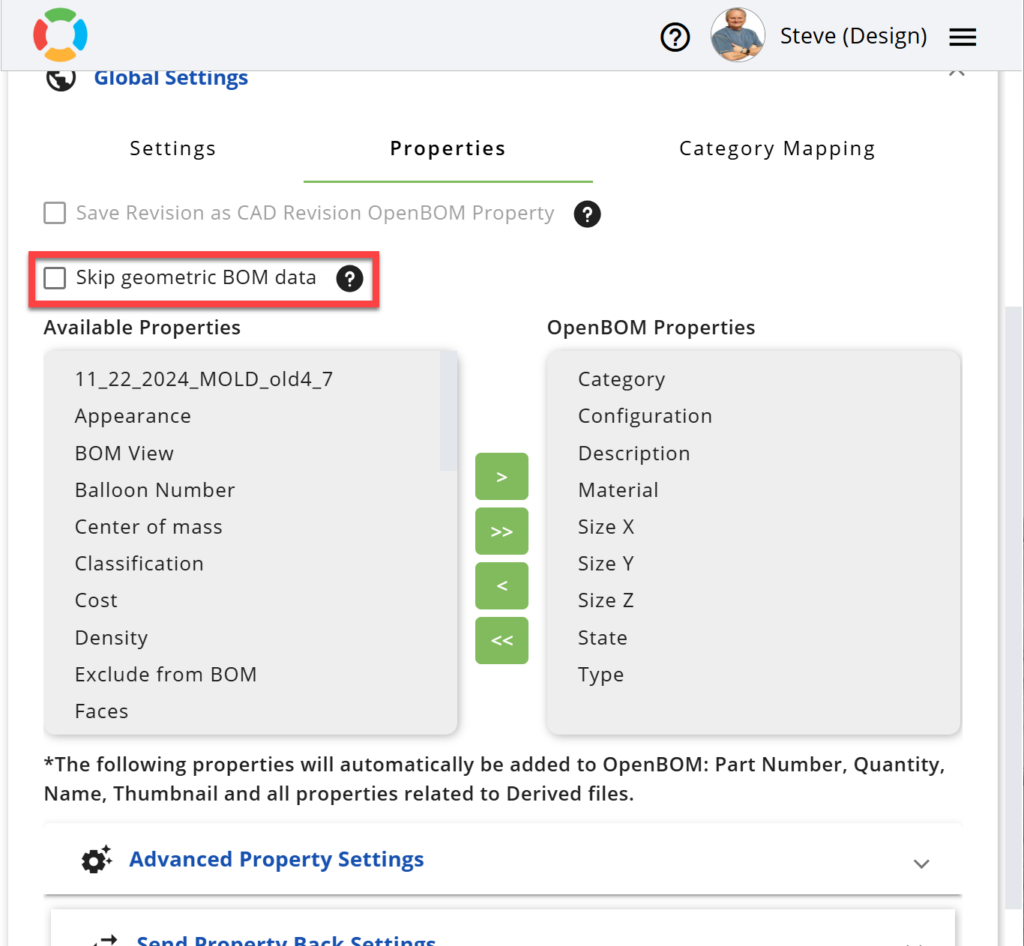
API rate limits have been adjusted, resulting in much faster geometric size calculations. If you set “Skip geometric BOM data” on to improve performance, you can set it however you wish now, with no performance impact.
Bug Fixes and Other Improvements
In addition to the new features, this release includes a number of fixes and improvements across the platform to make everyday work smoother and faster.
- Multi-level BOM performance dramatically improved – opening large BOM structures is now up to 20× faster.
- Fixed an issue where scrolling could unexpectedly jump back to a previous position in the view.
- Resolved a case where derivative files were not always sent correctly to Odoo ERP.
- Fixed an issue in the Aras integration where the hostname could not be reset.
- Improved the duplicate-checking logic across CAD integrations, along with clearer messaging.
- Enhanced the Autodesk Revit in-browser display for a better viewing experience.
- AutoCAD Electrical projects are now always associated with the correct project automatically.
- Fixed an issue where some File Manager versions were missing thumbnails.
- Improved the Where Used function by adding a clear message when a Part Number is blank.
- Resolved a frustrating case where the OpenBOM Onshape flyout panel could close unexpectedly.
As always, these improvements are part of our ongoing effort to make OpenBOM faster, clearer, and more reliable for everyday engineering and manufacturing work.
Conclusion
Making OpenBOM more usable and simpler is a headline of the improvements we’ve been making in February. Working closely with customer requests as well as bring better user experience and performance was the key elements delivered by our team in the last update.
REGISTER FOR FREE and check how OpenBOM can help you.
Best, Oleg
Join our newsletter to receive a weekly portion of news, articles, and tips about OpenBOM and our community.