Welcome to the OpenBOM October 2026 update! This month we’re putting AI to work on one of the oldest chores in engineering data: importing BOMs directly from an old PDF drawing. Orders can now ignore Quantity on Hand when you need the full quantity regardless of stock, and the Where Used graph now labels every BOM node with its BOM Type.
There’s more in the release. Where Used is available directly from an item’s actions menu. Catalogs mark the items that have BOMs (a super nice UI improvement). Reference properties accept files up to 1 GB. Read-Only users can be set to No Access and given only the BOMs or Catalogs you share with them. Team Owners and Team Admins can transfer ownership themselves from the Users Dashboard. And Seat-Based teams can watch their Data Records usage as it grows.
Alongside all of that are fixes and refinements across BOMs, Catalogs, reviews, exports, licensing, and the CAD and ERP integrations. Here’s what’s new.
AI-Powered BOM Import: Turn a PDF Drawing Into a BOM
A supplier emails you a PDF drawing that someone made from CAD or an old document. Somewhere on that sheet is a BOM table with 40 lines, and the part number is sitting in the title block. OpenBOM can now turn that sheet into a BOM for you.
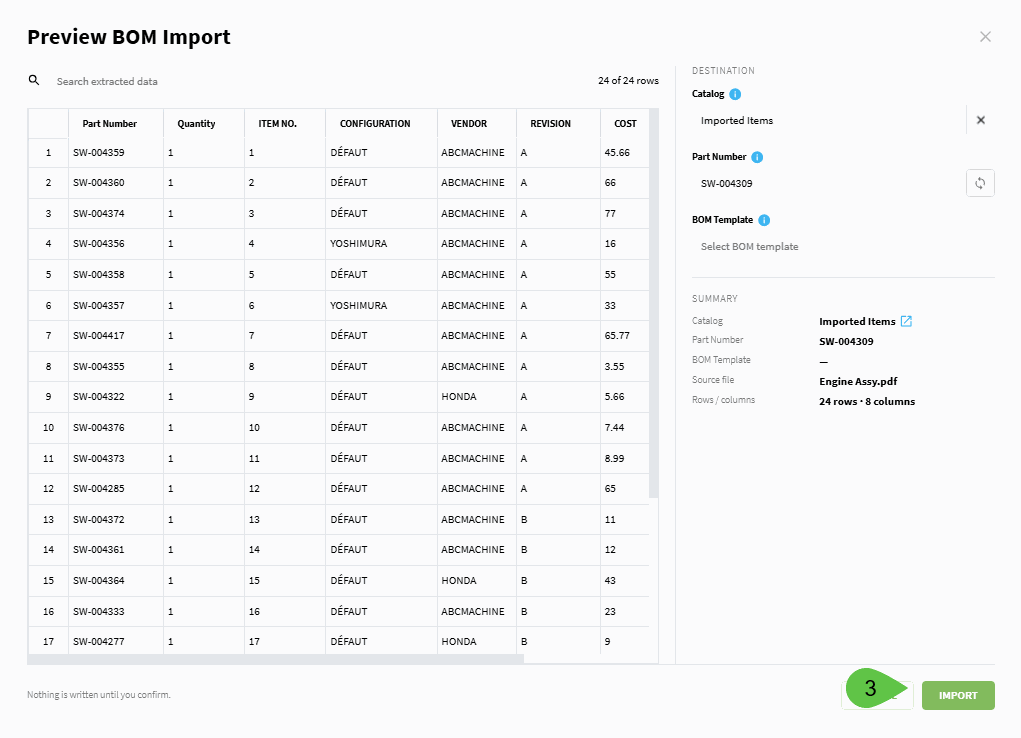
AI locates the BOM table, extracts the data, and pulls the part number from the title block. You see everything in a preview first — nothing lands in your catalog until you say so.
We’re also making the import panel faster for everyone, AI or not. Turn on Stay in panel after import, and the panel stays put after each import — bring in a dozen documents back-to-back without getting bounced to a dashboard every time. A new document-type switch moves you between BOM, Catalog, and Vendor List without leaving the panel.
Drawings move as PDFs between OEMs, contract manufacturers, and suppliers, and OpenBOM now reads them directly into structured product data. This is where we think AI earns its keep, and it’s our first step.
Availability: The PDF Importer is in private beta and requires an AI license. Contact support@openbom.com for more details or early access.
How it works
- Open the Import BOM flyout and select a PDF file
- Click Preview and review the import,
- Click Import, then OpenBOM extracts the BOM table from the PDF drawing
- Your BOM with the proper part number is created and opened

Ordering Process Improvement: Optionally Ignore Quantity on Hand When Creating Orders
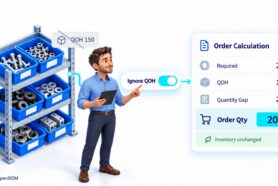
Sometimes you need to buy the whole quantity, no matter what’s sitting on the shelf. You’re building ahead for next quarter. You’re rebuilding safety stock. The parts in inventory are already committed to another job, or your contract manufacturer wants a complete kit and won’t work from a partial one.
In each of those cases, you want the gap calculation to ignore what’s on the shelf and give you the full quantity.
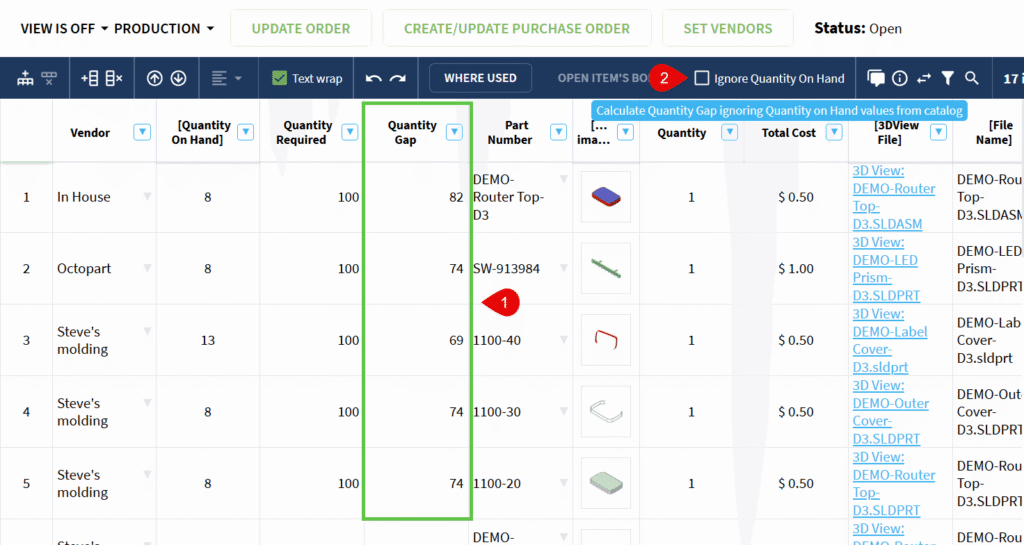
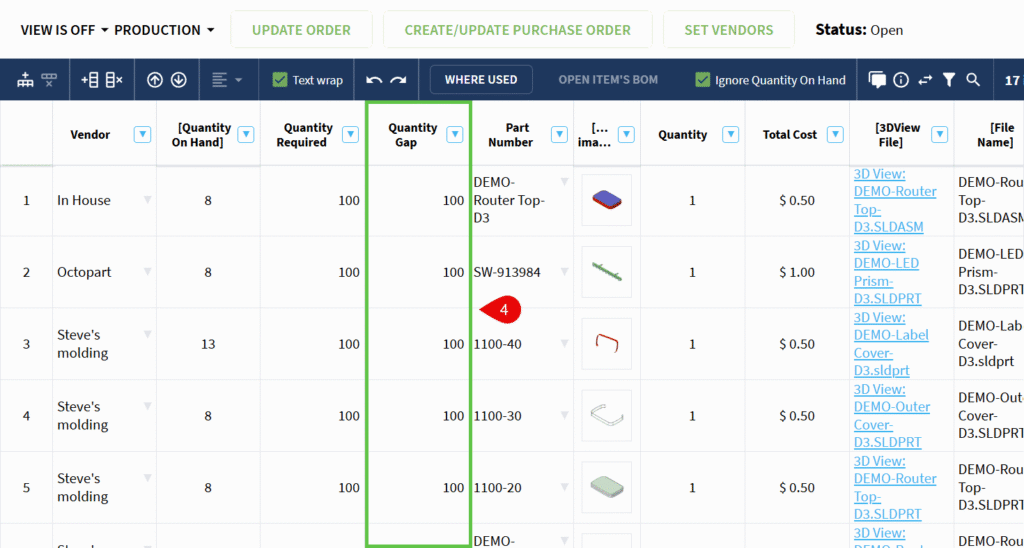
Orders now have an Ignore QOH option. Turn it on, and OpenBOM recalculates the Order as if Quantity on Hand were zero, so your Orders and Purchase Orders carry the full required quantities instead of the shortfall. Leave it off and nothing changes — the default behavior still nets demand against actual inventory, and receiving against those POs updates your QOH exactly as it does today.
How it works
- Open or create an Order.
- Enable Ignore QOH.
- Review the recalculated quantities and quantity gaps.
- Create the required Purchase Orders.
Inventory values are updated normally when the resulting Purchase Orders are received. You can disable the option to return to calculations based on actual QOH.
“Where Used” Command in Items Dashboard
The Where Used function is now available directly from an item’s actions menu in Parts and BOMs and Design Files. This provides a consistent entry point alongside related actions such as opening or creating a BOM.
The new action opens the same Where Used view as the existing shortcut on the item thumbnail.
How it works
- Open Parts and BOMs or Design Files.
- Locate the required item in List or Tiles view.
- Open the item’s actions menu.
- Select Where Used.
- Review the documents that use the selected item.
This improvement makes Where Used easier to discover and access from common item workflows.

See BOM Types in Graph Navigation
BOM Types let you maintain several structures for the same product — an Engineering BOM for the as-designed structure, a Design BOM for file relationships, an XBOM for an extended or configured view, a Manufacturing BOM for the shop floor — each tied to the same Part Number but telling a different part of the story.
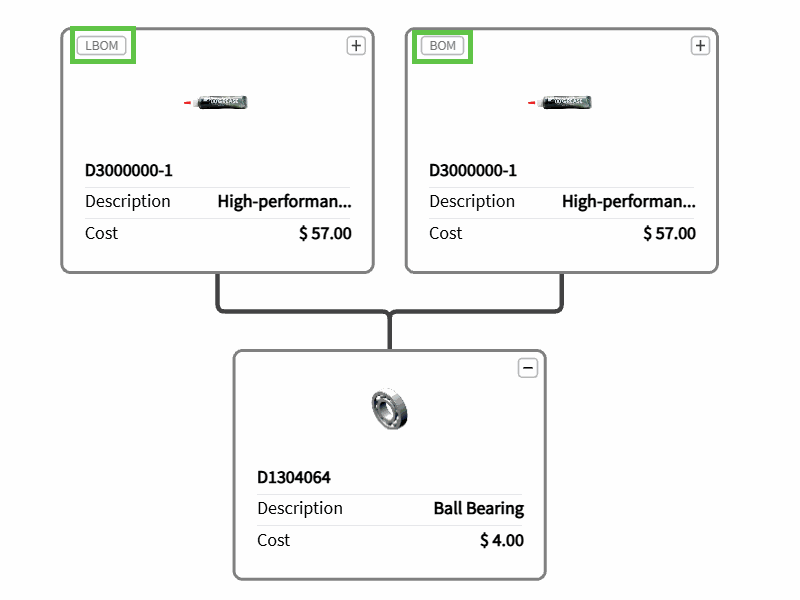
The Where Used graph now shows a BOM Type badge on every BOM node. When a part appears in both an EBOM and an XBOM, you can tell the two apart at a glance — same Part Number, clearly different structures, right where you’re already looking.
How it works
- Open the Graph for an item.
- Expand Where Used.
- Review the BOM Type shown on each BOM node.
- Use the type information to distinguish BOMs that share the same Part Number.
User Experience – Easily open Catalog Item BOMs
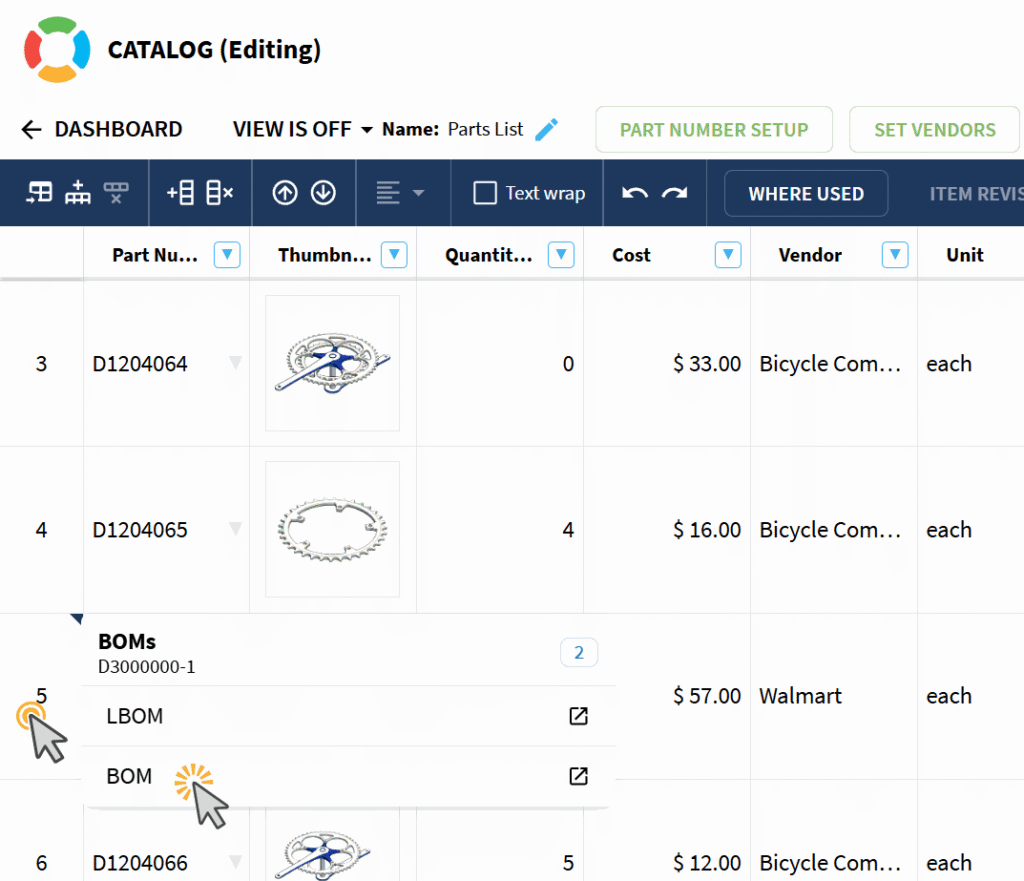
Catalogs now display an indicator for items that have one or more BOMs. This lets you quickly distinguish items with BOM structures while browsing a Catalog, without opening Where Used for each item.
The indicator appears as a corner marker in the row header. Hover over the marker to open a popover listing the BOMs associated with the item. Items without BOMs remain unmarked.
The indicator displays when the Catalog opens or refreshes. Changes to BOM associations are reflected after the Catalog data is reloaded.
How it works
- Open a Catalog.
- Find an item with one or more associated BOMs.
- Locate the corner marker in the item’s row header.
- Hover over the marker to review the associated BOMs.
This improvement makes BOM relationships easier to discover in large Catalogs and reduces the need to check items individually through Where Used.
Storage Scalability – Reference Properties Up to 1GB
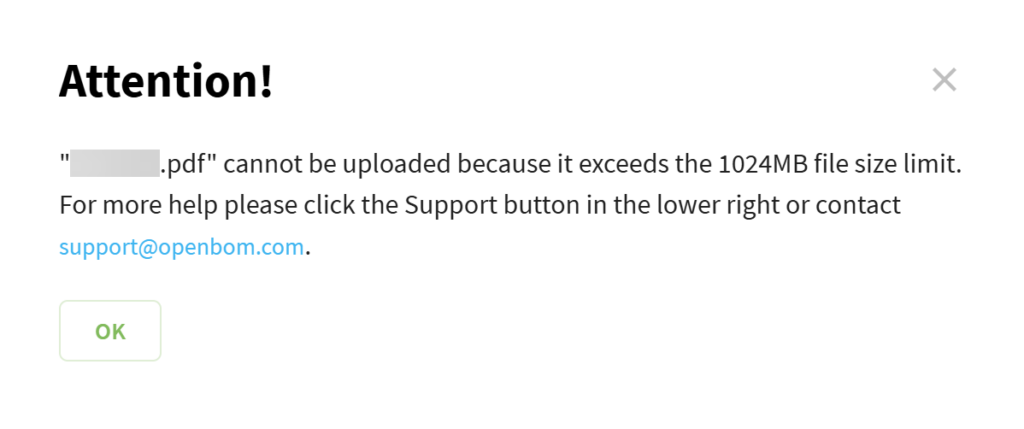
Reference properties now accept files up to 1 GB in size. Full CAD packages, application installers, artwork files, manufacturing data packs, and other large supporting materials stay attached to the OpenBOM record they belong to, instead of living in a separate file share that someone has to keep in sync.
How it works
- Open the document or item where the Reference file is required.
- Add or update a Reference property.
- Select a file up to 1 GB.
- Wait for the upload to complete before closing the page.
Share only specific BOMs with Read-only Users
Last month, we released the By View access control for Free (Read-Only) users.
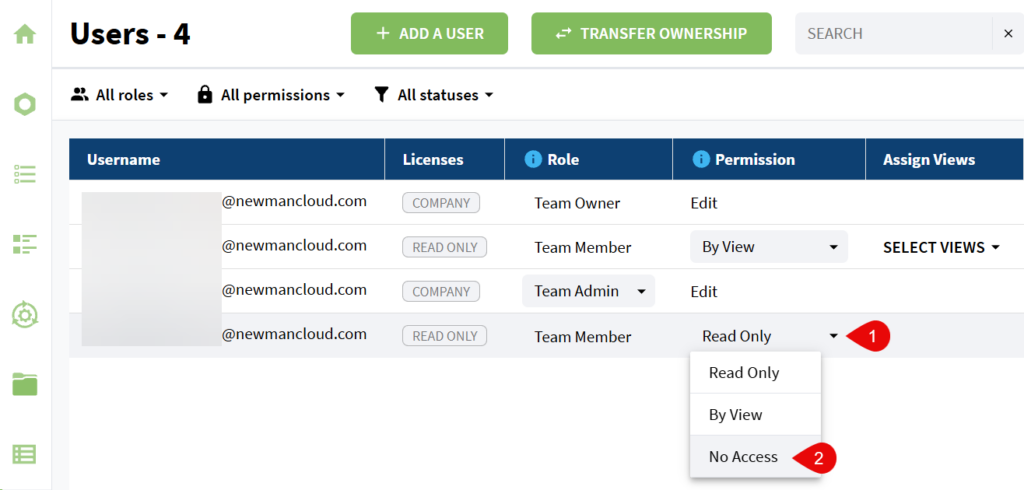
With this release, we added the “No Access” control to restrict a Free user’s access to ONLY those specific BOMs or Catalogs shared with them.
→ Keep in mind that when you share a specific BOM with a user, you are also sharing any Catalogs linked to that BOM. So care must still be taken when sharing BOMs with No Access users.
How it works
- Open Administration → Users.
- Find a user with a Read-Only license.
- Open the user’s Permission selector.
- Select No Access.
- Confirm that the user can no longer access team data.
- Share a specific Catalog (or BOM) with that user. They will only see that share.
This option is available under the Seat-Based licensing model. Existing behavior for users with Core licenses remains unchanged.
Administration Improvement: Self-Transfer Team Ownership
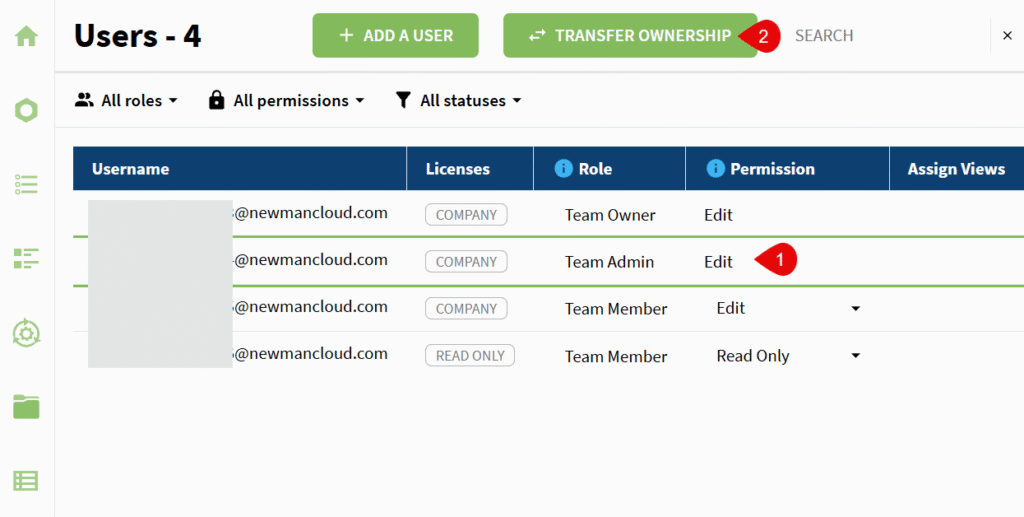
OpenBOM now allows Team Owners and Team Admins to transfer team ownership without contacting OpenBOM Support. This self-service workflow makes it easier to update account ownership when responsibilities change.
You can transfer ownership to any member of the same team. A Team Admin can also select their own account and become the new Team Owner.
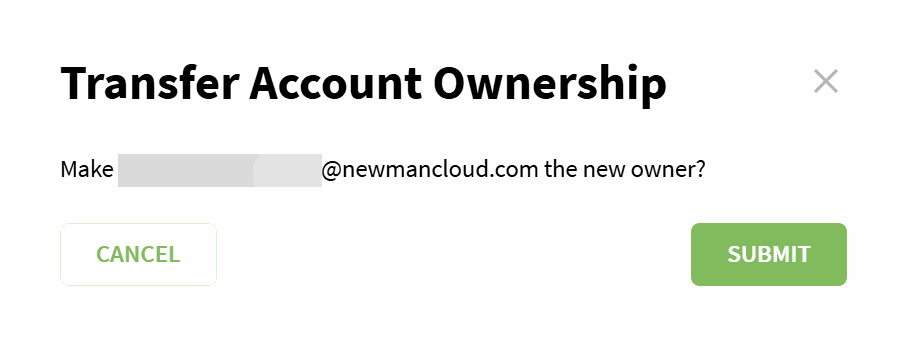
Before the transfer is completed, a confirmation dialog identifies the selected member and summarizes the ownership change. After confirmation, the selected member becomes the Team Owner. The previous owner remains a Team Admin only when an additional Core license is available. If no additional Core license is available, the previous owner is assigned a Read-Only license instead. Both members receive an email notification when the transfer is complete.
How it works
- Open Administration → Users.
- Select the team member who should become the new owner. A Team Admin can select their own account.
- Click the Transfer Ownership button at the top of the Users Dashboard.
- Confirm the ownership transfer.
- Verify that the selected member is shown as Team Owner.
This workflow gives Team Owners and Team Admins a flexible way to update ownership from the existing team administration interface.

Administration: Track Data Records Usage Across the Team
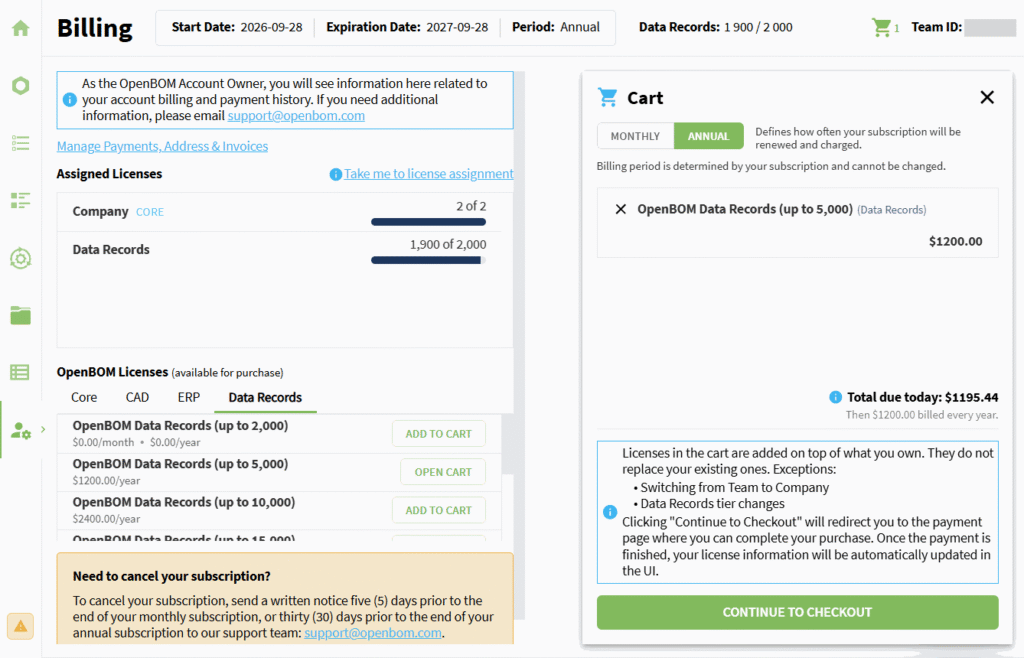
Teams with a seat-based licensing model can now review their Data Records usage directly in OpenBOM. Usage information appears on the Home page and in the navigation panel, making the current tier, used records, limit, and percentage easier to monitor.
The navigation panel displays a Data Records usage widget for teams with a finite records tier. When usage reaches the configured alert threshold, the widget changes to a warning state. A warning icon also appears when the panel is collapsed.
When usage reaches the configured banner threshold, a notification appears across the application. Team Owners can use Get More to open Billing and review the next available tier. Other team members receive guidance to contact the Team Owner. The banner can be dismissed for the current session and appears again after the next sign-in if usage remains above the threshold.
How it works
- Open the Home page or expand the navigation panel.
- Review the Data Records usage percentage and the used and available record counts.
- Open the information control to review the usage breakdown and current tier.
- When the usage banner appears, select Learn More for additional information.
- Team Owners can select Get More to review a higher Data Records tier.
This visibility helps teams monitor capacity before the current Data Records limit is reached.

Other Fixes and Improvements
- BOM Review properly displays sorted Issues and Status columns
- Catalog properties now retain their column headers in Excel and API exports after a previously assigned alias is removed.
- Item selection is now preserved when switching Views in Catalogs, single-level BOMs, Order BOMs, and Item Revisions when the selected item remains available.
- The Dashboard trial message now appears only for Core license trials and is no longer triggered by CAD or other non-Core trials.
- Cells can now be selected while a BOM Review finding is highlighted, without conflicting with collaboration highlighting.
- The Issues section in Auto Review can now be expanded to fill the panel and collapsed back to the default layout.
- Change Request thumbnails now scale and align correctly in the Dashboard when viewed in Firefox.
- The Sign Out button has been removed from the embedded BOM grid that opens inside CAD integrations.
- Image Display Values now appear horizontally in the hover preview instead of being displayed vertically.
- The Views dashboard now uses the clearer Duplicate View and Edit View action names without changing their behavior.
- BOMs now prevent Totals from being enabled or edited for Catalog properties and display an explanatory message.
- Vendor Lists can now be exported to PDF using custom templates.
- The Single Level and Parts List BOM options are back in the SOLIDWORKS add-in for users in Advanced mode.
- Thumbnail images from Altium designs now appear in OpenBOM for users who installed the OpenBOM add-in through the Altium Store.
- When a BOM is synced from OpenBOM to Visma NXT, the items now arrive in Visma in the same order as in the OpenBOM BOM.
- When a part number is changed in OpenBOM, Update CAD Properties now writes the new value back to the Fusion design as expected.
- The Group configurations with the same part number option in the SolidWorks add-in no longer create duplicate BOMs.
- The OpenBOM – Onshape integration now identifies configured parts and assemblies by their full configuration, which includes every configuration parameter, even those left at their default values.
- The Import dialog now shows up-to-date icons for Excel, Google Drive, and PDF.
Conclusion
The OpenBOM October 2026 update brings new capabilities and improvements across product data management, imports, integrations, and team workflows. Questions can be sent to support@openbom.com
To try out OpenBOM’s existing and new capabilities, REGISTER FOR FREE to get an instant 14-day trial of OpenBOM.
Best, Oleg
Join our newsletter to receive a weekly portion of news, articles, and tips about OpenBOM and our community.