A second engineer joins the drone project and asks for the files. You zip the assembly folder and send it. The first reply is about missing parts: the screws come from a hardware library in another folder on your computer, so they never made it into the zip. A week later, you have both edited the frame, and nobody is sure which copy is current.
Most small engineering teams start like this. SOLIDWORKS files sit on one computer or a shared drive, and versions live in file names like frame_rev2_final. Moving to cloud PDM for SOLIDWORKS solves it when the whole assembly moves with its sub-folders and libraries, and engineers keep opening and saving files the way they do today.
At OpenBOM, we leave the working folder where it is and connect it to the cloud. OpenBOM File Manager maps that folder to a Design Folder in OpenBOM, Smart Sync uploads the files with their sub-folders, and OpenBOM keeps every version. Engineers keep working locally in SOLIDWORKS, and the team has one place to find the current file.
How do you set up cloud PDM for SOLIDWORKS?
Install OpenBOM File Manager on each computer, create a Design Folder in OpenBOM, and map it to the local root folder that holds your SOLIDWORKS files. Then run Smart Sync. The first sync uploads every file with its sub-folders. After that, OpenBOM keeps every version, and File Manager shows the sync status of each file in your assembly.
Each part of the setup answers one of the problems from the zip-file story:
| What goes wrong today | What fixes it | Where it happens in OpenBOM |
|---|---|---|
| The files live on one computer | A shared home for the project | A Design Folder |
| A zipped folder leaves out parts stored elsewhere | A check of every file the assembly uses | File Manager lists the assembly’s files and flags any outside mapped folders |
| Sub-folders get flattened or lost | The same structure as on your computer | A Multi-level Design Folder mapped to your root folder |
| Nobody knows which copy is current | A status for every file | File Manager status, such as “File is up to date; no action” |
| Old work gets overwritten | History for each file | File versions kept by OpenBOM |
This article uses an illustrative FPV drone assembly in SOLIDWORKS. Its parts and drawings sit in a Drone folder, and its screws come from a shared Hardware library next to it.
Install File Manager on each computer
Everything starts on the desktop, because that is where SOLIDWORKS opens and saves files.
OpenBOM File Manager is a desktop app that syncs your design files with OpenBOM. Install it once on every computer that works on the project. You can start the install from OpenBOM in your browser or from inside SOLIDWORKS.
From OpenBOM: on Home, select Open Design in the CAD Files quick action, or select Design in the left menu. In Design Folders, select the download icon next to the title, or expand About OpenBOM Design at the bottom of the panel and select Download File Manager.

From SOLIDWORKS: if you use the OpenBOM add-in, the OpenBOM tab has a File Manager button. When File Manager is not installed yet, it offers to install it. Select Click Here to Install.

The OpenBOM File Manager Setup wizard opens. Tick I accept the terms in the License Agreement, select Next and follow the wizard until the installation finishes. If Windows asks whether to allow the app to make changes, select Yes.

When the setup has finished, select File Manager on the OpenBOM tab. It opens in the SOLIDWORKS side panel, next to the BOM tab, and lists your Design Folders.
For a closer look at what File Manager does once your files are synced, including file locking and version control, see OpenBOM Design File Manager and version control.
Create a Design Folder for the project
With File Manager open, give the drone project its home in OpenBOM.
Under Design Folders, select the + button.


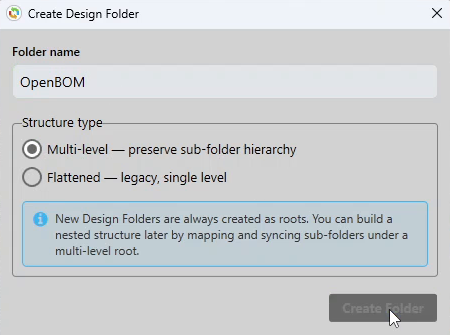
In Create Design Folder, enter a folder name. Under Structure type, keep Multi-level. It preserves your sub-folder hierarchy as it is in Windows, so the Drone and Hardware folders stay separate in OpenBOM. Flattened is the legacy option that puts every file on one level. Select Create Folder.
Map the folder that already holds your CAD files
You do not need to move or rename anything. The Design Folder points to the folder you already work in.
Right-click the new Design Folder and select Map local folder to selected Design Folder, or double-click its Path. Choose the root folder that holds your design files, then select Select Folder. The folder can already hold files and sub-folders.
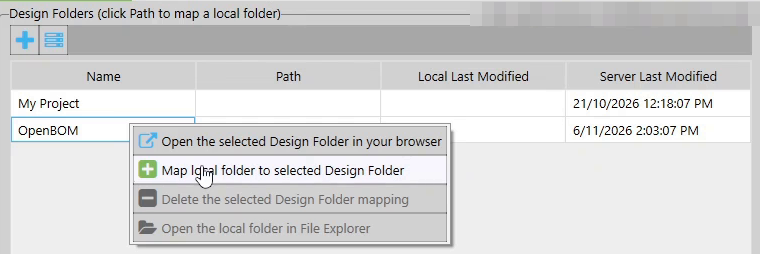
Pick the folder that holds everything the assembly uses. For the drone, that is the parent folder containing both the Drone folder and the shared Hardware library. Map only the Drone folder, and the screws are left out again, just as they were in the zip.
The local folder now shows in the Path column.

Run Smart Sync and check each file’s status
Before the first sync, look at what File Manager is about to do.
Select Refresh Data. File Manager lists the files your assembly uses, with a status for each one. A file that is not in OpenBOM yet shows No server file yet; will upload.
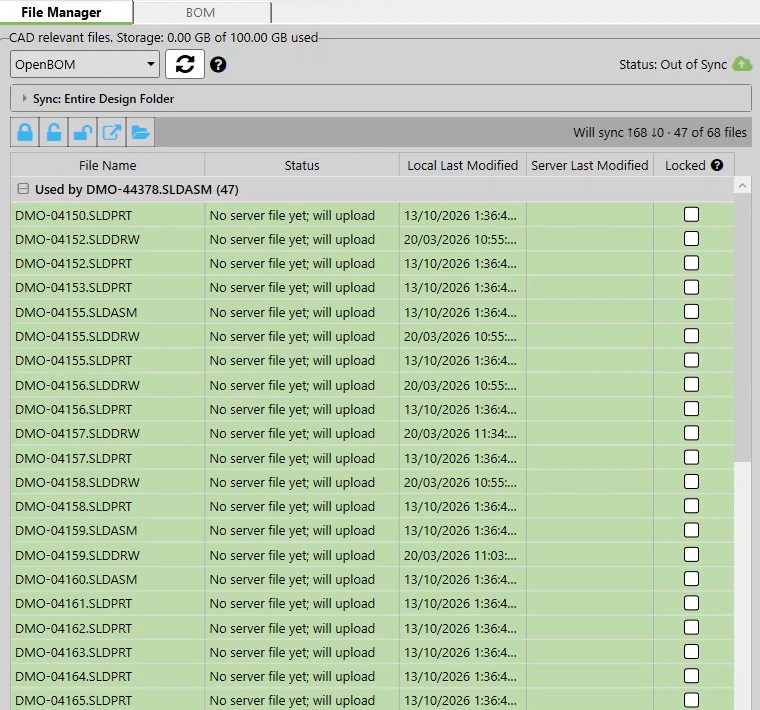
Select Smart Sync. The first sync uploads every file, so it can take a few minutes. File Manager shows Processing file versions while it works. When the sync finishes, a message says the export is completed, with a link to the Design Folder.
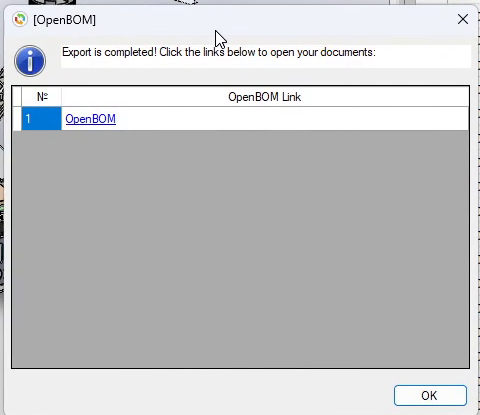
Back in File Manager, each file now shows File is up to date; no action. On later syncs, Smart Sync uploads the files that changed.
Find your files in OpenBOM
Select the link in the message, or go to Design > Design Folders in OpenBOM.
The Design Folder has the same structure as the folder on your computer: Drone, Hardware and Screws. Each file shows its thumbnail, ID, date modified, relative path, size and version. The drone, its drawings and the screws from the hardware library are now in one place, and nobody has to ask for a zip to see the current files.
Why does File Manager list files outside mapped folders?
File Manager syncs only files inside folders mapped to a Design Folder. If your assembly uses parts, drawings or library files stored somewhere else on your computer, File Manager lists them as outside mapped folders, with their paths, and cannot sync them yet. To fix it, move those files into the mapped folder or map their folder too.
In the screenshot below, every file the drone assembly uses sits in a folder that no Design Folder points to, so File Manager lists all of them and explains why it cannot sync them. Mapping their folder leaves every file where the assembly expects to find it, so it is usually the simpler fix.

A checklist for your next SOLIDWORKS project
- Install File Manager. Download it from Design Folders in OpenBOM or from the OpenBOM tab in SOLIDWORKS, on every computer that works on the project.
- Find the root folder. Pick the folder that holds the assembly and every library it uses.
- Create a Design Folder. Select + in File Manager and keep the Multi-level structure.
- Map it. Right-click the Design Folder and map it to the root folder.
- Refresh and sync. Select Refresh Data, check which files will upload and whether any sit outside mapped folders, then select Smart Sync.
- Check the result. Open Design > Design Folders in OpenBOM and confirm the structure and files.
Cloud PDM for a SOLIDWORKS team can start with the folder you already have, mapped once and synced. From then on, the question of which file is current has an answer in OpenBOM. The next step in the series is locking a file, changing it and tracking its versions.
Join our newsletter to receive a weekly portion of news, articles, and tips about OpenBOM and our community.