Welcome to the second OpenBOM update this month!
This release expands control over product lifecycle data and makes BOMs and items easier to track and review. Lifecycle State identifies work-in-progress and released data, while Quantity in Where Used shows how many times (instances) an item appears in each BOM.
Working in BOMs is now easier, with a redesigned Export dialog, Excel export for Where Used results, controls to expand and collapse an entire Multi-Level BOM in one click, and a more accurate BOM Duplicate Checker.
Integration updates improve file collaboration and component library management. File Manager now checks the latest OpenBOM version before locking a file, while OpenBOM for Altium can generate part numbers and create or update catalogs directly from Altium 365 libraries.
Additional enhancements extend the Public API with structured BOM comparison and BOM revision exports, improve Creo compatibility and AI license guidance, and refine spreadsheet search, revision management, Design, synchronization, notifications, currencies, and other everyday operations.
The sections below describe the main improvements included in the OpenBOM Second October 2026 release.
Lifecycle State for Items and Item Revisions
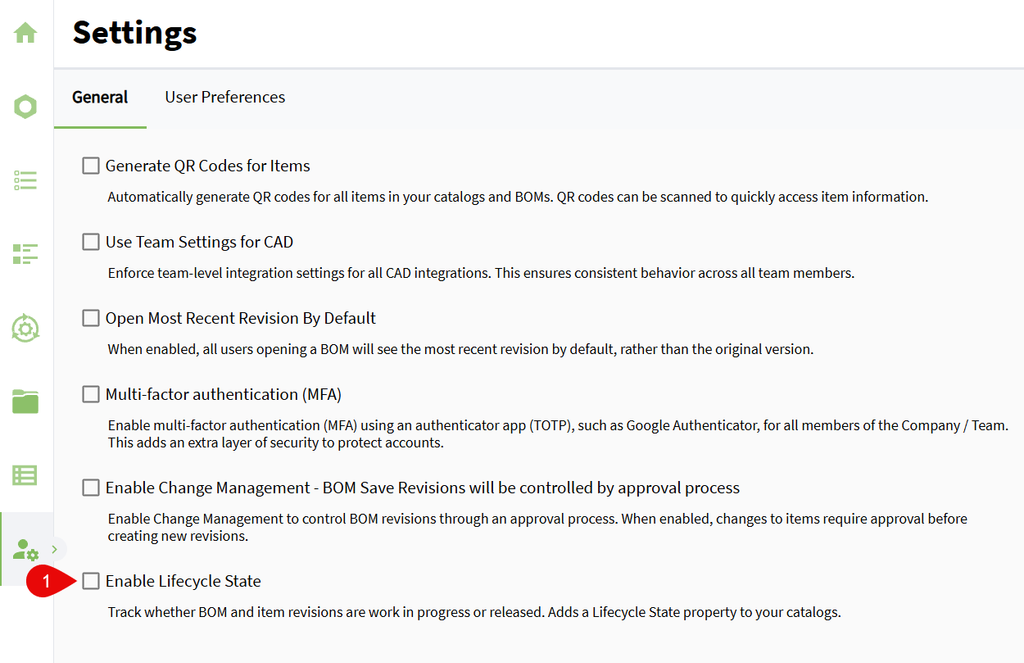
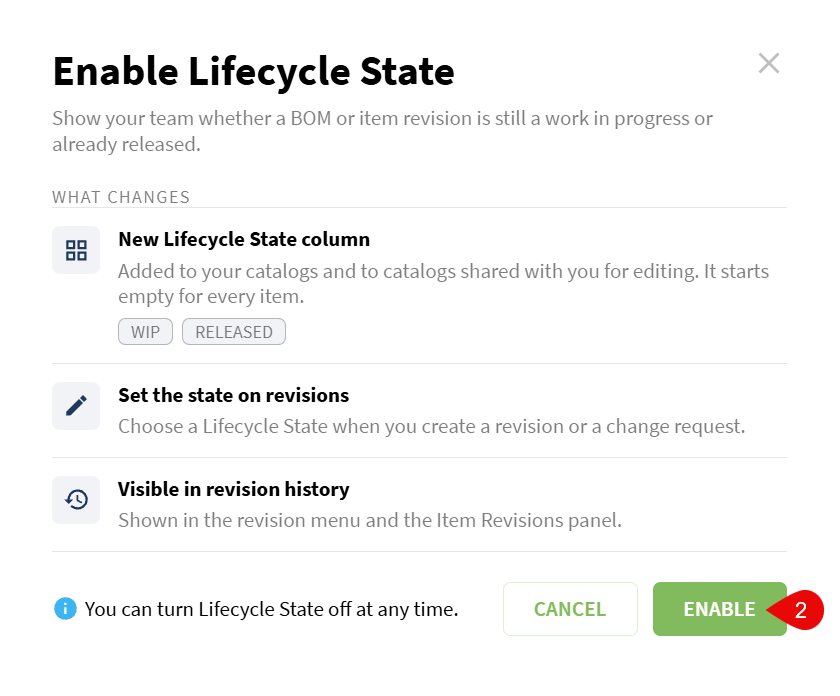
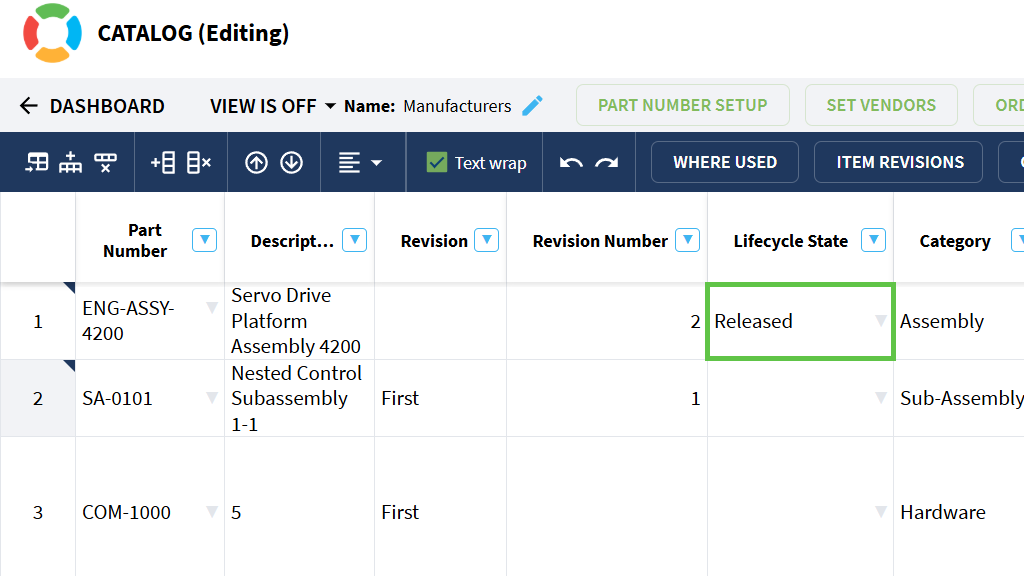
OpenBOM now supports a Lifecycle State for items and item revisions, allowing engineering teams to identify whether product data is still being developed or has been released. The feature is optional, and a Team Admin turns it on for the team.
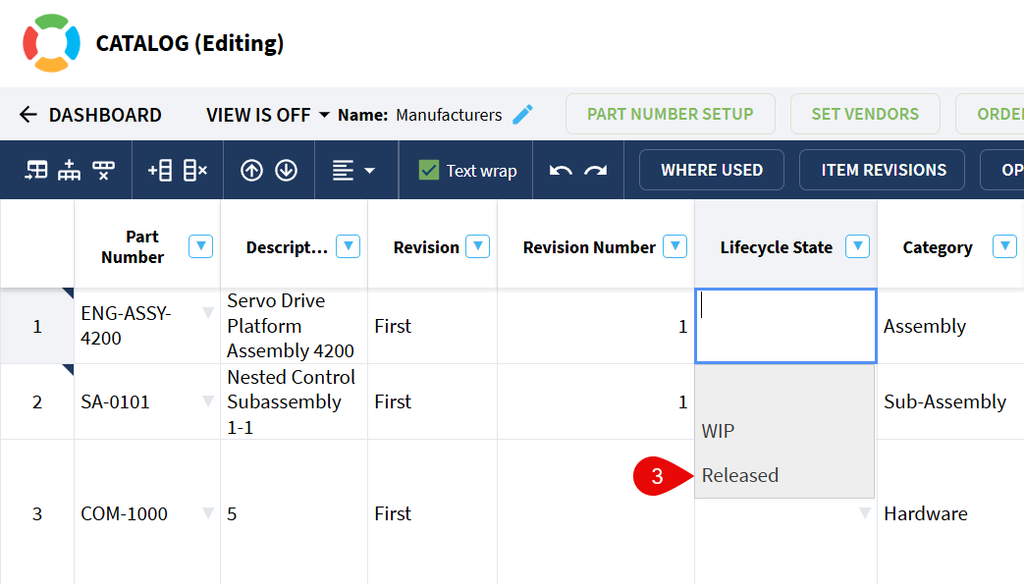
When Lifecycle State is enabled, OpenBOM adds the system-managed Lifecycle State property to applicable catalogs. The property supports two values: WIP and Released. The column appears after Revision Number, and you set each item’s state when you’re ready. In the next releases, we introduce a customizable Lifecycle State.
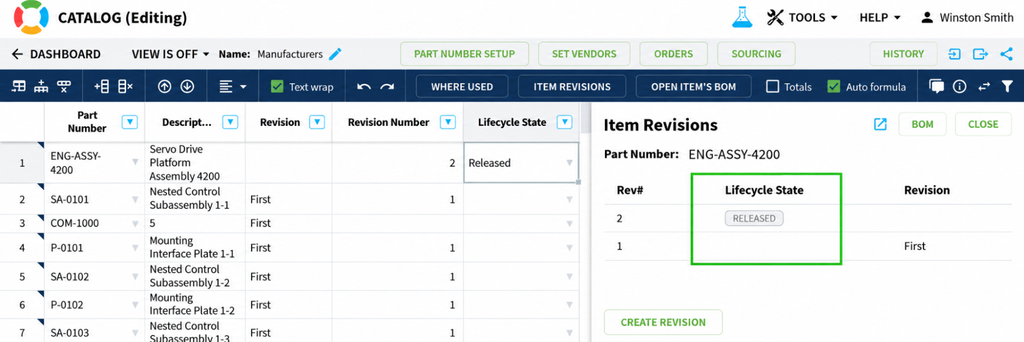
Lifecycle State is also available when creating item revisions, BOM revisions, and Change Requests. The selected state is stored in every revision created by the operation and is applied to the corresponding catalog items. Operations that create revisions across multiple levels apply the selected state to every affected item.
The BOM revision menu displays the Lifecycle State next to each revision, while the Item Revisions panel includes a dedicated Lifecycle State column. A state badge appears on every revision that has a Lifecycle State selected.
How it works
- Open Administration → Settings → General.
- Enable Lifecycle State and confirm the change.
- Open a catalog or BOM and set Lifecycle State to WIP or Released where required.
- Create an item revision, BOM revision, or Change Request.
- Select the Lifecycle State in the creation dialog.
- Review the state in the catalog, BOM revision menu, or Item Revisions panel.
OpenBOM manages the Lifecycle State property for you, so its options stay consistent across every catalog, and the column stays available when Lifecycle State is enabled. If you turn Lifecycle State off, the automatic lifecycle behavior stops and every value you’ve already set stays in place. This release ships with WIP and Released, and custom states are coming in a future release.


Quantity Value in Where Used
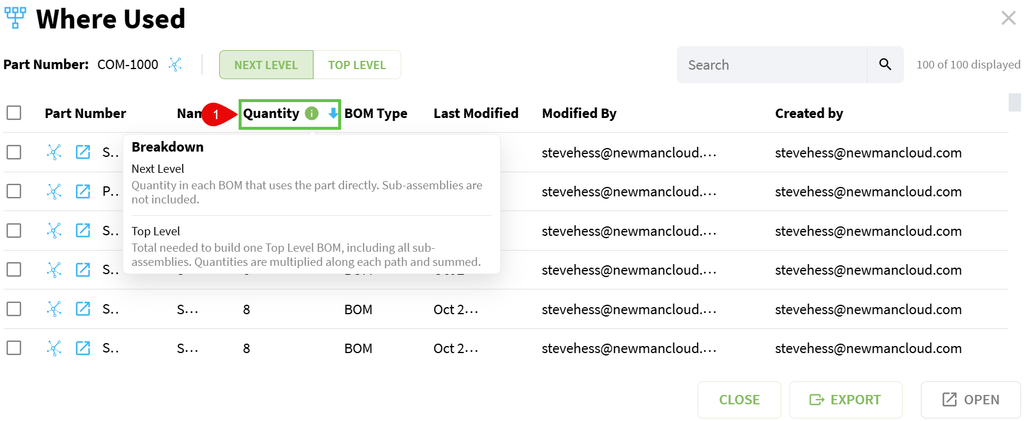
OpenBOM now displays the Quantity value in Where Used results, showing how many instances of an item are used in each listed BOM. The Quantity column is available in both the standard Where Used dialog and the Design Files Where Used dialog.
When the same Part Number appears in multiple rows of one BOM, OpenBOM adds the specified quantities and displays the total for that BOM. Nested BOMs remain separate entries, so each BOM row reports the quantity used within that specific BOM.
Where Used reports exactly what’s in your BOM: a blank Quantity stays blank, and a zero stays zero.
How it works
- Open Where Used for an item or Design File.
- Review the Quantity column for each listed BOM.
- Hover over the Quantity heading to see how the value is calculated.
- Compare separate BOM entries when the item is used at multiple levels of a product structure.
The quantity recalculates from the BOM data when you add, edit, duplicate, import, or remove related rows. This keeps Where Used totals consistent with the current document at all times.
Export Where Used Results to Excel
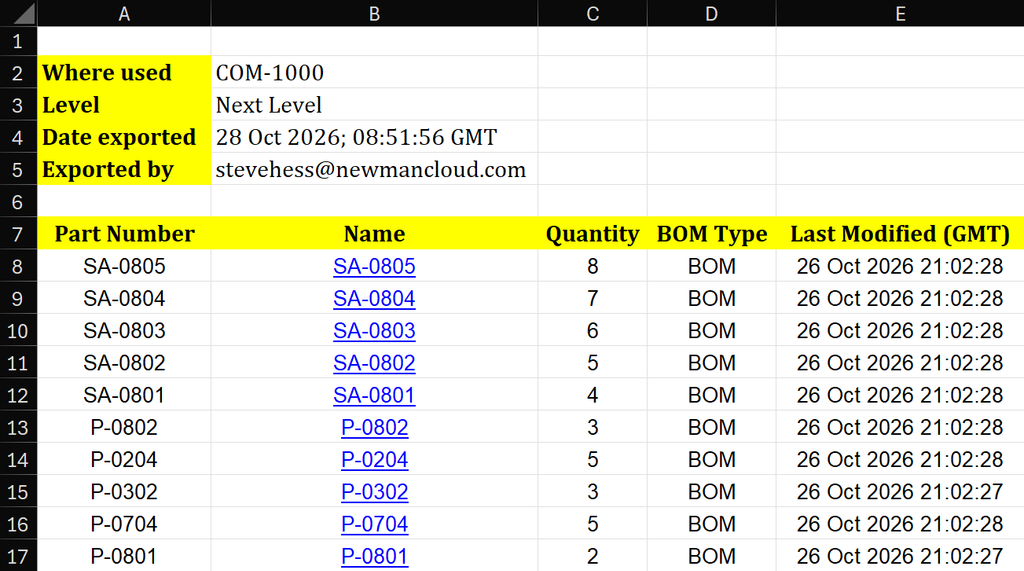
Where Used results can now be exported directly to an Excel file. The new Export action is available in both the standard Where Used dialog and the Design Files Where Used dialog.
The exported file contains a report header followed by the same result columns shown in the dialog. BOM names — or filenames in Design Files — are included as clickable links that open the corresponding BOM.
How it works
- Open Where Used for an item or Design File.
- Select the required Where Used scope.
- Click Export.
- Open the downloaded Excel file to review the report.
- Click a BOM name or filename in the report to open the corresponding BOM.
The export includes all available results for the selected scope. Export is available when Where Used is opened for the current item.

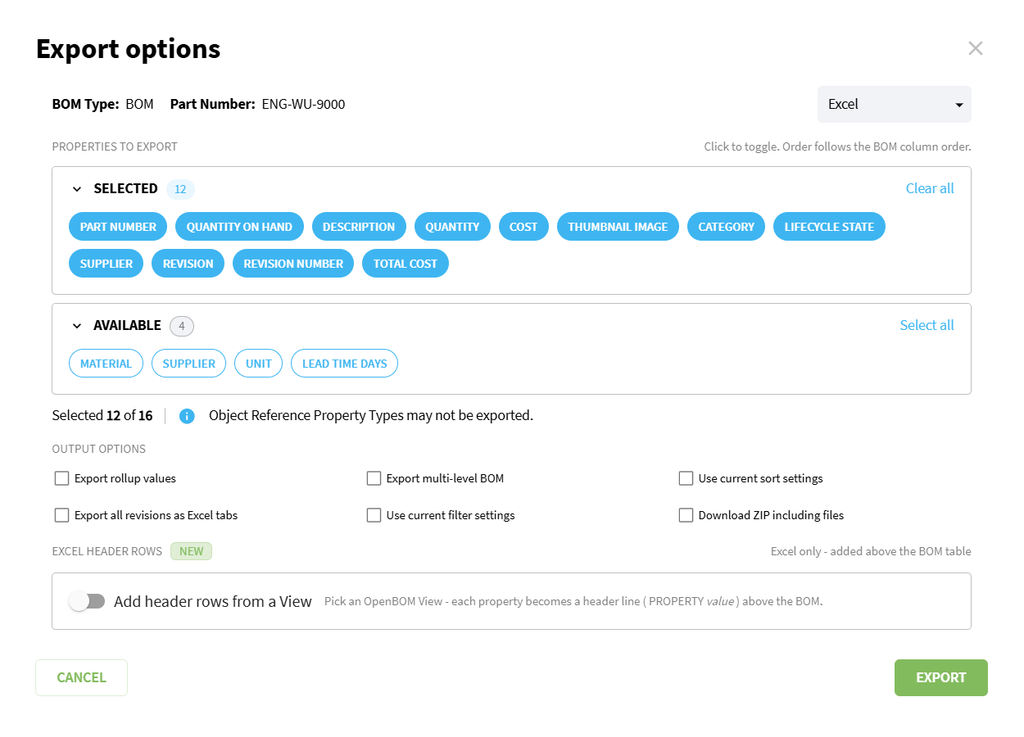
Redesigned Export Dialog
The Export dialog has been redesigned to make export formats and their settings easier to navigate. The updated interface brings the available options into a clearer layout, and every export you already use works the same way.
Every supported format now follows the same steps, so once you’ve exported one, you know them all. Select a format, and its settings appear right where you need them.
How it works
- Open a supported OpenBOM document.
- Click Export.
- Select the required export format.
- Configure the available options for that format.
- Click Export to generate and download the file.
The redesigned dialog is cleaner and puts the settings for each export right where you look for them.
Expand and Collapse All Levels in Multi-Level BOMs
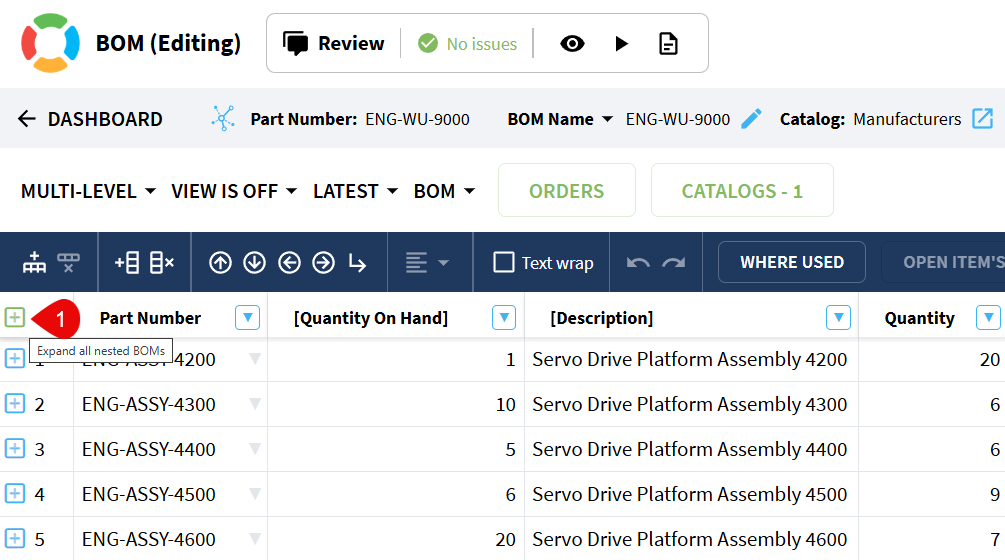
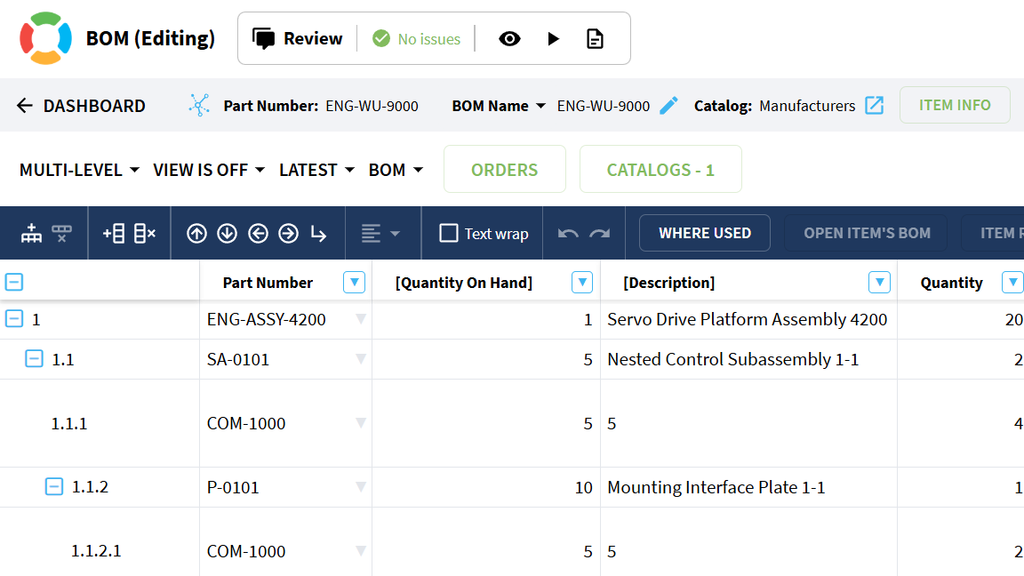
OpenBOM now provides Expand All and Collapse All controls for Multi-Level BOMs. These controls let you open or close the full BOM hierarchy in one click.
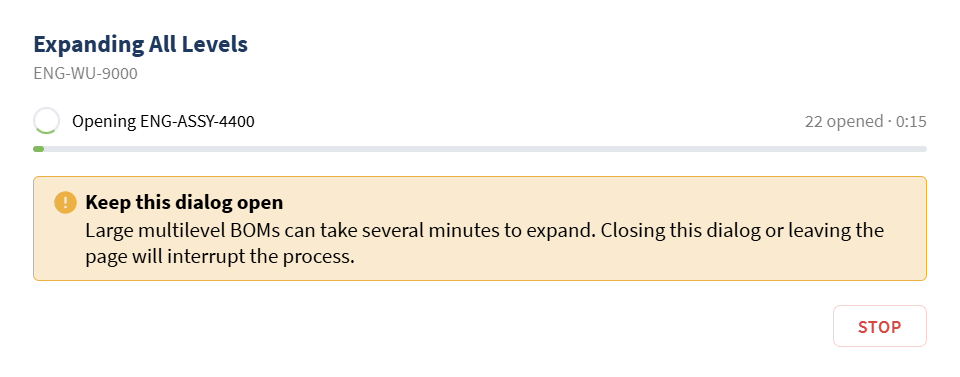
The control appears in the upper-left corner of the grid when Multi-Level mode is active. Expand All opens nested BOMs sequentially and displays a progress dialog showing the BOM currently being processed. Large structures may take longer to open, and you can stop the operation after the current BOM finishes loading.
Collapse All returns the grid to its top level in a single action. Collapsing an individual branch also releases all nested BOMs opened within that branch, improving consistency when navigating large structures.
How it works
- Open a BOM in Multi-Level mode.
- Click the Expand All icon in the upper-left corner of the grid.
- Follow the progress in the Expanding All Levels dialog.
- Click Stop once the levels you need are open.
- Click the Collapse All icon to return the BOM to its top level.
The controls appear in Multi-Level mode. If a nested BOM can’t load, Expand All keeps going and opens the rest of the hierarchy.
Improved BOM Duplicate Checker
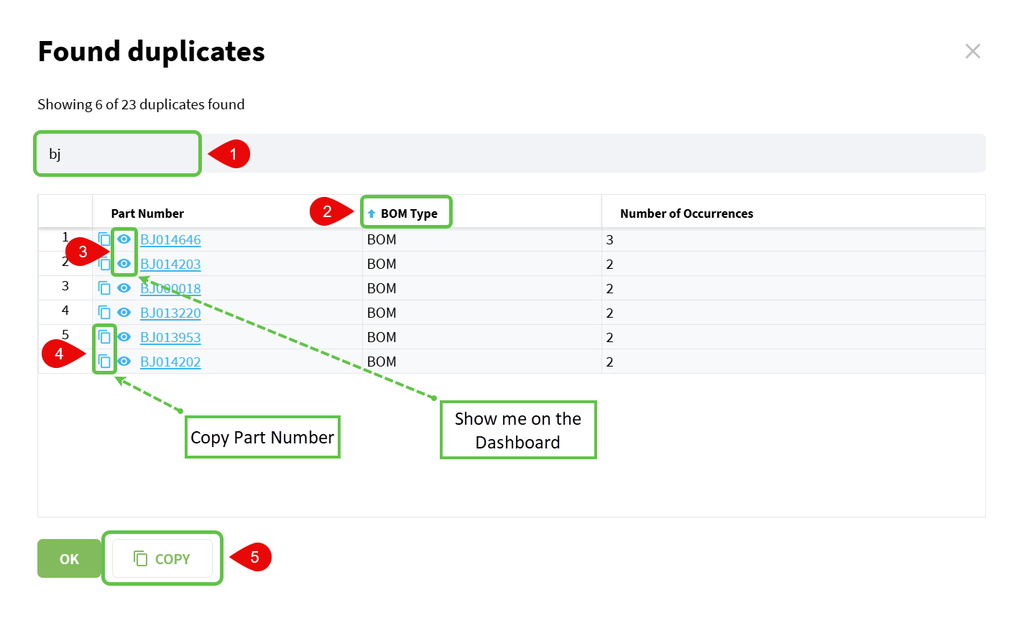
The BOM Duplicate Checker now provides clearer and more accurate results when multiple BOMs use the same Part Number. Duplicate detection focuses on your BOMs and excludes xBOMs.
The results dialog now displays the total number of duplicate Part Numbers found. Each Part Number is a link that opens the Items Dashboard with the BOM filter applied, making it easier to review the affected records. You can also copy the full result to the clipboard.
How it works
- Run the BOM Duplicate Checker.
- Review the duplicate counter at the top of the results dialog.
- Click a Part Number to open the filtered Items Dashboard in a new browser tab.
- Click Copy to copy the complete result to the clipboard.
A duplicate is reported when two or more BOM types use the same Part Number.
Option to Bring Latest File on Lock in File Manager
File Manager now checks a file against the latest version in OpenBOM before locking it. When you lock a file, you will automatically start from your team’s most recent server file.
How it works
When the Design Setting to “Sync only locked files” is enabled, locking a file first compares the local copy with the OpenBOM version. If the local copy is unchanged and OpenBOM has a newer version, File Manager backs up the local copy, downloads the latest version, and locks the file so you can begin working. If both copies have changed, the Lock check dialog offers three options: “Get the OpenBOM version, then lock”, “Keep my copy and lock” or “Don’t lock”. Local copies are backed up before replacement, and SOLIDWORKS files with unsaved changes always remain unchanged.

Altium 365 Library Part Numbers and Catalogs
OpenBOM for Altium can now generate part numbers and create or update catalogs directly from an Altium 365 component library. Every component in the library can carry its OpenBOM part number from day one, whether or not it has been placed on a schematic, so you can number a library of hundreds of components in a single pass.
How it works
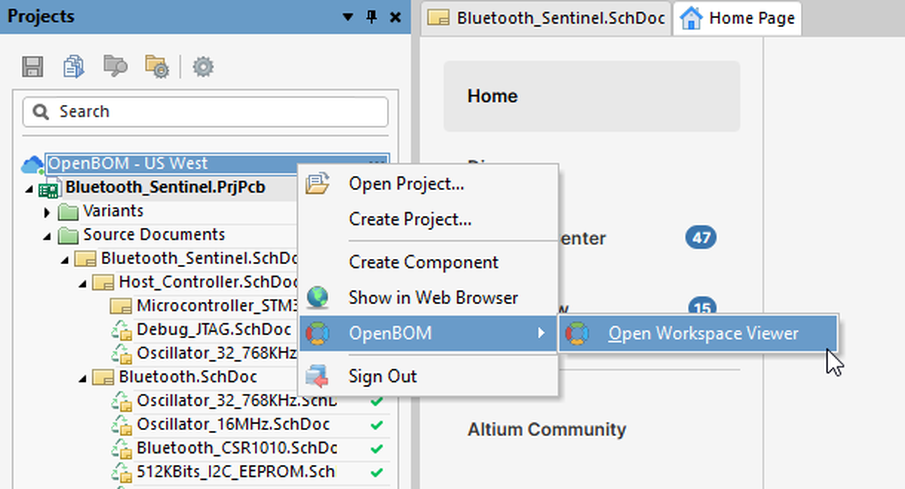
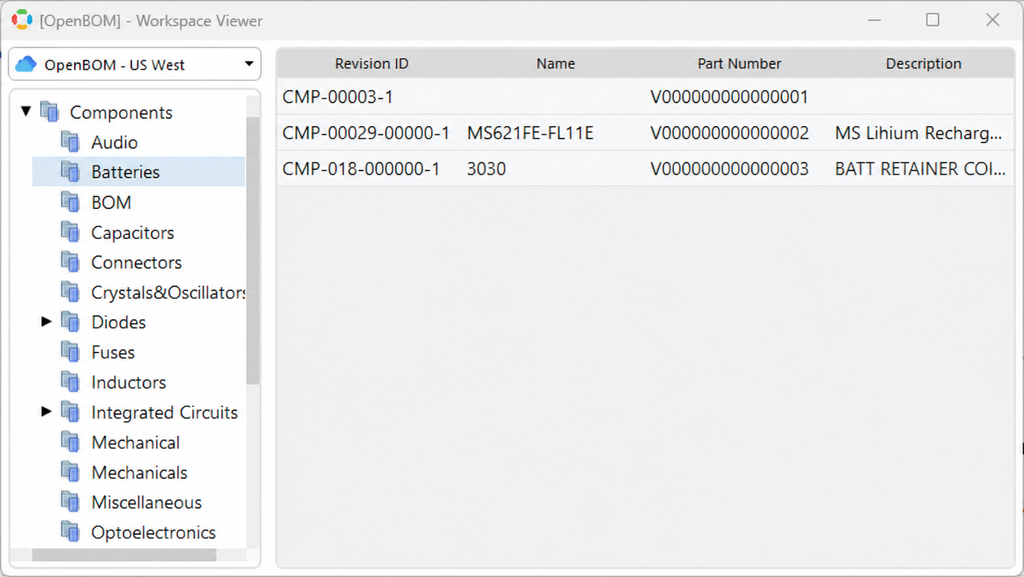
Right-click the Workspace item at the top of the Projects panel to open the OpenBOM Workspace Viewer, then right-click a component library folder. Generate Part Number assigns part numbers and writes them back to Altium 365 as a component property, while components that already have a part number keep their existing value. Create/Update Catalog creates or updates an OpenBOM catalog named after the library folder.
Public API: BOM Compare and BOM Revision Export
Your ERP integration needs to know what changed between Rev B and Rev C. Your MES needs the BOM exactly as it was released, not as it looks this afternoon. Both now come straight from the OpenBOM Public API.
BOM Compare returns a structured diff: lines added, removed, and changed, plus the property-level changes on each line. Compare two revisions of a BOM, a revision against the current BOM, or two different BOMs. Your integration gets exactly what changed, ready to drive engineering change processes, ERP updates, or change reports — with no spreadsheet diffing in between.
BOM Revision Export delivers any BOM revision in the same formats and with the same options you already use for current BOMs — synchronously for quick pulls, or asynchronously for large structures.
Together, they turn every OpenBOM revision into something your other systems can act on.
Endpoints and parameters are documented in the OpenBOM Public API reference.
Other Improvements and Fixes
Smart Sync
- Smart Sync in the SOLIDWORKS task pane syncs only the files of the current document, and the sync report shows exactly what will be synced. A significant performance improvement for very large root folders.
- Smart Sync with the “Sync ready Design Folders only (skip warnings)” option skips only the individual files that have warnings and syncs everything else in the folder.
CAD integrations
- The Save Item dialog in OpenBOM for SOLIDWORKS now opens centered over the SOLIDWORKS window on multi-monitor setups with display scaling.
- The OpenBOM for Creo installer checks the required Java version, so the add-in loads correctly in Creo 12 and Creo 13.
Revisions and change history
- Revision properties now appear immediately in the BOM and associated Catalog after the first revision is created.
- The Item Revisions panel now updates to the selected item when navigating through Catalog rows with the keyboard arrow keys.
- The History dialog can now be closed normally after a Change Report is generated.
Design
- The grid context menu in Design BOMs and Design Catalogs shows only the commands that apply to Design data.
- The Versions panel in Design Projects and Design Folders now opens for the selected file.
- The File Lock property is managed exclusively by OpenBOM in Catalogs and other document grids.
Import
- Re-importing a BOM or Catalog now updates Reference property values that were changed in OpenBOM after the previous import.
- The AI Importer explains how to get an AI license when a PDF import requires one.
Catalogs, items and properties
- Part Numbers added from a BOM now appear immediately in the assigned Catalog, even when you add several new items without refreshing.
- Duplicating a Catalog item now keeps an open Sourcing tab in sync with the new item.
- Property aliases in Catalogs now remain saved when aliases are added to other properties.
- OpenBOM prevents duplicate document properties whose names differ only by letter case or surrounding spaces.
- Fixed a bug so removing a property from the grid now keeps all remaining data in its original columns. Sorry about that!
Grids and search
- Editable grids now remain editable after the Where Used dialog is closed with the Esc key.
- Spreadsheet search skips empty cells, so results show only cells with content.
- Spreadsheet search matches checkbox cells only when your search applies to them.
- Older parts and documents now appear correctly in Dashboard search, Global Search, and record counts, while Design content remains excluded from Parts.
Reviews and collaboration
- The Date column in BOM Review Activity now sorts reports chronologically.
- Comments and Tasks now open highlighted in the Review panel when selected from Order and Purchase Order cells.
- Document sharing now finds existing users regardless of uppercase or lowercase letters in the entered email address.
Currency
- Resetting a Currency property format now restores the account’s default currency.
- Canceling a currency change in User Profile now restores the last saved currency instantly.
Admin, account and UI
- Deleting an active API key shows a clear explanation when the required revoke step fails and confirms that the key was not changed.
- The User Preferences page explains when no preferences have been saved and where supported settings will appear.
- Success notifications close automatically after four seconds, while messages that require additional attention remain visible longer.
Conclusion
The OpenBOM Second October 2026 update brings new capabilities and improvements across product data management, imports, integrations, and team administration. Questions can be sent to support@openbom.com
To try out OpenBOM’s existing and new capabilities, REGISTER FOR FREE to get an instant 14-day trial of OpenBOM.
Best, Oleg
Join our newsletter to receive a weekly portion of news, articles, and tips about OpenBOM and our community.