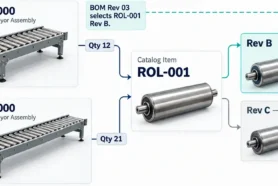
In a spreadsheet, the same part shows up again and again. It is a row in this BOM, a row in that BOM, and a row in the purchasing list. When its description or cost changes, someone has to find every copy and fix it by hand. Usually one copy gets missed.
OpenBOM works differently, and the best way to see it is to build a bill of materials yourself.
There are three ways to create your first BOM in OpenBOM: by hand, from a spreadsheet, or straight from your CAD. This article builds one by hand. It takes a few minutes, you do not need a file to import or an add-in to install, and it shows you how OpenBOM thinks.
Three ideas explain almost everything
- Items are your parts and assemblies, each with a part number and properties such as description and cost.
- Catalogs keep items of the same kind together and decide which properties they have.
- BOMs say which items go into an assembly, and how many of each.
Keep those three in mind. Every step below uses them.
How to create your first BOM by hand
In this example, a company that makes and sells drones sets up its product, Custom Drone, with two items that go into it.
1. Create a catalog
A catalog is where your items live.
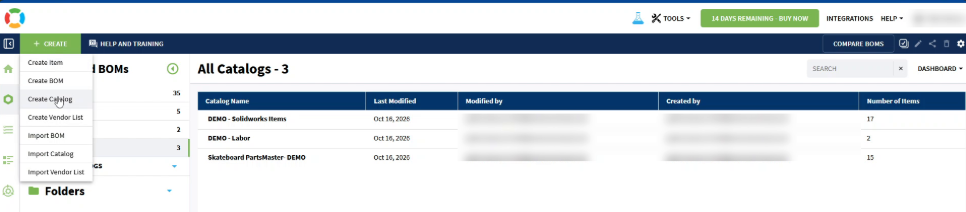
From the dashboard, select Create, then Create Catalog. Give the catalog a name, for example Quickstart. If you want OpenBOM to number your items, select Part Number Setup before you submit (step 2). Otherwise, select Submit.
2. Set up part numbering (optional)
The part number is how OpenBOM recognizes an item. You can use the numbers you already have, or let OpenBOM generate them.
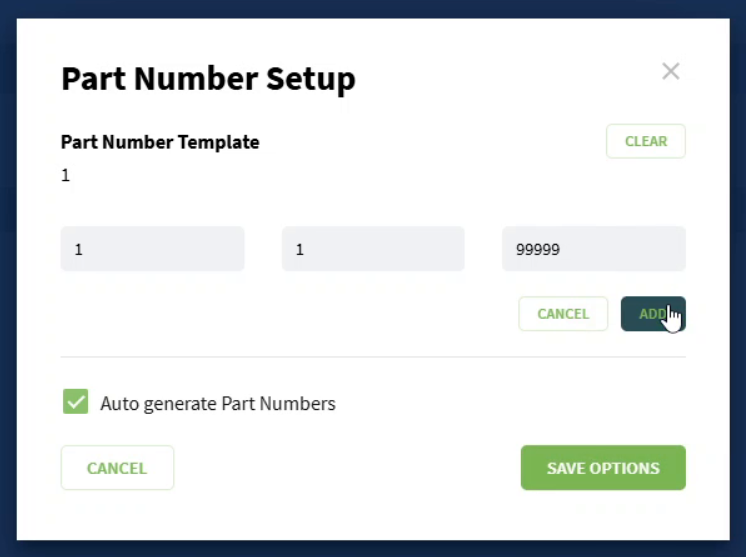
In Part Number Setup, select Create Part Number Template. Set a simple template: a prefix of 1 and a five-digit counter, from 1 to 99999. Select Add. Keep Auto generate Part Numbers ticked, select Save Options, then Submit the catalog.
With this template, your items are numbered 100001, 100002, and so on. For more options, see Part numbering.
3. Add your items
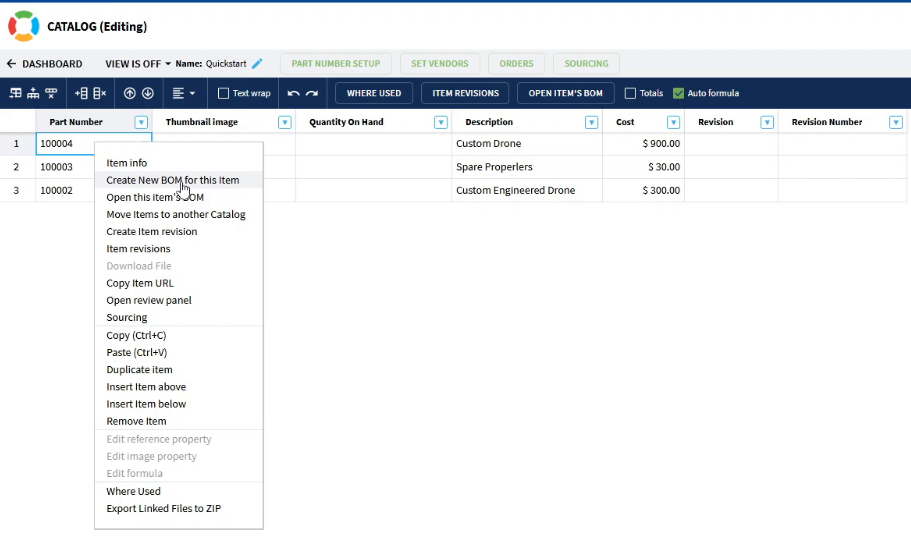
The catalog opens with its default properties: Part Number, Thumbnail image, Quantity On Hand, Description, Cost, Revision, and Revision Number.
Add a row for each item. Each new row gets the next part number. Type a description and anything else you track, such as cost.
Add the assembly itself as an item too. Here, the drone company adds Custom Drone, plus the two items that go into it: Spare propellers and Custom Engineered Drone.
Added a row you don’t need? Right-click it and select Remove Item.

4. Create the BOM
In the catalog, select the items that go into the assembly and copy them with Ctrl+C. Then right-click the assembly item, here Custom Drone, and select Create New BOM for this item.
Create BOM opens with the catalog and part number filled in. Check the BOM Name, keep BOM Type as BOM and Template as Default, and select Create.
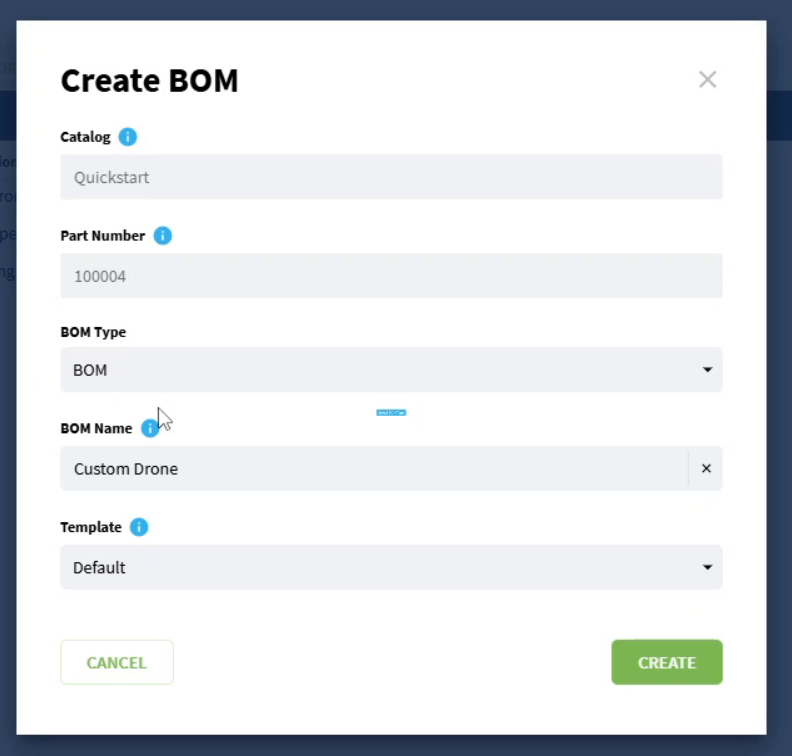
The new BOM opens. Paste the items with Ctrl+V, then enter the quantity of each: here, 4 spare propellers and 1 custom engineered drone.

That’s your first bill of materials. Next time, you can also start from the dashboard: select Create, then Create BOM.
5. See how it connects
Now try this. Change the description of one item in the catalog, then open the BOM. The BOM shows the change.
This is the main idea behind OpenBOM, and the answer to the spreadsheet problem. An item exists once, in its catalog. Every BOM that uses it stays in step, so there is no second copy to keep up to date.
The same rule holds as your product grows. When you add a sub-assembly with its own BOM as a row, you have a multi-level BOM, and the item is still maintained in one place all the way down.
Finding your way around
A few places you will use every day:
- Home is where you land after signing in. Its quick actions let you import data, create items and BOMs, and open CAD files.
- The menu on the left takes you to each area of OpenBOM. Your items, BOMs, and catalogs are under Parts and BOMs.
- Properties are the columns in a BOM or catalog. Views decide which ones you see. Hiding a column in a view deletes nothing.
- The item information panel opens when you right-click an item and select Item info. It shows the item’s properties, everywhere it is used, and a graph of how it connects to other items.
New words? See the Glossary.
What you have now
A catalog with your items in it, and a BOM built from those items. More importantly, you have seen the idea that makes OpenBOM different from a spreadsheet: change an item once, and every BOM that uses it follows.
You probably do not want to type every BOM by hand, though. Most teams already have BOMs in spreadsheets and models in CAD. In the next article, we bring that data in.
Next: Bring in your data.
Best, Oleg
Join our newsletter to receive a weekly portion of news, articles, and tips about OpenBOM and our community.