Why your files show as “outside mapped folders”
File versions and revisions serve different purposes
Design files rarely stay in one place. An engineer saves an assembly on a laptop, a colleague copies it to a shared drive, and someone emails a version to a supplier. A week later, nobody is sure which file is current, what changed, or what the supplier actually received.
The CAD tool is not the problem. The files live outside any shared, managed place, so every copy becomes its own version of the truth. Installing OpenBOM File Manager is the first step to fixing that.
File Manager is a desktop app that syncs the design files on your computer with Design Folders in OpenBOM, keeping every version in the cloud. It is the starting point for OpenBOM’s cloud PDM, and you install it once on each computer that works with design files.
The install itself is short. What makes it work is one decision that is easy to miss, and I will explain that too.
What OpenBOM File Manager is, and what it isn’t
“File Manager” can sound like another file browser. It is more useful to think of it as the link between where engineers work and where the team manages design data.
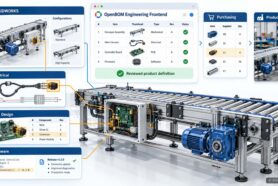
Your engineers keep working in their CAD tool and in local folders on their computer. File Manager syncs the files in those folders to Design Folders in OpenBOM Design. Every version is kept, so the team works from managed files instead of copies on laptops, shared drives, and email threads.
File Manager does not replace your CAD tool. It also does not decide which version is approved for a build. Those decisions belong to your revision and change process. File Manager makes sure the files behind those decisions live in one managed place.
What you need before you start
You need three things:
- An OpenBOM account with access to OpenBOM Design.
- A Windows computer where you can approve an app install. If your IT team manages installs, involve them early.
- A local folder that holds the design files you want to manage.
For that folder, start small. One complete assembly with its parts is a good first choice, because it makes the first sync easy to check.
If you work in SOLIDWORKS with the OpenBOM add-in, you also get a shortcut to File Manager inside your CAD. The add-in is helpful, but you do not need it to install File Manager.
How to install OpenBOM File Manager
The process has four steps: Download, Install, Open, and Map. You can start from OpenBOM in your browser or from inside SOLIDWORKS. Both routes lead to the same installer.
1. Download: from OpenBOM or from SOLIDWORKS
In OpenBOM, go to Home and select Open Design in the CAD Files quick action. You can also select Design in the left menu. In Design Folders, select the download icon next to the title, or expand About OpenBOM Design at the bottom of the panel and select Download File Manager.

If you already use the OpenBOM add-in for SOLIDWORKS to create BOMs, select File Manager on the OpenBOM tab. When File Manager is not installed yet, the add-in offers to install it. Select Click Here to Install.

2. Install: run the setup wizard
The OpenBOM File Manager Setup wizard opens. Tick I accept the terms in the License Agreement and select Next.
Follow the wizard and wait for the installation to finish. If Windows asks whether to allow the app to make changes, select Yes.

3. Open: find File Manager next to your BOM
When setup finishes, select File Manager on the OpenBOM tab. It opens in the SOLIDWORKS side panel, next to the BOM tab, and lists your Design Folders.

4. Map: connect a local folder to a Design Folder
Select the Path of a Design Folder and choose the local folder that holds your design files.
This is the step that turns an installed app into a working sync. It deserves its own explanation.
Why your files show as “outside mapped folders”
This is the decision I mentioned at the start, and it is where new users most often pause.
File Manager syncs only the files inside folders that are mapped to a Design Folder. It does not scan your whole computer. Until you map a folder, File Manager lists your assembly’s files as outside mapped folders.
In the screenshot above, a demo drone assembly uses 49 files, and all 49 sit in folders that are not mapped yet. Nothing has synced. File Manager tells you that directly, instead of leaving you to guess.
After you map the folder, check the list again. Files inside the mapped folder should no longer appear there. Anything that remains lives somewhere else on your disk and needs its own mapped folder.
This gives you control. You decide which folders hold managed design data, and personal or temporary files stay out of it.
File versions and revisions serve different purposes
Once files sync, each saved change becomes a new version in OpenBOM. That is valuable. You can see how a design evolved and go back to earlier work.
A new version is not an approval, though. The newest file may be work in progress, while a build uses an earlier accepted state. Release decisions still follow your revision and change process.
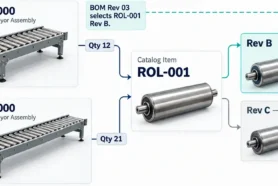
Keeping the two apart lets engineers save often without implying that every save is ready for manufacturing. File Manager gives you the managed files. The BOM side of OpenBOM connects them to Items, quantities, and the structure of the product.
Start with one folder
You do not need to move every project at once. Install File Manager, map one folder with one assembly, and check that its files sync.
Once that works, the next step is to set up your first project in OpenBOM Design. That is the subject of the next article in this series.
If you have questions about how File Manager fits your CAD setup, send them to us. They are a good place to start.
Contact the OpenBOM team, or start a free trial and install File Manager on your own assembly.
Best, Oleg
Join our newsletter to receive a weekly portion of news, articles, and tips about OpenBOM and our community.