Welcome to OpenBOM November 2025 update!
This release delivers several focused updates across BOM operations, ERP and CAD integrations, authentication, and general usability. This release emphasizes consistency, clearer workflows, and improved control over how engineering and product data flows through OpenBOM.
Below is a summary of the key enhancements.
Important Reminder for All CAD Integrations – Update Required
I am putting this at the top here to direct anyone using CAD integration to watch for the Update button on the OpenBOM ribbon bar.
OpenBOM will release an updated authentication service in December. All CAD integrations must be updated to ensure continued operation.
Mentime, please watch for the Update button in your OpenBOM CAD integration ribbon.
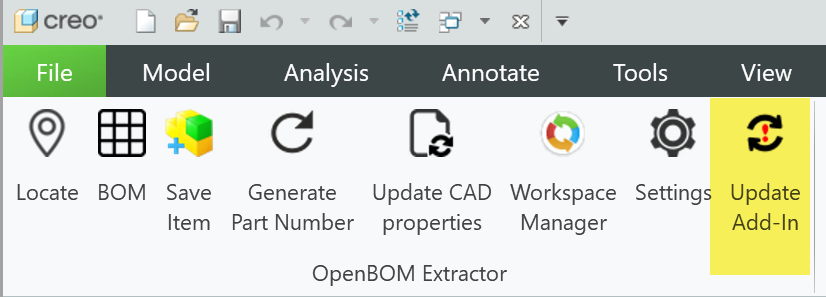
More details in the community announcement.
Copy BOM Workflow Enhancements
When copying a BOM, OpenBOM now presents a dialog aligned with the familiar “Create BOM” experience. Read more about it in the OpenBOM Blog article. The updated workflow includes:
- Easy association: The dialog lets you pick an Item from your catalog and set the BOM Type right away.
- Reference to original: There’s a handy link to the original BOM, so you always know what you’re copying.
- Consistent experience: The “Copy BOM” dialog looks and works just like the “Create BOM” dialog, making it easy to use.
- Validation included: All the same checks and rules apply, so you can be confident your new BOM is set up correctly.
- No template selection needed: Since you’re copying an existing BOM, the original acts as the template—no need to pick one.
Video overview:
ERP Integrations – Send a Single Item
The November 2025 release adds a very important feature to all the ERP integrations: Send a single item to ERP. Make a change to an item, RMB -> Send to ERP, and your item (following the rules defined by your admin, of course) is sent to your company’s ERP. Keep in mind, the example below is for Visma, but applies to ALl ERP integrations.
This release adds the ability to send a single item to an ERP system. After editing an item:
- Right-click the item
- Select Send to ERP
- Submit the export using the ERP-specific dialog

This reduces friction when updating individual items without triggering a full export.

The example shown in this release uses Visma Business NXT, but the capability applies to all ERP integrations, including NetSuite.
Advanced Filtering Improvements
The November release continues our tradition of improving Filters with each release. In the October release, we added the AND operator to filtering; in this release, we added OR; as well as the ability to save the Filter conditions as part of the View.
Filtering continues to expand with each release.

November introduces:
- The OR operator complements the existing AND operator
- Saving filter conditions as part of a View, allowing teams to preserve and reuse filter logic
Improved Multi-Factor Authentication (MFA)
This update includes a redesigned MFA experience. Functionality remains the same, but the UI is clearer and easier for users and administrators to configure. The OpenBOM Team Admin can configure the authentication methods for the Team
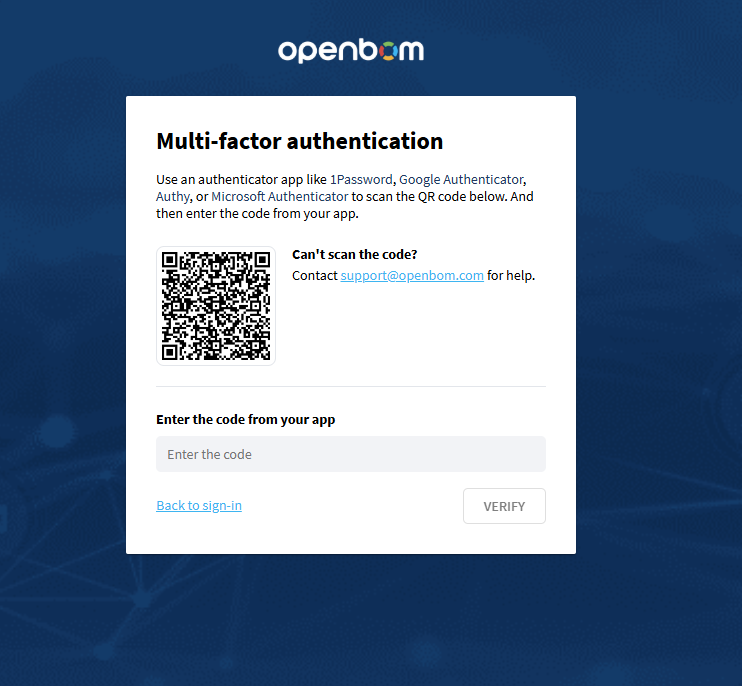
Team Admins can define authentication methods for the entire team.
Insert Multiple Rows Into a BOM
You can now insert multiple rows into a BOM based on the number of rows selected.
Steps:
- Select N rows
- Right-click
- Choose Insert N Rows Above/Below
The context menu option “Insert row above/below” was modified to allow inserting multiple rows. To use this feature, the number of rows to insert should be pre-selected, the context menu opened by right-clicking, and then “Insert N rows above/below” chosen. New rows will then appear.
Note: For now, limited to BOMs. Coming soon to all OpenBOM data types.
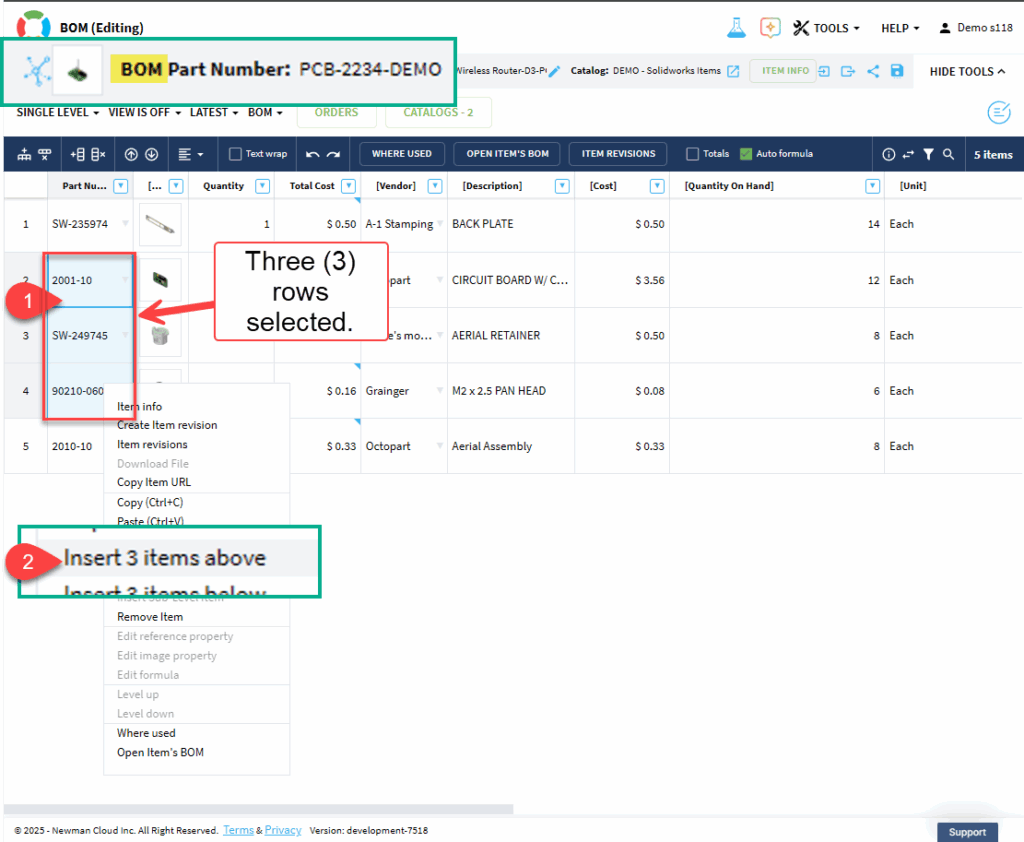
The command automatically adapts based on the number of selected rows. This is currently available for BOMs and will be extended to other OpenBOM data types in a future release.
CAD Integrations
SolidWorks — Flexible Handling of the Type Property
Traditionally, the Solidworks TYPE property has been used to denote the actual CAD file type (.SLDPRT, .SLDASM, etc) as with Part or Assembly. However, we have heard from customers that they have already been using the TYPE property for something else in their PLM process, for example, BUILD or BUY (or Mechanical/Electrical, etc).
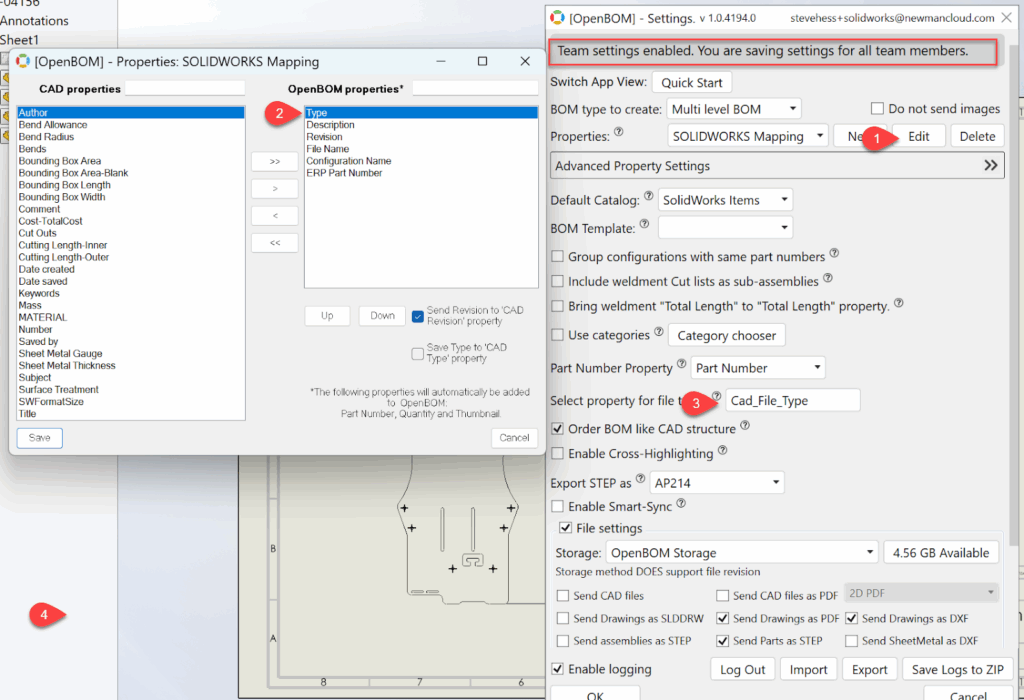
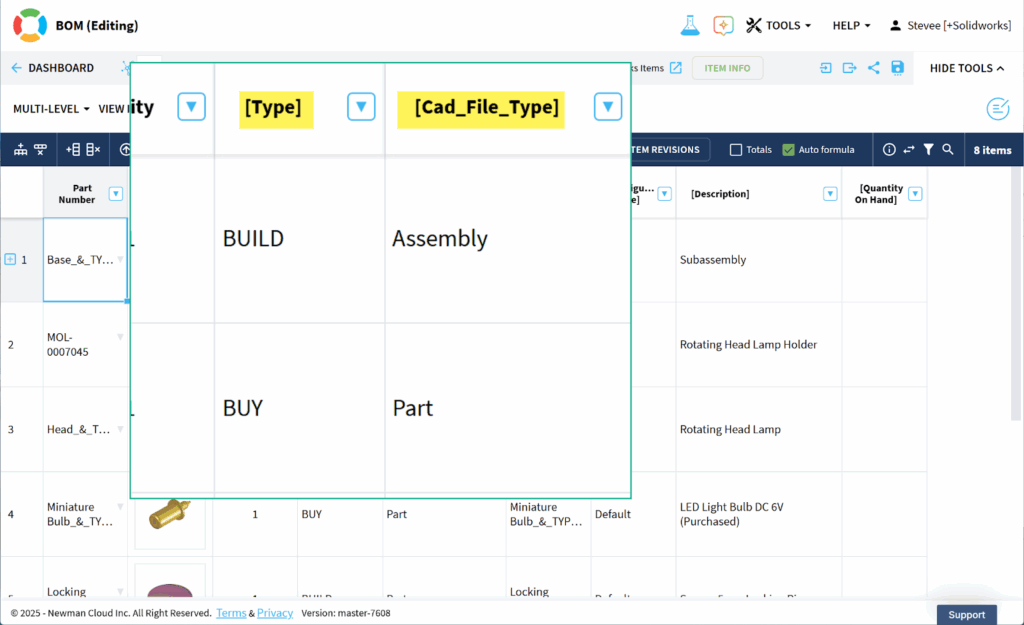
So, with this release, we’ve added the ability to (re) map the SolidWorks file extension type to any other property and thereby deconflict it from TYPE. In the example below, I have used the OpenBOM for SolidWorks Setting to specify the Cad_File_Type property as the OpenBOM property I wish to send the SolidWorks File Type to, thereby freeing up TYPE to be used for any purpose or values important to my company process.
Again, this setting is not for everyone. Only if you wish to store some value OTHER THAN Part or Assembly, in the TYPE property.
Start by opening the OpenBOM for SolidWorks Settings Dialog
- Open the Property List
- If you have TYPE specified in the Property list (indicating you will be sending the value from TYPE to OpenBOM)
- The mapped property UI will be enabled. You MUST type an existing prop[erty from OpenBOM in this field.
In the example below, I have mapped the SolidWorks file type (Part or Assembly) to the Cad_File_Type property that I have already created and added to my Catalog(s) in OpenBOM
[Also, note, I am an admin, so the setting I save may me used to all members of the team.]
Close and Create a BOM. In the output below, my Company stored “BUILD” or “BUY” in the SolidWorks Type property. And I (or my admin) have indicated that the SolidWorks file expansion type (Part or Assembly) should be sent to the Cad_File-Type property.
Watch the video for more details.
PTC Onshape Integration Enhancements
Control Smart Sync Behavior
We added a control to the Onshape Settings that allows you to enable/disable Smart Sync. When enabled, OpenBOM will only generate and send derivative files THAT HAVE CHANGED. When disabled, OpenBOM will generate and send ALL selected derivative files to OpenBOM. It may take longer, but it will ensure that ALL files are regenerated.

PDF of Drawings for Composite Parts
This release adds support to for automatic creation of PDFs of Onshape drawings which contain ONLY composite parts. In the example below, the electrical connector is an Onshape Composite Part. It behaves like a part in OpenBOM, and PDFs of drawings are properly created when requested.

Improved Duplicate Validation
The OpenBOM duplicate checker continues to improve. Remember, many CADs allow you to assign the same part number to several items or functionally different configurations of the same item. All OpenBOM CAD integrations (Onshape and others) validate your Part Numbers BEFORE sending the data to OpenBOM. This ensures you get proper Item information in your PLM system.
In this release, OpenBOM add additional validation to: 1/ ensure you have no CAD data with duplicate part numbers, and 2/ ensure you are not sending data with a part number which was already sent (from a different CAD design).
The message below indicates that the CAD data with part tnumber “Assembly 1” may have already been sent to OpenBOM froma different design. In other words, some other Onshape data was used to create “Assembly 1” in a previous build.
Links were added to the OpenBOM BOM and the Onshape data to help understand the full picture BEFORE you send data to OpenBOM.

AI Agent and Workflow Updates
OpenBOM AI agent is available in private beta for a limited group of customers. Check the article – Exploring OpenBOM AI Private Beta for more information.
Fixes and Minor Improvements
There are multiple fixes and improvements done. Here is a short list of them.
- Filter icon now displays the number of active filters
- AI Agent flyout is now resizable across full width
- Improved handling of external image URLs in AI responses
- Resolved BOX.com authentication issue
- Fixed Kubotek KeyCreator login
- Fixed Smart Sync issues related to deleted Items
- Corrected an Onshape case where “Update on Release” included assemblies outside the release scope
- Fixed cases where PDFs were not updated after Onshape export rule changes
Conclusion
The November 2025 release focuses on improving clarity, consistency, and workflow efficiency across OpenBOM. Enhancements to BOM operations, filtering, ERP updates, authentication, and CAD integrations aim to reduce friction in daily engineering work and provide more predictable and transparent behavior across tools.
As we approach the December rollout of the new authentication service, please ensure all CAD integrations are updated. Teams using SolidWorks, Onshape, ERP connectors, or advanced filtering will see immediate benefits from the improvements introduced in this release.
REGISTER FOR FREE to check how OpenBOM can help you.
Best, Oleg
Join our newsletter to receive a weekly portion of news, articles, and tips about OpenBOM and our community.