Seamless integration with design tools was always the main goal of OpenBOM. As such we’re expanding our integration with PCB and electronics environments such as Altium.
We found customers are moving to cloud environments such as Altium 365 and demand an improved data sharing and capturing mechanism. As such connection with release workflow.- which version of the design does the BOM actually represent? If the import comes from the active desktop design, the answer can be “whatever the engineer had open at the time,” which is not the answer purchasing, manufacturing, or a contract manufacturer wants to hear.
With the August 2026 update, OpenBOM closes that gap. You can now create and update BOMs directly from released Altium 365 project versions.
The BOM Now Comes From the Release, Not the Desktop
This feature allows users to import Bill of Materials data directly from released Altium 365 project versions via the Nexar API, rather than from the active desktop design. It supports managed release workflows by enabling teams to browse projects, select specific release versions from the Releases sub-tab, and import BOM data into OpenBOM, ensuring consistency with the final released project state.
In practice, this means the BOM your team validates, sources, and hands over downstream is anchored to a specific, named release of the PCB project. Not a snapshot of a work in progress. The released state that engineering signed off on.
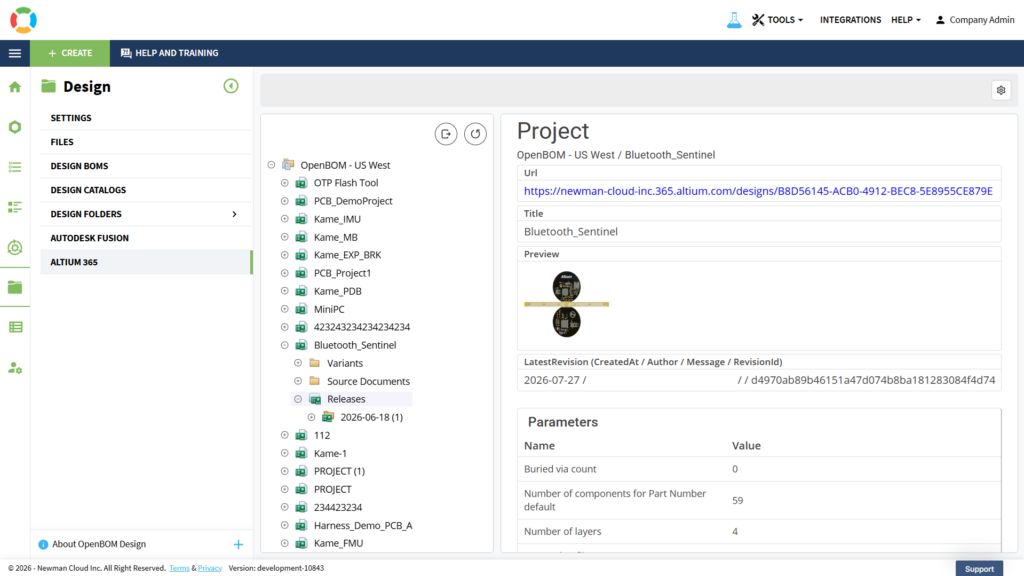
Altium 365 project tree in OpenBOM Design with the Releases node selected
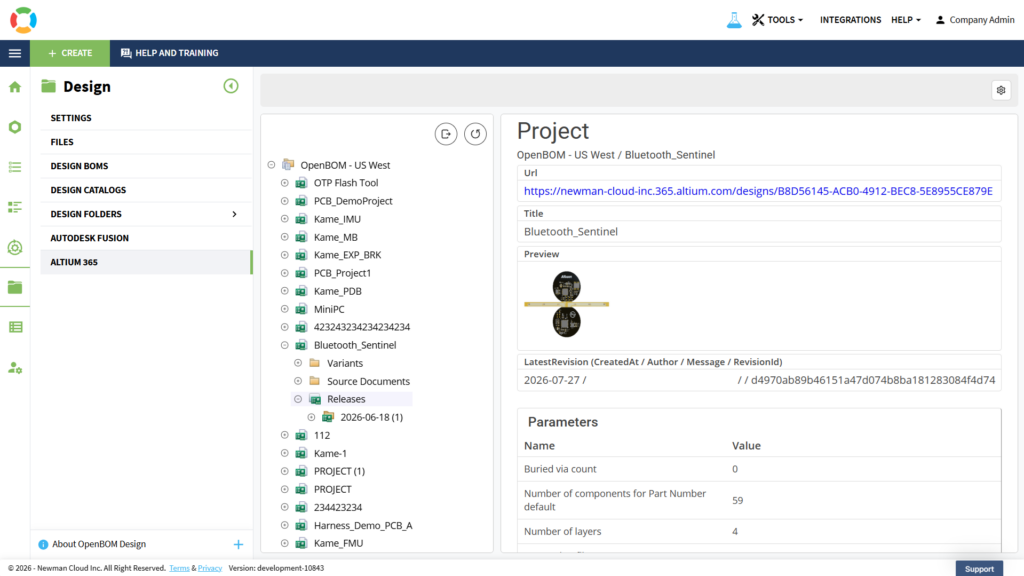
Release variant with the BOM open side by side in OpenBOM
Variants and Release Integrity Are Handled Correctly
Release-based import is the headline, but this update carries a substantial set of Altium improvements around it. Altium 365 release variants are shown in the project tree with available BOM sync actions, while the remaining variants are read-only to preserve release data integrity. Imports always use the selected variant instead of the default, include variant-specific component parameter values, and open the correct BOM for the selected variant rather than a BOM from a different one.
The workflow details got attention too. Altium 365 BOM creation now creates the root item in the target catalog and links it to the created BOM. Component thumbnail images display more reliably after the BOM is created. The Project Browser can be resized, making it easier to review long project, release, variant, and document names. The Settings button remains available when selecting a project, the Variants node, the Release node, or a specific variant. And a failed import for a project without schematic documents no longer leaves the Create BOM button disabled for other valid projects.
Why We Did It
A release process exists so that everyone downstream works from the same, approved definition of the product. If the BOM import path bypasses the release and pulls from a live design, the release process protects the CAD data but not the BOM, and the BOM is exactly what procurement and manufacturing consume. That inconsistency is how teams end up ordering components for a design revision that was never released.
By importing from released Altium 365 versions through the Nexar API, OpenBOM extends the release discipline your electronics team already follows into the BOM itself. The BOM inherits the release’s authority. Variants stay intact, variant-specific parameters come through, and non-synced variants are protected as read-only. For multi-disciplinary teams combining PCB data with mechanical and other sources in OpenBOM, this makes the electronics contribution to the product structure as trustworthy as the release it came from.
How It Works
- Navigate to the Design section in OpenBOM.
- Select Design and configure the section to get an access for Altium 365
- Log in using your Nexar credentials to authorize the connection.
- Browse and select the specific Altium 365 project you want to work with.
- Go to the Releases sub-tab to view all available project versions.
- Choose the desired release and click Export to import the BOM data directly into OpenBOM.
Conclusion
Release-based BOM import makes OpenBOM’s Altium 365 integration match the way serious electronics teams actually work: the released project version is the truth, and now the BOM in OpenBOM is built from it. Consistent releases, correct variants, variant-specific parameters, and a cleaner workflow from PCB design to purchasing and production.
REGISTER FOR FREE and check how OpenBOM can help: https://bom.openbom.com/sign-up
Best, Oleg
Join our newsletter to receive a weekly portion of news, articles, and tips about OpenBOM and our community.