Every month, I look at OpenBOM updates not just as a list of features, but as a reflection of how people actually work with product data every day. April 2026 is a good example of that. This release is focused on improving the everyday experience — helping users get to the right information faster, understand what needs attention, and work more smoothly across design, BOMs, change processes, and connected CAD workflows.
The biggest visible change this month is the new OpenBOM Home page, which gives users a more natural starting point for their daily work. We also made improvements to Design navigation, added clearer visibility and control for Data Records, continued to refine our CAD integrations, and delivered a number of fixes that improve reliability and predictability across the platform. These changes are not about adding complexity. They are about making OpenBOM easier to use, easier to understand, and better aligned with the way engineering and manufacturing teams actually operate.
In the sections below, I want to walk through what is new in April 2026 and explain how these improvements can help your team work more efficiently.
A New OpenBOM Home Page
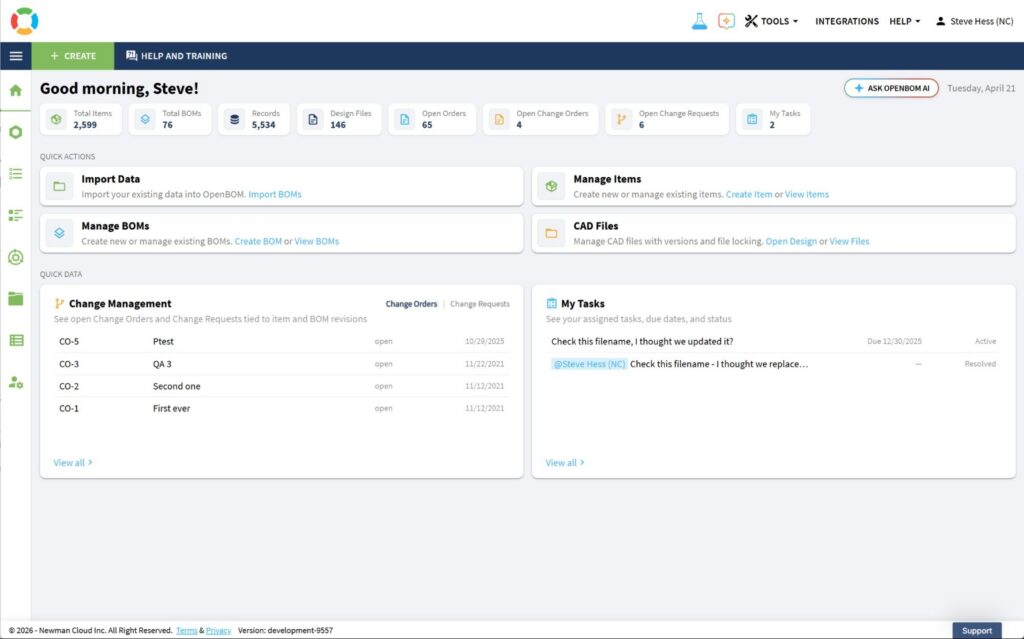
The new Home screen is designed to give you immediate context and fast access to the work that matters most.
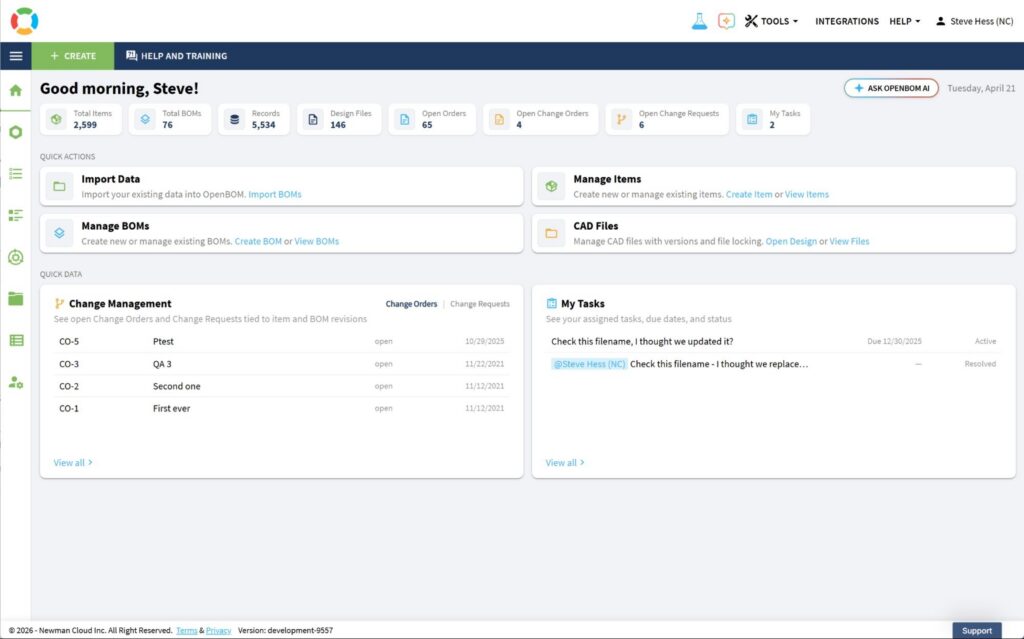
At the top, a personalized greeting displays your name and today’s date, along with a direct link to the Ask OpenBOM AI agent.
Just below, overview statistics surface key totals at a glance — Total Items & BOMs, Record Summary (hover for more info), Open Orders, Open Change Orders, Open Change Requests, and My Tasks — each serving as a one-click shortcut to navigate directly into that area of your workspace.
The Quick Actions section provides curated shortcuts for the most common workflows: Import Data, Manage Items, Manage BOMs, and CAD Files. Inline links let you jump straight into creating or viewing records, reducing the steps needed to get work done.
Finally, Quick Data delivers real-time visibility into active work. The Change Management panel lists open Change Requests and Change Orders associated with item and BOM revisions, while the My Tasks panel shows your assigned tasks, including due dates and status. Both panels include a “View all” link to explore the full list.
Design Tree View
The OpenBOM Design Projects UI area also gets an update. We’ve listened to you and added improved navigation and renamed a few key elements to align with OpenBOM’s CAD File Agent. You will find the same valuable data here, with improved access.
Overview
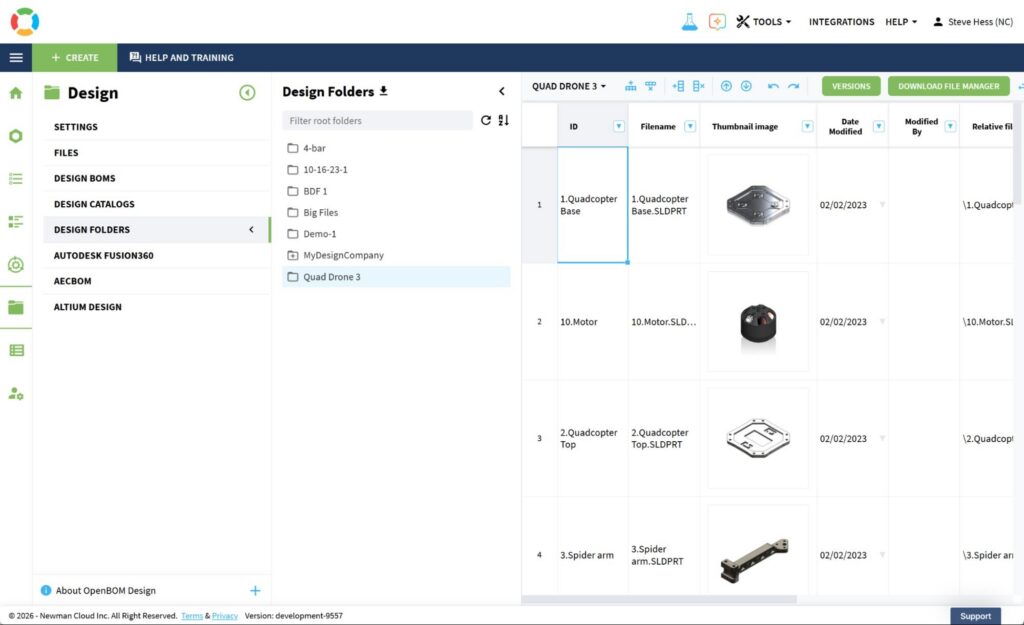
OpenBOM Design now includes a new Folders Tree View to make navigation clearer and more scalable. Users can load root folders, expand subfolders, and open folder content directly.
How It Works
The previous Projects section is replaced with Design Folders. Clicking Design Folders loads the root folders, and selecting a folder opens its content in the grid. The panels are collapsible.
This update introduces a streamlined Design Folders experience with clearer structure, improved navigation, and enhanced usability across folder-based workflows.
“Projects” have been renamed to “Design Folders,” with root folders loading on demand and support for expanding and collapsing folder hierarchies (in Agentic mode). Selecting a folder now immediately opens its corresponding content, making navigation more intuitive and efficient.
Key features include:
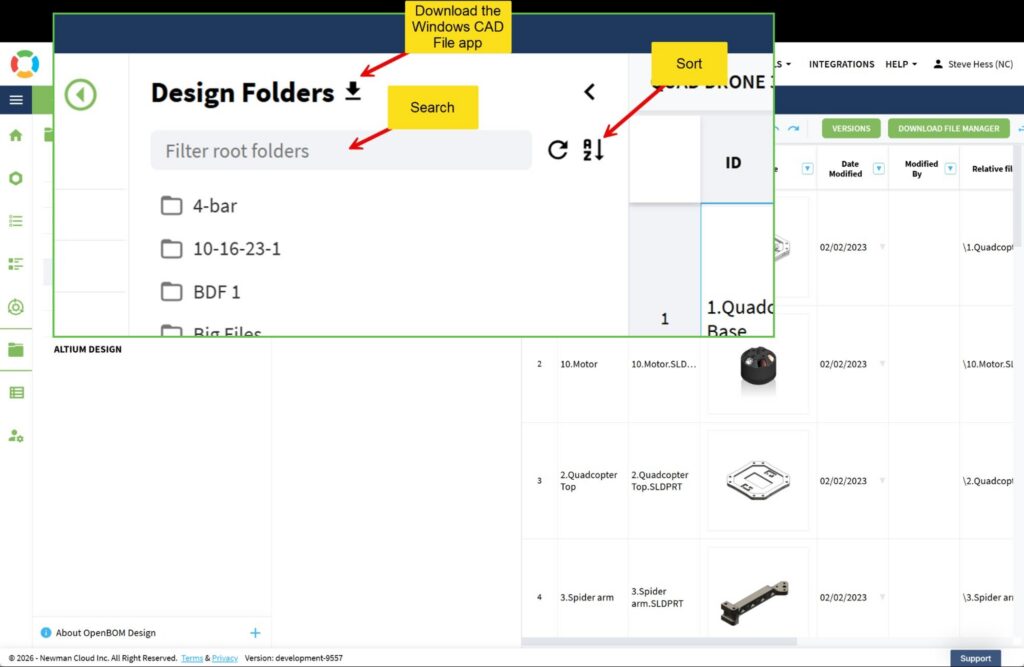
- Direct download of the Windows CAD File Agent application
- Search capability across root Design Folders for faster access
- Sorting options to quickly organize and locate folder content
Level-Up your storage & purchase Records
OpenBOM’s improved pricing allows you to start small and scale. As such, we’ve introduced the ability to purchase storage Records to meet your team’s needs.
Overview
OpenBOM now includes clearer visibility into Data Records — a straightforward way to understand (and manage) your team’s data needs in OpenBOM.
How It Works
Data Records help you understand and manage the amount of structured data your team stores in OpenBOM.
For more about Records and Pricing, see our recent blog:
https://www.openbom.com/blog/getting-started/openbom-data-records-pricing-explained
Increasing Your Data Records Limit
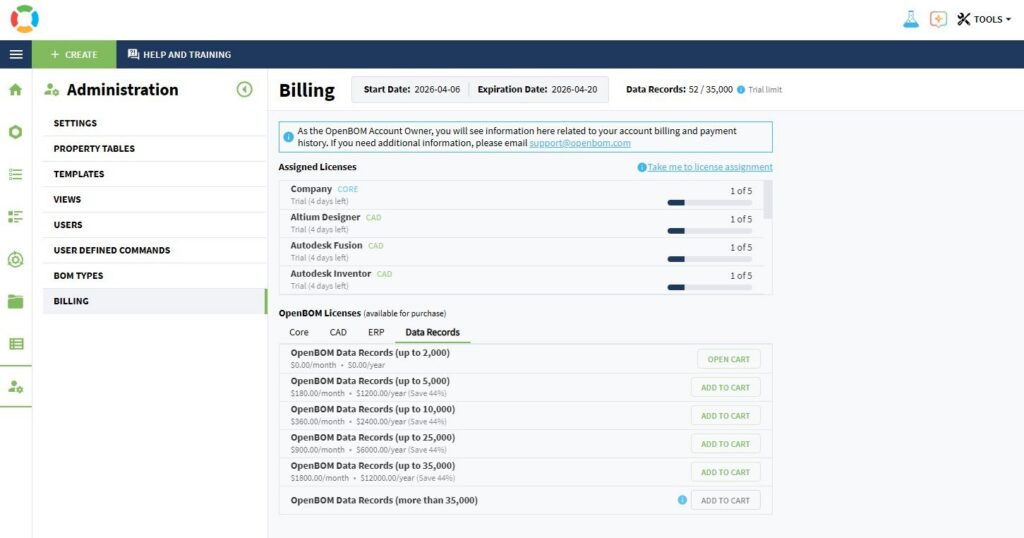
You can increase your limit by purchasing a Data Records tier in Dashboard → Billing (or by clicking the Records statistic on the Home dashboard to jump directly to the Data Records tab). Adding or adjusting your storage tier is as easy as adding it to your cart, and completing checkout.
Tracking Your Records
To track your Records, use the Records statistic on the Home dashboard (with a hover breakdown by type)
Or, head over to the Billing page for even greater details.
CAD Integrations
Dassault Systèmes SOLIDWORKS
An improved UI
Promoting a proper workflow is at the core of OpenBOM. This release introduces a newly designed OpenBOM for the SOLIDWORKS user experience. While functionally very similar, the UI promotes a better workflow, significantly improved messages and progress status, and an easier-to-understand Settings dialog.
The General Settings Dialog
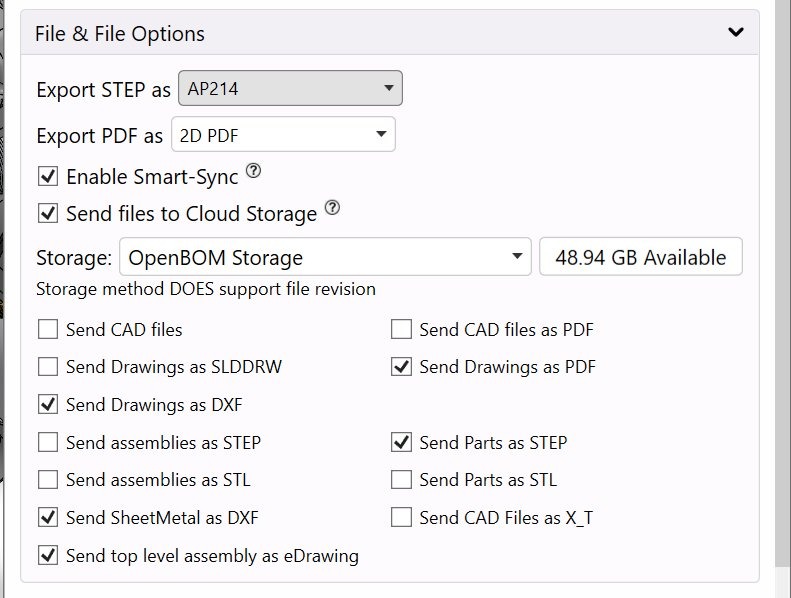
The redesigned accordion interface makes settings easier to navigate and understand, with a clearer hierarchy and improved organization. Frequently used options are prioritized at the top, and key actions—such as exporting log files—are now easier to locate, reducing friction when configuring or troubleshooting.
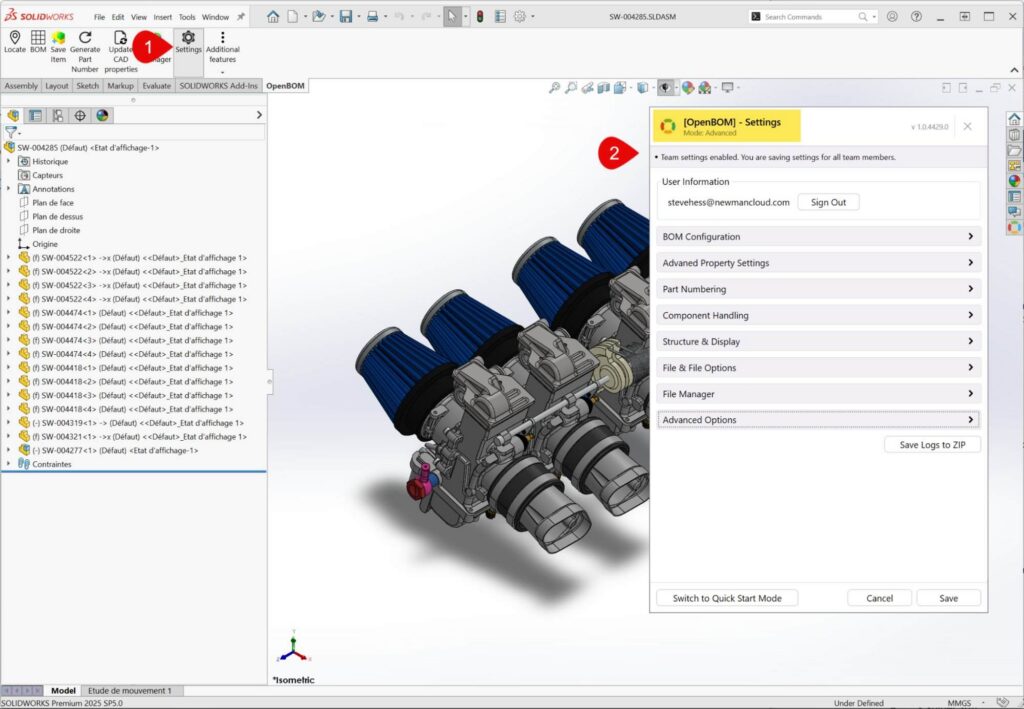
File & File Options settings give you fine-grained control over how design data is exported, synchronized, and stored. From this panel, you can define output formats, enable cloud sync, and configure exactly which files (drawings, parts, assemblies) are generated and shared—ensuring your deliverables match downstream requirements.
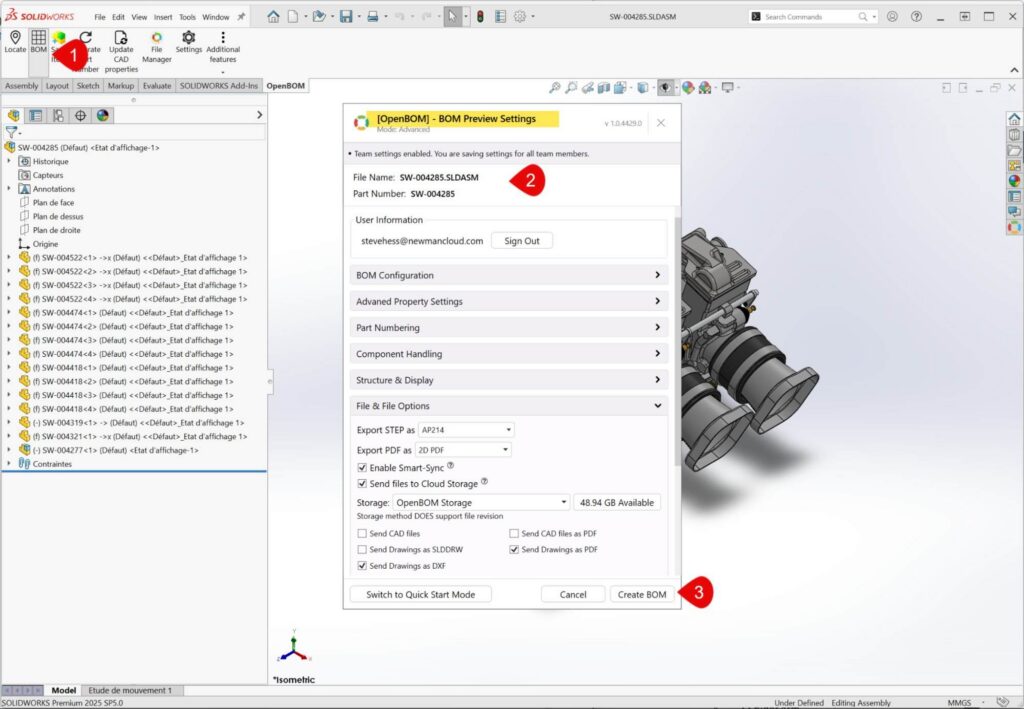
Create BOM Pre-process message Improved
Creating or updating a BOM gives you full control over configuration settings, as defined by your team administrator. From this interface, you can review file details, adjust BOM configuration options, and manage export and synchronization settings before generating the BOM.
Improved In-process Status and Updates
Enhanced in-process messaging provides clear, real-time visibility into BOM generation. You can track progress, see which files are being processed, and understand exactly which operations (such as DXF export) are underway—giving you greater transparency and control throughout the workflow.

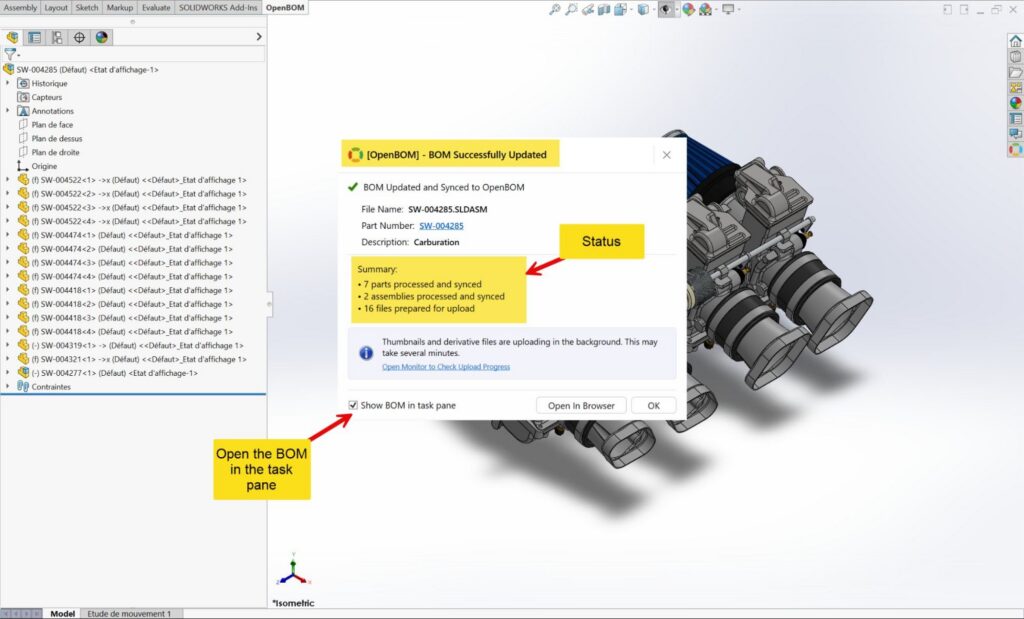
Completion Messages Provide Precise Details
Improved completion messaging provides a clear, structured summary once the BOM update is finished. You can quickly confirm sync status, review processed items, and see what’s happening next (such as background uploads), with direct access to open the BOM for immediate follow-up actions.
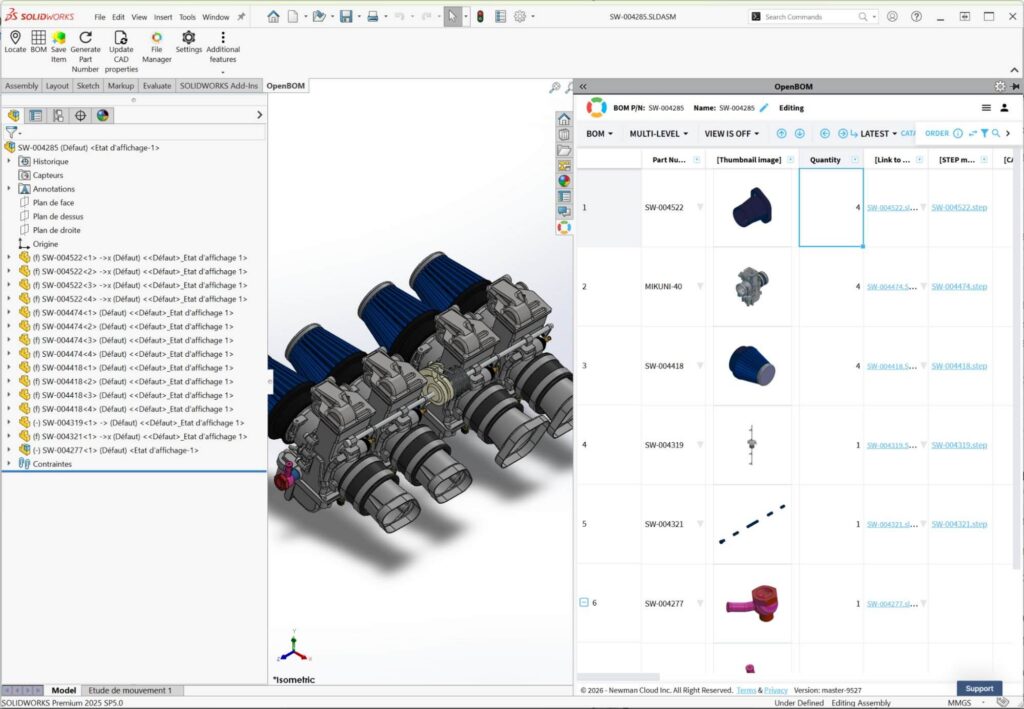
Several Options for Visualization
Flexible visualization options let you review your BOM in the way that best fits your workflow. With seamless integration into the SOLIDWORKS internal browser, you can instantly open and interact with a structured, multi-level BOM view—complete with thumbnails, quantities, and linked files—without leaving your design environment.
CAD File Manager
File Locking
You spoke. We listened. Granular file locking gives you precise control over your data directly within SOLIDWORKS. You can now lock or unlock individual files from the OpenBOM flyout, using a dedicated column for quick access—making it easy to manage edit permissions and prevent conflicts without leaving your design workspace.

PTC Onshape
We continue to improve the Onshape derivative export method. Those of you creating PDFs of drawings when the drawing is on an earlier release, or when there are multiple parts per drawing or multiple drawings per part, will see improved reliability.
We are working closely with Onshape development to improve the overall experience.
Fixes and Improvements
This release also includes a broad set of refinements aimed at improving stability, consistency, and day-to-day usability across key workflows:
- Enhanced enforcement of read-only permissions for more predictable access control
- Smoother interactions and responsiveness in Multi-Level BOM panels
- Increased reliability when downloading PDF files
- Improved handling of rapid item creation with auto-generated Part Numbers
- Fixed an issue causing duplicate file downloads when browser pop-ups were allowed
- More intuitive navigation and accurate scrolling to selected catalog items
- Improved reliability when accessing data from Change Request views
- Greater consistency in full-column export behavior
- Optimized BOM retrieval performance for Flattened View and Single-Level BOMs, resulting in much faster load times and a more responsive experience when working with product structures
Join our newsletter to receive a weekly portion of news, articles, and tips about OpenBOM and our community.