Welcome to the OpenBOM August 2026 update!
The August 2026 update brings important improvements across BOM validation, Public API access, Altium 365 integration exports, and improved usability. For limited access we have a preview of extended PDM functions – Multi-level folders, Design BOM and File Release mechanism.
A major highlight of this release is the next step in BOM Review: AI-powered General BOM Health. This new check card helps teams go beyond fixed validation rules by analyzing BOM content and surfacing useful engineering observations, such as similar parts, missing data patterns, lead-time concerns, and other BOM quality signals that may require review.
This release also gives teams more control over their OpenBOM environment. Team administrators can create and manage Public API keys directly from the Administration Dashboard, making it easier to support integrations, automation scripts, and other Public API workflows without contacting OpenBOM support.
We also expanded and refined connected engineering workflows. Altium 365 users can work with released project versions and import BOM data from selected releases.
In addition, this update includes several focused productivity improvements: a System Status link on the sign-in page, multi-row insertion in Catalogs, export headers that better match the BOM view, clearer API documentation access, and a broad set of fixes across BOM structure validation, Public API behavior, revision notifications, storage cleanup, Altium 365 workflows, ERP settings, spreadsheet safety, and OpenBOM Monitor behavior in CAD integrations.
In the sections below, I’ll walk through what is new in the August 2026 release and explain how these improvements can help your team review BOM data, manage integrations, maintain cleaner product structures, and work more efficiently across OpenBOM.
BOM Review AI: General BOM Health, Powered by AI
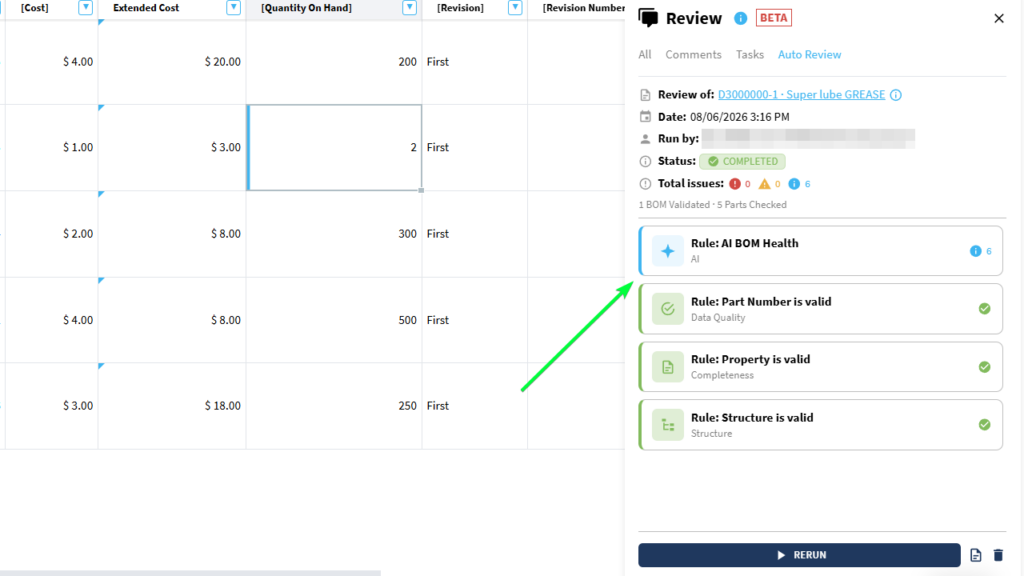
BOM Review includes an AI-powered check card, General BOM Health, that goes beyond the deterministic checks already available in BOM Review. Instead of just checking for missing values or structural errors, the AI reasons over the actual content of your BOM to surface the kinds of issues an experienced engineer would catch on a careful read-through.
Here are examples of what the AI BOM Health card can surface:
- Similar or near-duplicate parts that could be consolidated (for example, several nearly identical fastener variants used across an assembly)
- Components with unusually long lead times worth flagging before a build
- Missing data-hygiene columns, such as a BOM with no revision-tracking column at all
- Other general BOM health observations that don’t map to a fixed rule, but are still useful signals for your team
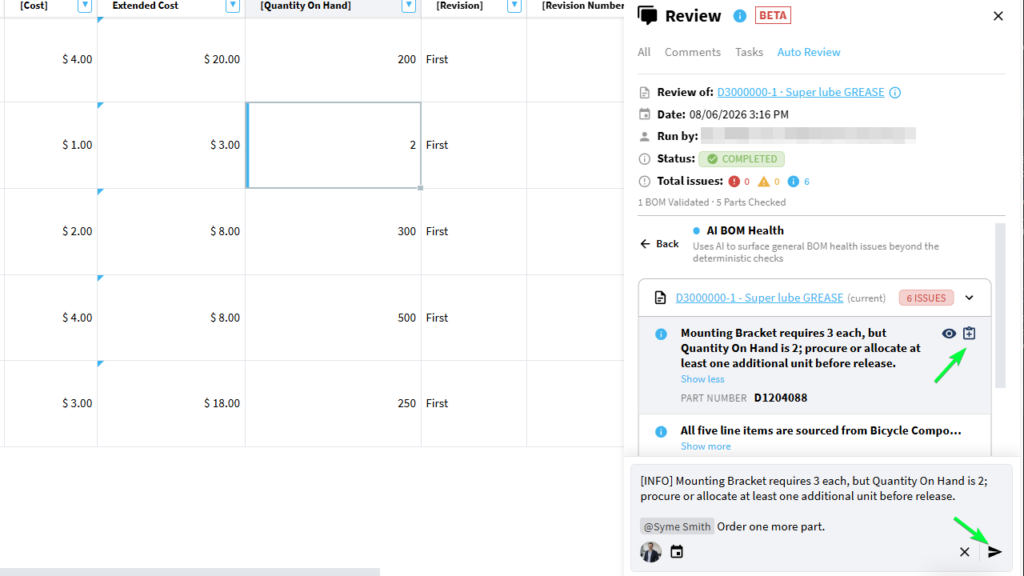
The AI card sits right alongside the existing Part Number, Property, and Structure check cards, with the same review experience your team already knows. Findings can be navigated with the eye icon to jump to the affected cell, or turned into a task the same way as any other BOM Review finding. AI findings are always surfaced as informational insights rather than Errors or Warnings, since they’re observations to consider, not hard rule violations.
For larger, multi-level BOM structures, the AI evaluates each BOM in the tree and streams results back progressively, so you start seeing insights for the parts of your structure that finish first rather than waiting on the whole tree at once.
AI BOM Health is available as part of an AI subscription add-on. Teams without the add-on will see the card with a short explanation and a link to get in touch about enabling it, without any disruption to the rest of BOM Review.
This is the first AI-powered check card in BOM Review, and OpenBOM plans to keep expanding what AI-backed checks can look for as the feature matures.
How it works
- Open a BOM Latest that your team is licensed to use with AI BOM Health.
- Open the Review panel and go to the Auto Review tab, or use the Activity dashboard.
- Click Run to start BOM Review as usual — no separate step is needed for the AI card.
- When the review completes, look for the General BOM Health card alongside the other check cards.
- Expand the card to see AI-generated observations for your BOM.
- Use the eye icon to jump to a specific cell, or create a task to follow up on a finding. Even if it is in a lower-level BOM, OpenBOM will take you directly there.
System Status Link on the Sign-In Page
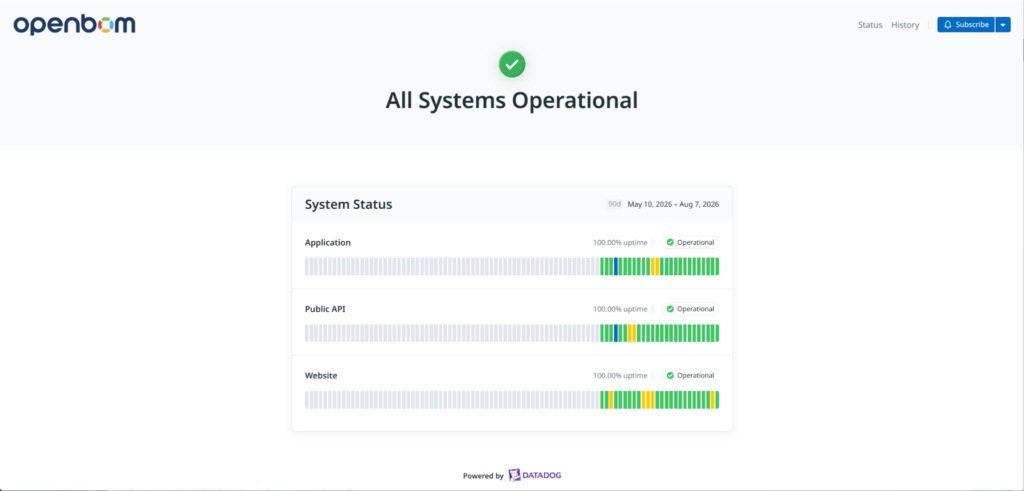
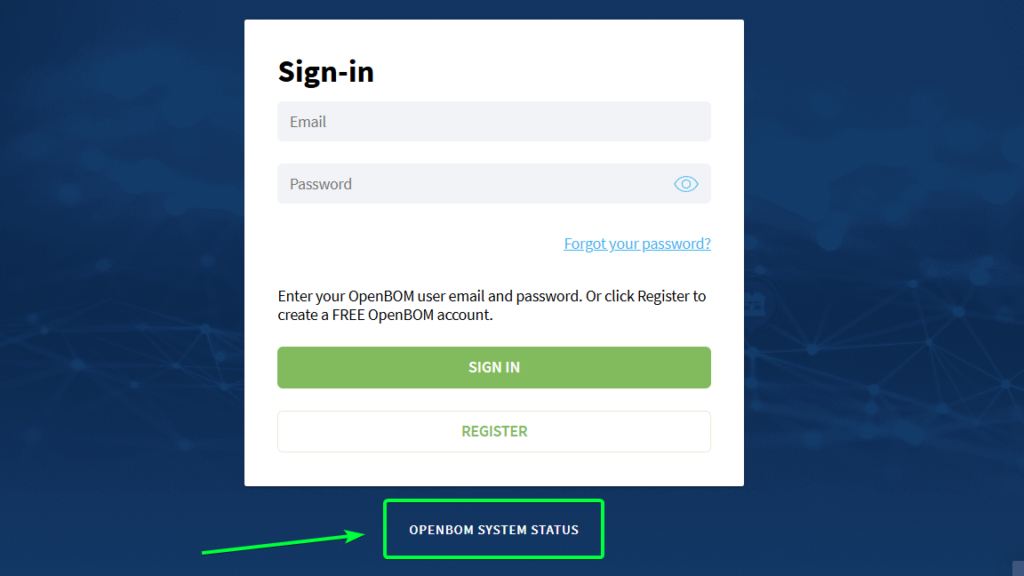
Checking OpenBOM service availability is easier, directly from the sign-in page or the URL at https://status.openbom.com.
This is especially useful when users want to check whether there is an active service incident, maintenance event, or availability update before contacting support.
Status is available on desktop and mobile, and opens in a new tab, allowing users to review service information without leaving the sign-in flow.
How it works
- Open the OpenBOM sign-in page.
- Click System Status.
- The OpenBOM status page opens in a new browser tab.
- Review current service availability, incidents, or maintenance updates.
This improvement makes system availability information easier to find, including when users cannot authenticate or are troubleshooting access issues.
From https://status.openbom.com
Or from the sign-in page
Insert Multiple Rows in Catalogs
Catalogs support inserting multiple items in a single operation. The feature mimics the conventional spreadsheet insert-rows operation in Excel and others.
Select several rows, right-click the target location, and choose Insert {number} items above or Insert {number} items below. The menu number reflects how many rows are selected, making it faster to add multiple catalog items without repeating the same action.
If a Part Number generator is configured, OpenBOM generates Part Numbers for the inserted items during the same operation. Undo removes the inserted group in one action.
How it works
- Open a Catalog.
- Select the number of rows you want to insert.
- Right-click the row where the new items should be added.
- Choose Insert {number} items above or Insert {number} items below.
- OpenBOM adds the selected number of new items.
- Use Undo to remove the inserted group if needed.
This makes it faster to build and update larger Catalogs, especially when adding multiple new parts simultaneously.

Export BOMs with the Selected Header Property
BOM exports include data from the BOM header rows.
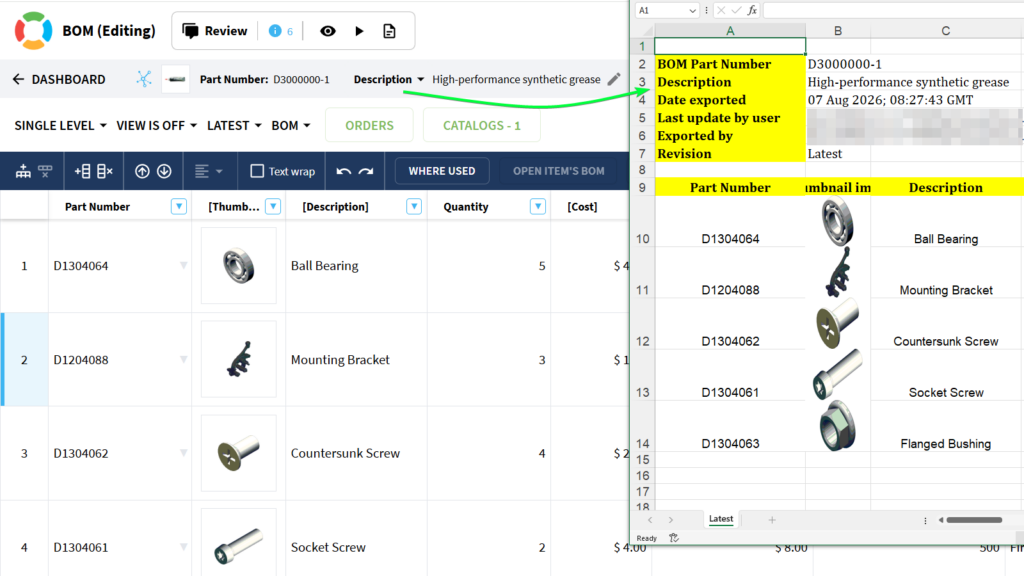
When a BOM header is configured to display a selected item property, such as Description, the exported Excel or PDF file uses that displayed property instead of falling back to the BOM Name. This makes exported BOMs more useful when sharing data with suppliers, vendors, and other external partners.
The improvement applies to regular BOM exports, PDF exports, and Flattened BOM Excel exports. If the selected property is no longer available, OpenBOM falls back to the BOM Name, matching the behavior shown in the grid.
How it works
- Open a BOM connected to a Catalog.
- In the BOM header row, choose which property to display, such as Description.
- Export the BOM to Excel or PDF.
- The export uses the selected header property instead of the BOM Name.
- If the selected property is no longer available, the export falls back to the BOM Name.
This helps ensure that exported BOMs contain the most relevant header information for downstream communication and supplier workflows.
CAD and Integrations
Create and Update BOMs from Altium 365 Releases
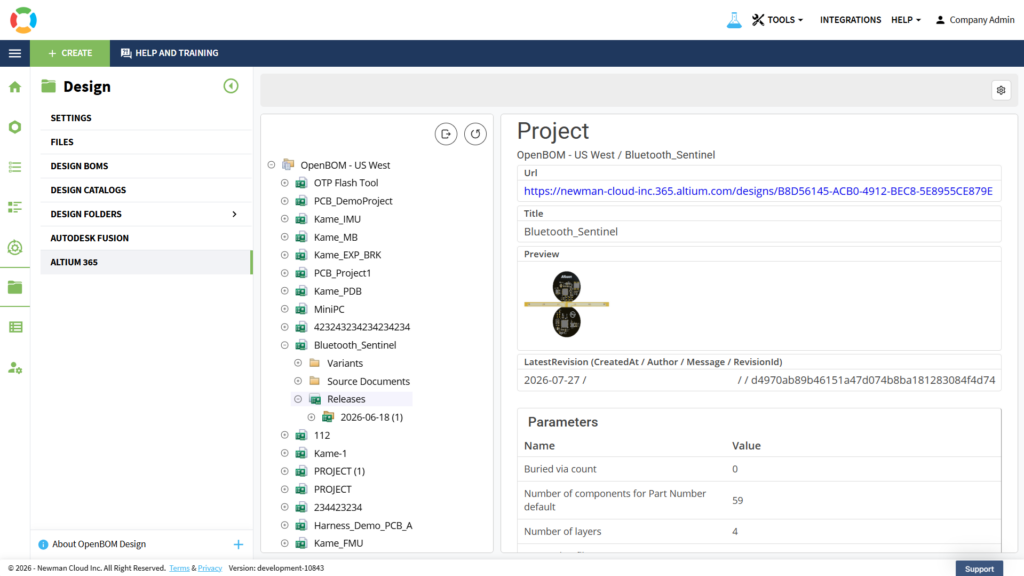
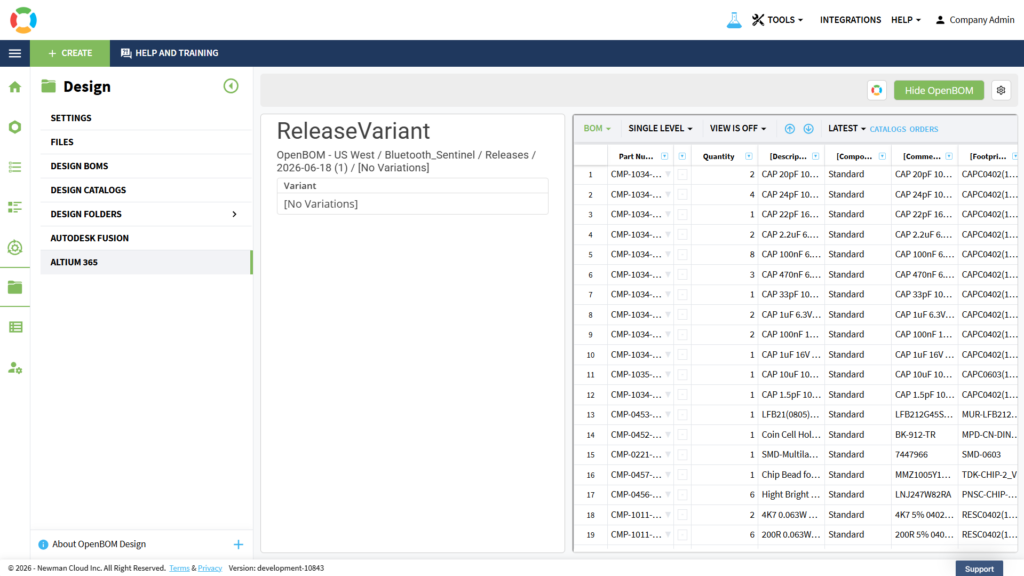
This feature allows users to import Bill of Materials (BOM) data directly from released Altium 365 project versions via the Nexar API, rather than from the active desktop design. It supports managed release workflows by enabling teams to browse, select specific release versions, and import BOM data into OpenBOM, ensuring consistency with the final released project state.
How it works
- Navigate to the Design section in OpenBOM.
- Select Altium 365 from the list of available integrations.
- Log in using your Nexar credentials to authorize the connection.
- Browse and select the specific Altium 365 project you want to work with.
- Go to the Releases sub-tab to view all available project versions.
- Choose the desired release and click Export to import the BOM data directly into OpenBOM.
More Altium improvements
- Altium BOM imports display component thumbnail images more reliably after the BOM is created.
- Altium 365 release variants are shown in the project tree with available BOM sync actions, while the remaining variants are read-only to preserve release data integrity.
- Altium 365 BOM creation no longer leaves the Create BOM button disabled for other valid projects after an import fails for a project without schematic documents.
- The Altium 365 Project Browser can be resized, making it easier to review long project, release, variant, and document names.
- The Altium 365 Settings button remains available when selecting a project, the Variants node, the Release node, or a specific variant.
- Altium 365 imports (always) use the selected variant instead of the default.
- Altium 365 creation creates the root item in the target catalog and links it to the created BOM.
- Altium 365 shows the correct BOM for the selected variant and avoids opening a BOM from a different variant.
- Altium 365 imports include variant-specific component parameter values. Yay!!
Public API Improvements
Self-Service API Key Management
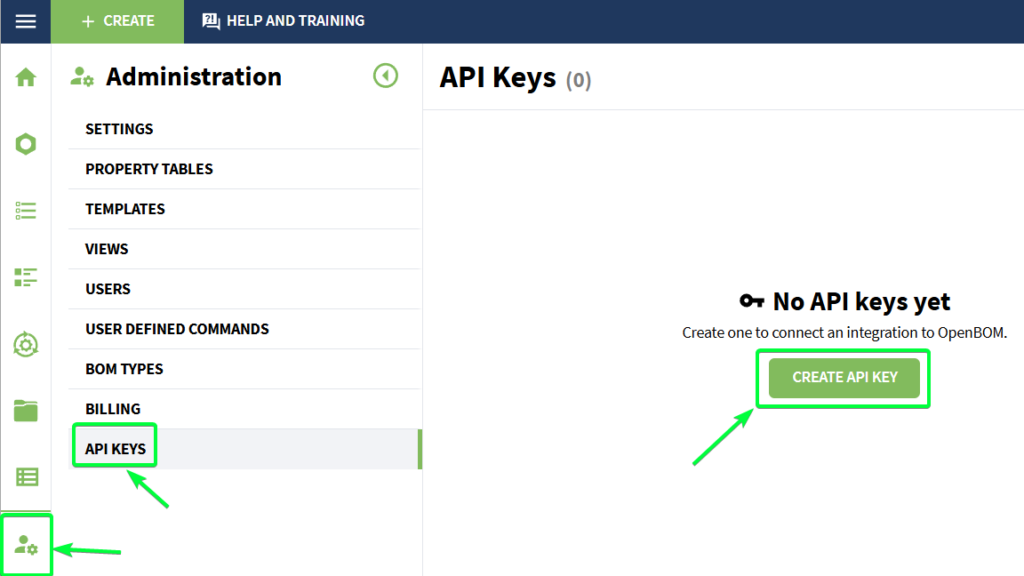
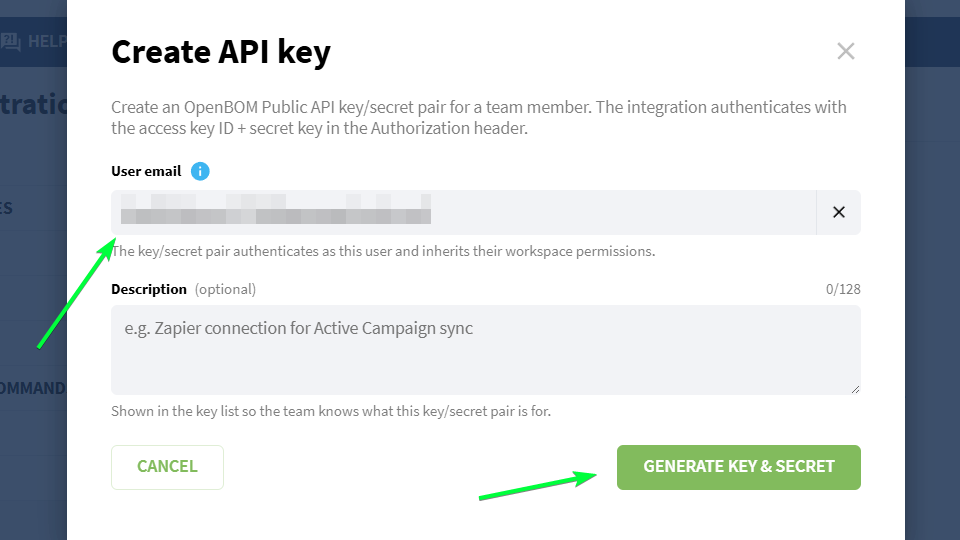
Team administrators can create and manage the team’s OpenBOM API keys directly from the Administration Dashboard.
The API Keys section provides admins with a self-service dashboard and the ability to create API key-secret pairs for team members without contacting OpenBOM support. This makes it easier to set up integrations, automation scripts, and other workflows for Public APIs.
For security, the secret is shown only once during key creation. After the dialog is closed, only the access key ID remains available, so the secret should be copied and stored securely when it is created.
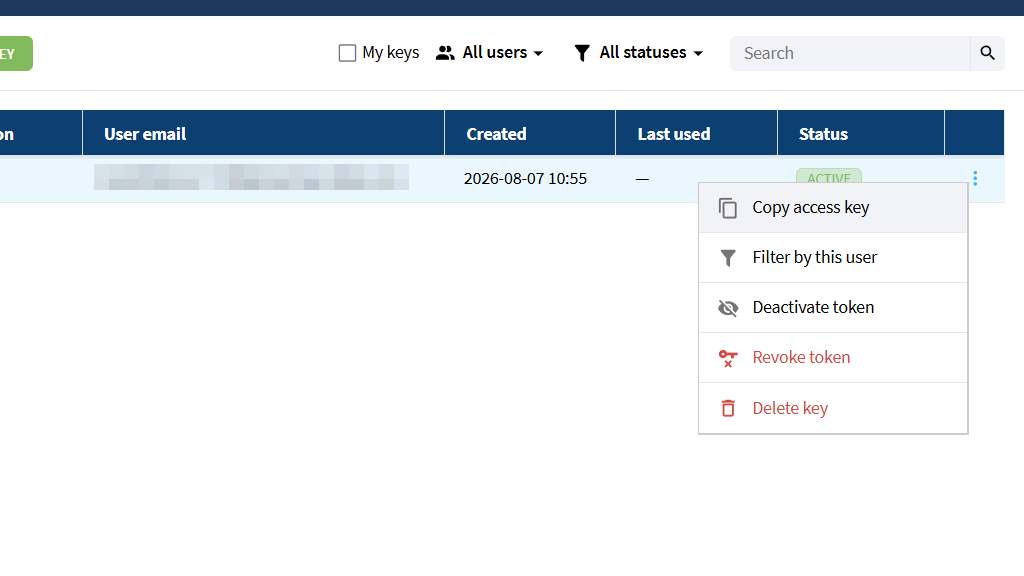
Admins can also manage existing keys from the same page, including activating, deactivating, revoking, and deleting keys when access needs to be changed. Deleted keys are no longer available and cannot be used.
How it works
- Open the Administration Dashboard.
- Go to the API Keys section.
- Create a new API key for a team member.
- Copy and securely store the secret when it is shown.
- Review existing keys in the API Keys list.
- Activate, deactivate, revoke, or delete keys when needed.
- Use the OpenBOM Public API documentation to review available API methods and authentication details.
Public API documentation is available in the OpenBOM Swagger documentation at https://developer-api.openbom.com/openapi.
This gives teams more control over Public API access and reduces the need for manual API key management through OpenBOM support.
More API related improvements
- Allow empty BOM rows to be removed when deleting rows with an empty Part Number. 😀
- BOM property updates inherited from Catalog properties have been improved: unsupported updates are handled more clearly, rather than returning a successful response without changing the BOM.
Other Fixes and Improvements
- Property search in the Add Property dialog waits until properties are fully loaded, preventing incomplete or incorrect search results when working with large property lists.
- Excel export for a multi-level BOM revision correctly applies the selected View and exports only the properties included in that View. (Sorry that took so long)
- Replacing a file via Edit Reference Property displays the proper storage warning and removes the previous file from storage upon confirmation.
- Deleting a row with an attached reference file removes the related file from storage after confirmation.
- Circular BOM relationships are prevented when adding parts through the Item Info panel, helping protect BOM structures from invalid dependencies.
- Multi-level BOM export shows a clear circular reference error message when export fails due to an invalid BOM structure, making the issue easier to identify and correct.
- Application launch and other non-text keyboard keys no longer clear the values in the selected cell.
- The Parts Were Found search field remains visible and accessible when the Search Part Info panel is open.
- Revision creation notifications are shown only for relevant BOMs and Catalogs, preventing unrelated documents from displaying revision messages.
- BOM Review recognizes spaces as valid Reference Designator separators, improving validation for common CAD and EDA formats such as “R1 R2 R3”.
- BOM move-to-trash confirmation dialogs show clearer BOM details, including Part Number, BOM Type, and a link to the BOM spreadsheet, helping users confirm the correct BOM before moving it to trash.
- QuickBooks Online ERP settings make read-only mappings clearer for non-admin users, helping team members understand which settings are controlled by team administrators.
- SOLIDWORKS and File Manager logging has been improved to reduce log file size, avoid duplicate log files, clean up old logs more consistently, and make log collection more reliable during troubleshooting.
- OpenBOM Monitor opens more reliably from CAD integration summary windows, including cases where the Monitor process was previously closed.
- OpenBOM Monitor opens directly on the File Upload Status tab when launched from the Summary window in CAD integrations using the new UI.
Conclusion
We are excited to release one more update of OpenBOM with the new list of features and capabilities. If you have any questions, please contact support@openbom.com
To try out OpenBOM’s existing and new capabilities, REGISTER FOR FREE to get an instant 14-day trial of OpenBOM.
Best, Oleg
Join our newsletter to receive a weekly portion of news, articles, and tips about OpenBOM and our community.