There is a moment in every engineering company when Excel stops being a helpful tool and becomes the bottleneck.
At the beginning it looks harmless. A BOM exported from SOLIDWORKS. A few part numbers. A spreadsheet with quantities. Another with vendors. A drawing with a table embedded inside it. Someone updates the cost manually. Someone else sends the file to purchasing. Later, another person adds inventory counts, and eventually someone creates a purchase order in QuickBooks or a similar system.
It works — until it doesn’t.
The problem is not Excel itself. Excel is useful, flexible, and familiar. The problem starts when Excel becomes the process. When every handoff depends on manual exports, copy-paste operations, disconnected files, and tribal knowledge, the company loses control of product information at exactly the moment when accuracy matters most.
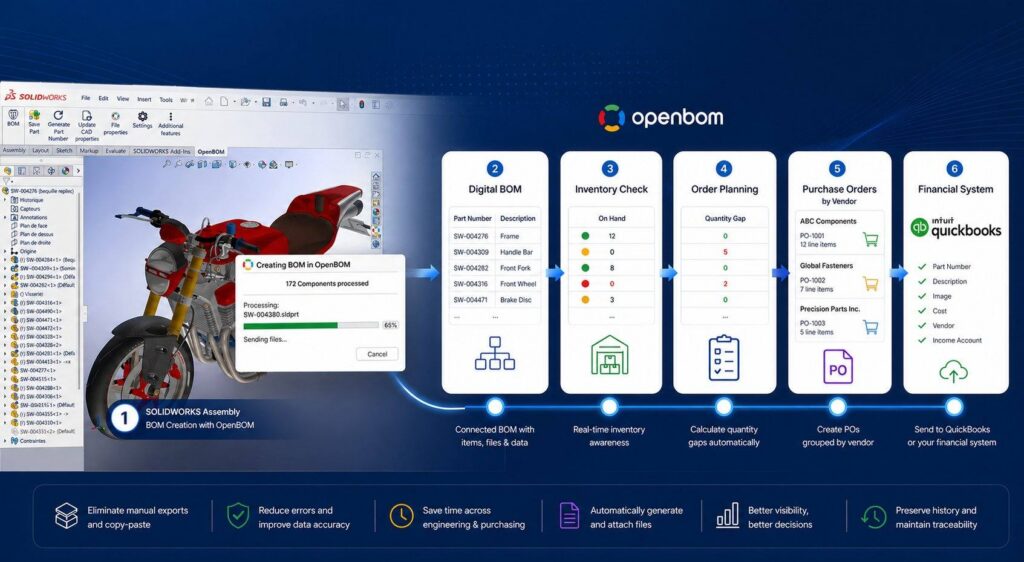
This article demonstrates a practical OpenBOM workflow: how to move from a SOLIDWORKS design to a managed digital BOM, inventory-aware order planning, and purchase order creation — without the mess of disconnected spreadsheets and manual exports.
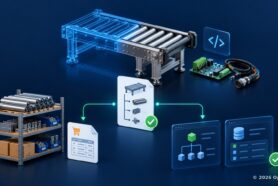
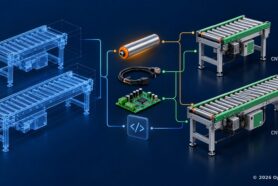
Here is the visual logic of how it works:
Watch the Demo: SOLIDWORKS BOM to Purchase Order Workflow
The easiest way to understand this workflow is to see it in action. In the video below, we demonstrate the complete process: starting with existing inventory and vendor data in Excel, importing it into OpenBOM, creating a BOM directly from a SOLIDWORKS assembly, automatically generating derivative files, calculating inventory gaps, and creating purchase orders ready for QuickBooks or another financial system.
Why SOLIDWORKS BOM Export to Excel Breaks Down at Scale
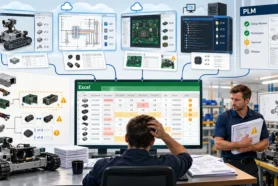
Many engineering teams still begin their purchasing process from a SOLIDWORKS drawing or an exported BOM spreadsheet. The drawing contains a BOM table. The Excel file contains part numbers, descriptions, quantities, vendors, and costs. Sometimes inventory values are maintained in a third file. The connection between all of these elements is weak.
The drawing is a document. The spreadsheet is a snapshot. The vendor information may or may not be current. The cost can be outdated. The inventory quantity is tracked somewhere else. And once the spreadsheet is exported, it immediately starts drifting away from the design.

The traditional process: SOLIDWORKS drawing and BOM data exported to Excel. Useful as a document, but fragile as a process.
This is the turning point. If your team still manages this process with Excel files, shared folders, manual exports, and disconnected purchasing spreadsheets, you are not alone. But you are also carrying unnecessary risk.
The symptoms are familiar: duplicate part numbers, outdated vendor data, incorrect quantities, missing drawings, wrong cost rollups, and purchase orders created from stale information. The larger the assembly becomes, the more fragile the process gets. The real challenge is not creating a BOM once. It is maintaining a connected product data process from design to purchasing.
How to Import Your Parts Catalog and Create a Digital BOM in OpenBOM
The first step is to organize your catalog. In OpenBOM, the catalog is where item master data lives: part numbers, descriptions, vendors, costs, inventory quantities, preferred vendors, and other attributes your team needs.
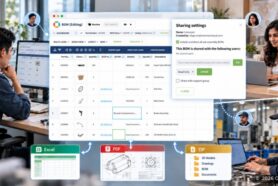
If your data already exists in Excel, OpenBOM does not force you to start from scratch. You can import the catalog directly from Excel and turn your existing spreadsheet into a managed item database.
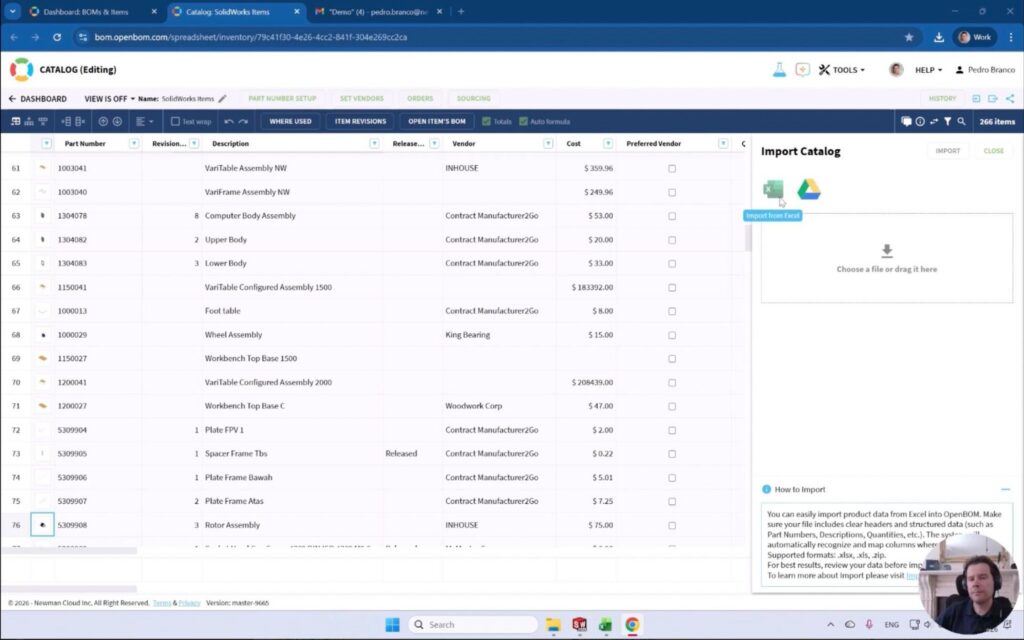
Import existing inventory and vendor data from Excel into an OpenBOM catalog to create a managed digital foundation.
This is an important practical point. Digital transformation does not start by throwing away all existing data. It starts by organizing it. Most companies already have useful information in spreadsheets. OpenBOM lets you bring that data into a structured environment where it can be reused by engineering, purchasing, and operations.
Once the catalog exists, OpenBOM connects directly to SOLIDWORKS. From the add-in, you create a BOM from the assembly and automatically capture the product structure, part numbers, descriptions, quantities, and related metadata.
Even more importantly, OpenBOM can automatically generate and attach derivative files — PDFs, STEP files, DXFs, drawing PDFs — based on your configuration.

OpenBOM for SOLIDWORKS can create a BOM and automatically generate derivative files such as PDFs, STEP files, DXFs, and drawing PDFs.
This is where the process changes from “exporting a BOM” to “creating a digital BOM foundation.” The BOM is no longer just a table copied from CAD. It becomes connected product data, linked to items, files, drawings, vendors, costs, and downstream processes.
How to Create a SOLIDWORKS BOM Automatically with Files and Thumbnails
After configuration, OpenBOM processes the SOLIDWORKS assembly and creates the BOM. During this step, OpenBOM reads the structure, processes components, sends files to storage, and creates the connected BOM in the cloud.

OpenBOM processes the SOLIDWORKS assembly and creates a connected BOM with related files and item data.
For engineers, this matters because the process starts where they already work — inside SOLIDWORKS. No manual export. No renaming files. No preparing purchasing data separately.
For manufacturing and purchasing teams, it matters equally. The BOM is not just a CAD output. It is connected to the catalog and can be used to calculate quantities, costs, vendors, and procurement needs.
Once created, the BOM is available directly in the OpenBOM panel inside SOLIDWORKS and in the browser.
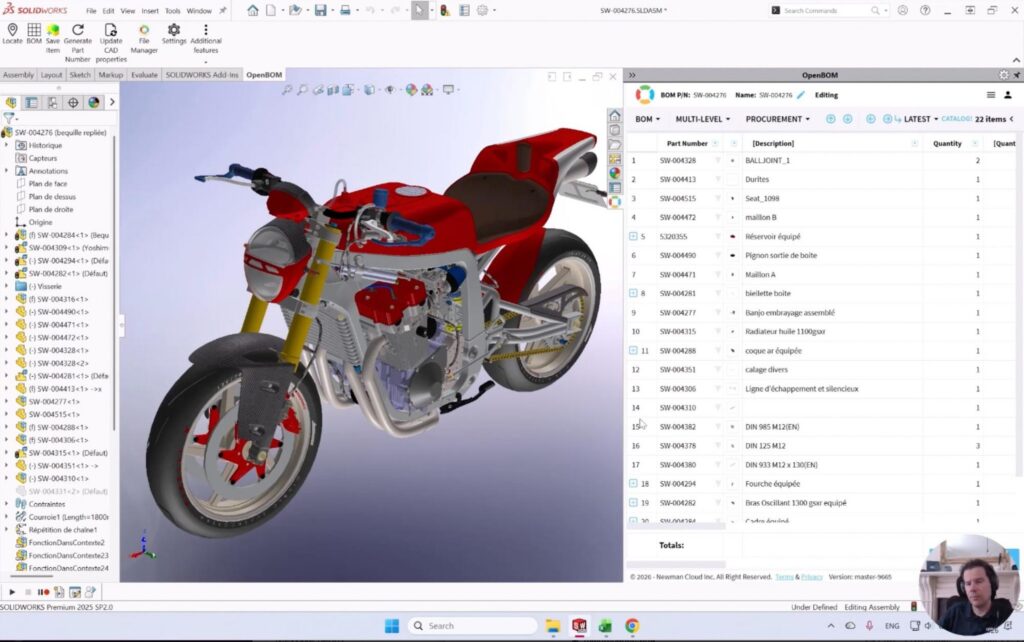
The SOLIDWORKS assembly is now connected to an OpenBOM digital BOM that can be used by engineering and downstream teams.
This connected BOM is the foundation for the next step: inventory-aware order planning.
Inventory-Aware Order Planning: Calculate Purchase Gaps from Your BOM
A BOM tells you what the product requires. Purchasing needs a different question answered: what do we need to order?
This is where OpenBOM Orders come in. An Order is created from the BOM and used to calculate required quantities, available inventory, quantity gaps, vendors, costs, and purchasing needs.
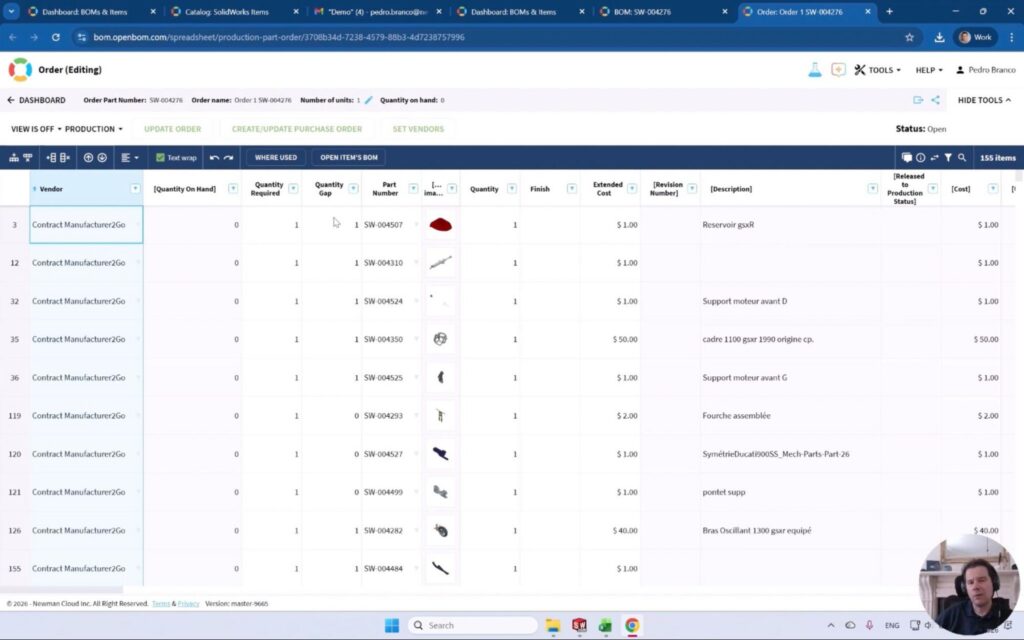
OpenBOM Order calculates quantity gaps by comparing BOM requirements with available inventory.
This is a critical difference from a manual spreadsheet process. In Excel, someone usually calculates these gaps manually or relies on formulas that may or may not be current. In OpenBOM, the order process connects BOM requirements with inventory data and vendor information automatically.
If the BOM requires one unit of a component and the inventory quantity on hand is zero, OpenBOM calculates the gap. If the item already has inventory available, the gap adjusts accordingly. Purchasing gets a clear picture of what needs to be bought, what is already on hand, and where the supply risk lies.
This step transforms the BOM from an engineering deliverable into a procurement planning tool.
How to Generate Purchase Orders by Vendor and Send Data to QuickBooks
Once the order is created and quantity gaps are calculated, OpenBOM generates purchase orders by vendor. Purchasing moves from “what do we need?” to “who do we buy it from?” in a single step.

OpenBOM creates purchase orders by vendor and can export data or send it to QuickBooks and other financial systems.
From here, the data can be exported to Excel if needed, but the more powerful option is to send it downstream to QuickBooks or another financial system. OpenBOM maps properties such as part number, description, image, cost, vendor, and income account directly.
This is where the process becomes truly connected. Engineering defines the product. OpenBOM manages the BOM, items, files, vendors, inventory, and purchasing structure. QuickBooks handles the financial transaction. Each system does what it is good at — without forcing people to copy and paste data between disconnected spreadsheets.
The Result: Connected BOM, Inventory, and Purchasing — No Manual Exports
The biggest value of this process is not only automation. It is control.
With OpenBOM, the journey from SOLIDWORKS to inventory and purchase ordering becomes traceable and repeatable. The company preserves the connection between CAD data, BOM structure, catalog items, vendor information, inventory quantities, derivative files, orders, and purchase orders — across every design update.
The catalog organizes item, vendor, cost, and inventory data. The SOLIDWORKS add-in creates the BOM directly from the design. Derivative files are generated automatically. The order calculates quantity gaps. Purchase orders are created by vendor. Data flows to QuickBooks or another financial system without manual intervention.
This is a very different model from “BOM as a spreadsheet.” It is a digital process where product data flows from engineering to purchasing with fewer manual steps and fewer opportunities for mistakes.
The practical benefits are immediate: fewer manual exports, fewer spreadsheet versions, better organized inventory, more accurate purchasing quantities, automatically generated derivative files, vendor-based purchase orders, and a preserved history of every update.
Conclusion: From SOLIDWORKS Design to Purchase Order in One Connected Workflow
Excel will not disappear from engineering and manufacturing companies. It is too useful and too familiar. But Excel should not be the backbone of your product-to-purchase process.
If your team still starts with a SOLIDWORKS drawing, exports a BOM to Excel, manually updates inventory, copies vendor information, calculates gaps by hand, and then creates purchase orders manually — this is your turning moment.
OpenBOM helps you move from disconnected files and spreadsheets to a connected digital workflow: from SOLIDWORKS design to catalog, BOM, inventory planning, order creation, and purchase ordering.
Product data starts in design, but it does not stop there. With OpenBOM, it can flow all the way to purchasing without losing structure, context, files, vendors, quantities, costs, and history along the way.
Ready to try it? Start with your existing Excel data and a SOLIDWORKS assembly. The first step takes less time than you think.
REGISTER FOR FREE to check how OpenBOM can help.
Best, Oleg
Join our newsletter to receive a weekly portion of news, articles, and tips about OpenBOM and our community.