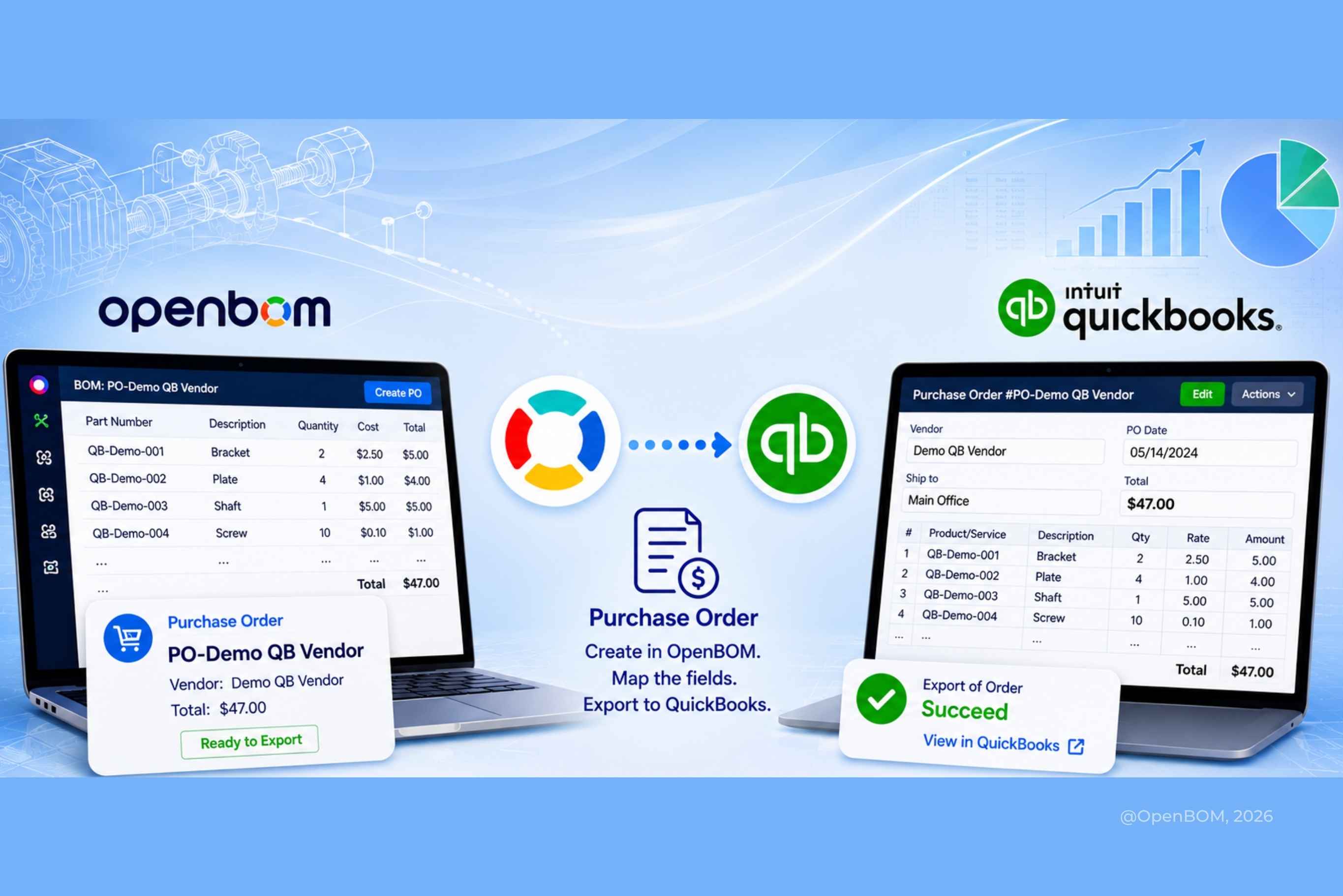
The principle behind the OpenBOM and QuickBooks integration is straightforward. OpenBOM manages the bill of materials, the parts, the structure, the quantities, and the costs, and it lets you turn that data into a purchase order without leaving the system. Once the purchase order exists in OpenBOM, you map its fields to the matching QuickBooks properties and send it across. The purchase order created in OpenBOM becomes a purchase order in QuickBooks, with its line items, accounts, and totals intact. Everything in this walkthrough is built on that single flow: manage the BOM, create the PO in OpenBOM, map it, and export it to QuickBooks.
Integration between engineering data and accounting looks trivial until you actually do it. OpenBOM holds the product structure, part numbers, quantities, and costs. QuickBooks holds the financial side, the items, income accounts, and purchase orders. The integration connects the two, but it only works when the property mapping between them is complete and the required fields on both sides are satisfied.
This walkthrough follows a single purchase order, PO-Demo QB Vendor, from an empty mapping to a confirmed order inside QuickBooks. It deliberately hits a realistic failure along the way, because the most useful part of any integration setup is learning how to read the log and act on it.
Simple PO export vs bi-directional data exchange
This is the simple setup for sending a purchase order from OpenBOM to QuickBooks. It is worth knowing that OpenBOM supports a bi-directional integration with QuickBooks as well, where inventory levels and other item data can sync from QuickBooks back into OpenBOM. A separate article with more detail on that side of the integration is coming. In the meantime, if you have questions, contact OpenBOM support.
Step 1: Open the panel and start the mapping
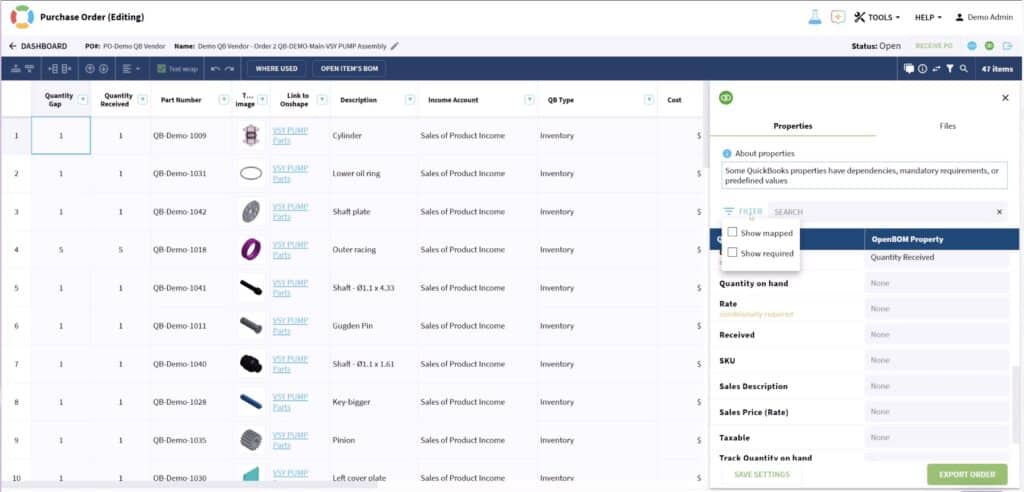
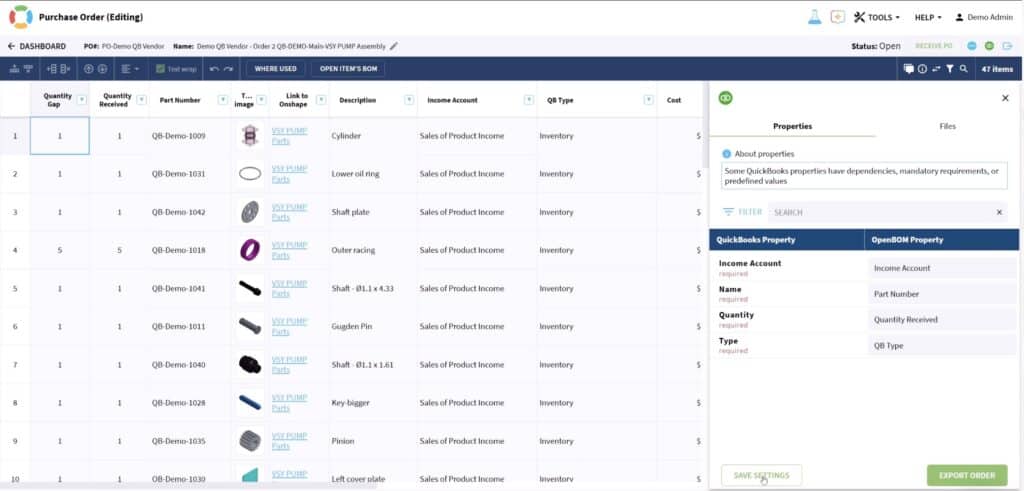
When you open a purchase order in OpenBOM and bring up the QuickBooks panel, you land on the Properties tab. This is where the mapping lives, organized as two columns. The QuickBooks property sits on the left, and the OpenBOM property it maps to sits on the right. The note at the top is worth reading rather than dismissing, because it warns that some QuickBooks properties carry dependencies, mandatory requirements, or predefined values. The Filter control, with its Show mapped and Show required toggles and a search box, is how you keep that long property list manageable.
Step 2: Check the mandatory parameters first
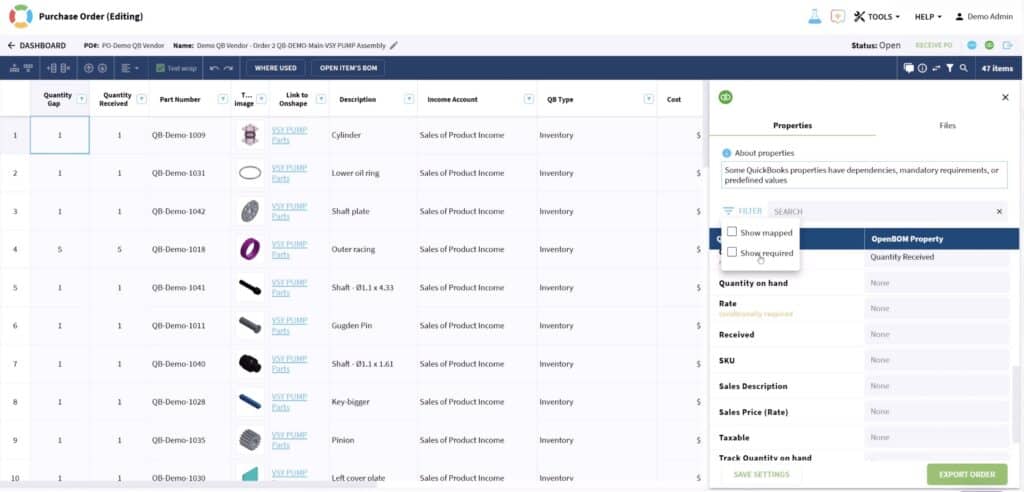
Before exporting anything, narrow the list to the fields QuickBooks will not accept an item without. Turn on Show required in the Filter so the panel stops showing everything and focuses on what actually blocks an export.
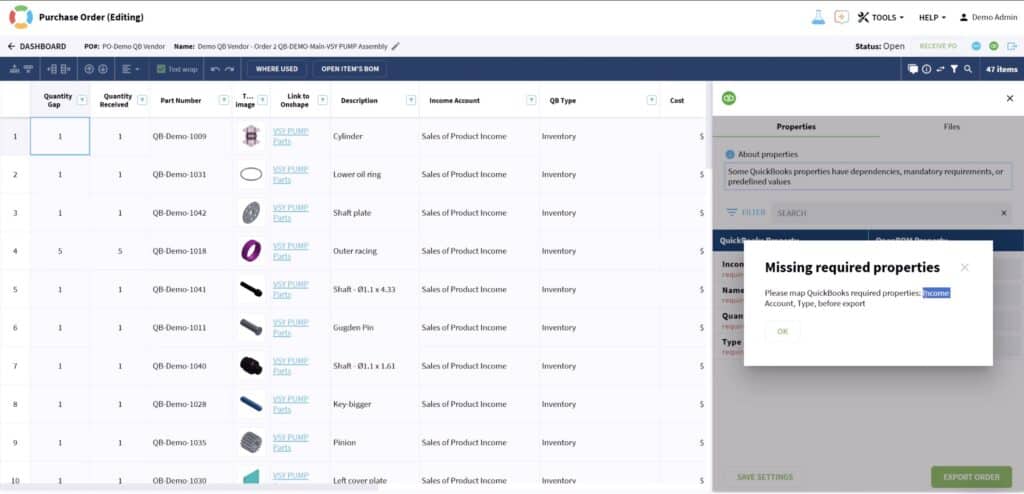
OpenBOM does not let you send data with required fields left empty, and it tells you so before anything leaves the system. If a mandatory property is unmapped, the Missing required properties dialog names the exact fields it needs, in this case Income Account and Type, and refuses to continue until they are mapped. Treat this as a guardrail rather than an obstacle.
Once the required item fields are mapped, the short list reads cleanly. Income Account maps to Income Account, Name maps to Part Number, Quantity maps to Quantity Received, and Type maps to QB Type. Save the settings to lock the mapping in.
Step 3: Try the sync and read what the log tells you
With the required item fields mapped, run Export Order. OpenBOM opens an export-in-progress dialog and lets you know it is safe to close it while the work continues in the background.
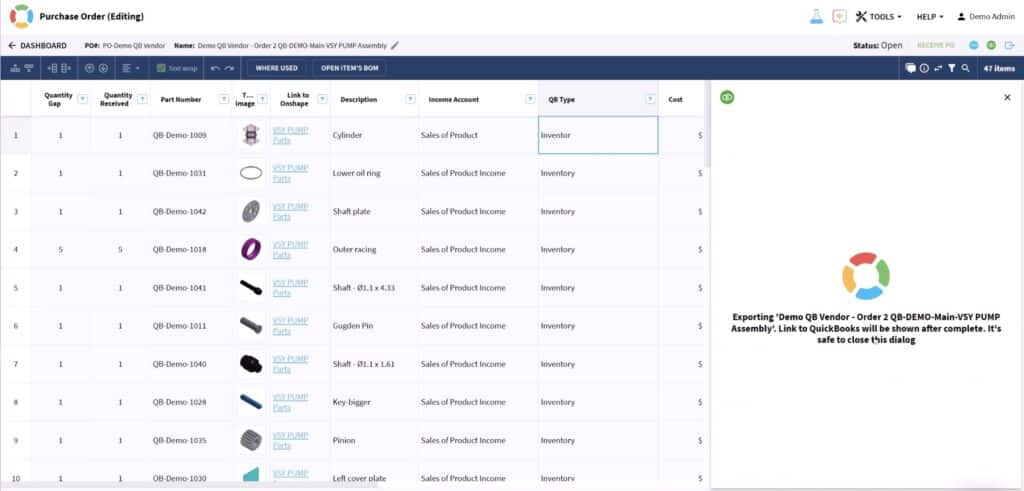
The result this time is not success. The Export of Order failed dialog appears and points you straight to the logs. Resist the urge to guess at the cause and open them instead.

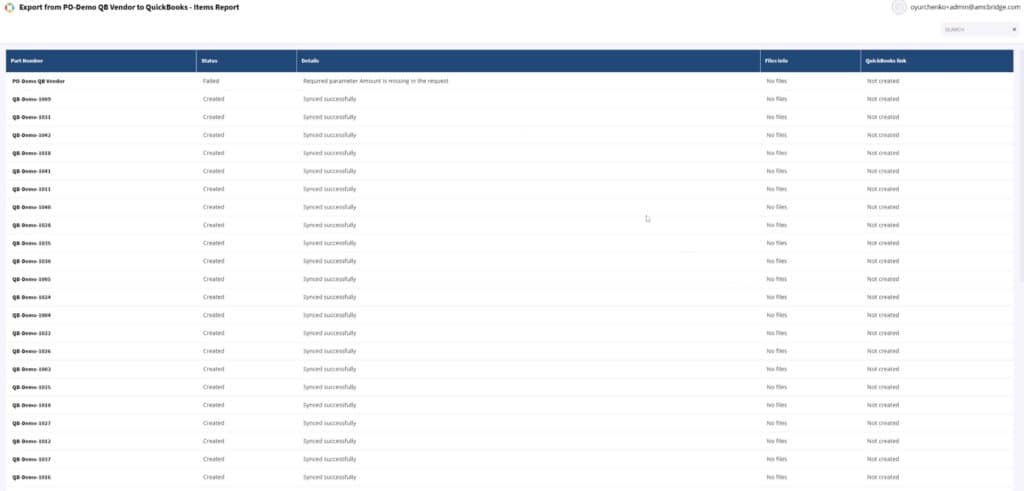
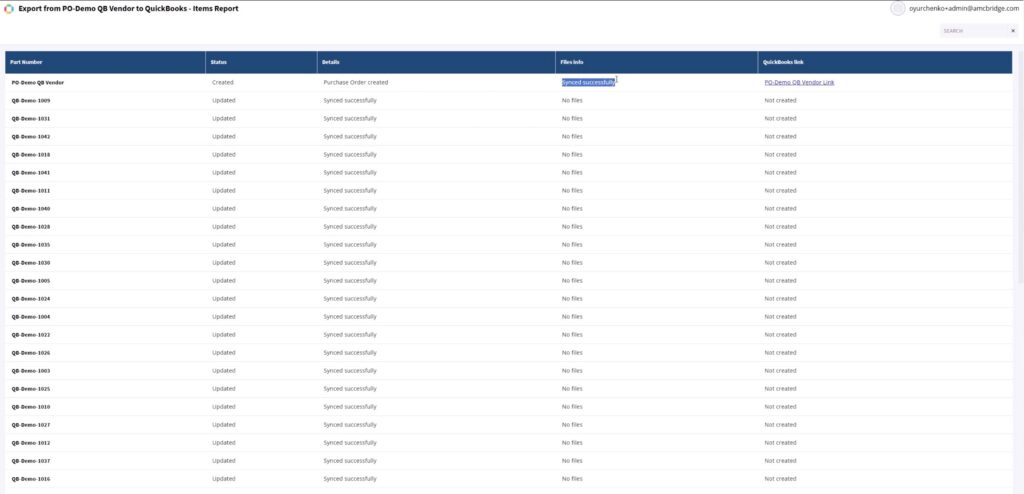
The Items Report is where the real information lives, and it is more precise than the dialog. Every QB-Demo part shows Created and Synced successfully, which means the item-level mapping from Step 2 was correct and all forty-seven parts went across. The failure is on the first row, the order header PO-Demo QB Vendor, with a specific reason: the required parameter Amount is missing in the request. The items synced, but the order itself could not be created because the line Amount was never mapped. QuickBooks needs a monetary value on each purchase order line, and nothing in OpenBOM was pointing at one.

Step 4: Fix the mapping and correct the value
Go back to the mapping panel and find the Amount property. It sits among the order and item export properties, near Customer, Description, and Expense Account. The fix is to map it to a value OpenBOM actually carries, and Cost is the natural choice. When you start typing in the OpenBOM Property field, the list filters as you go, so typing the letter c surfaces Appearance, Cost, and Description. Select Cost, then save the settings again.
Step 5: Send the data and confirm it in QuickBooks
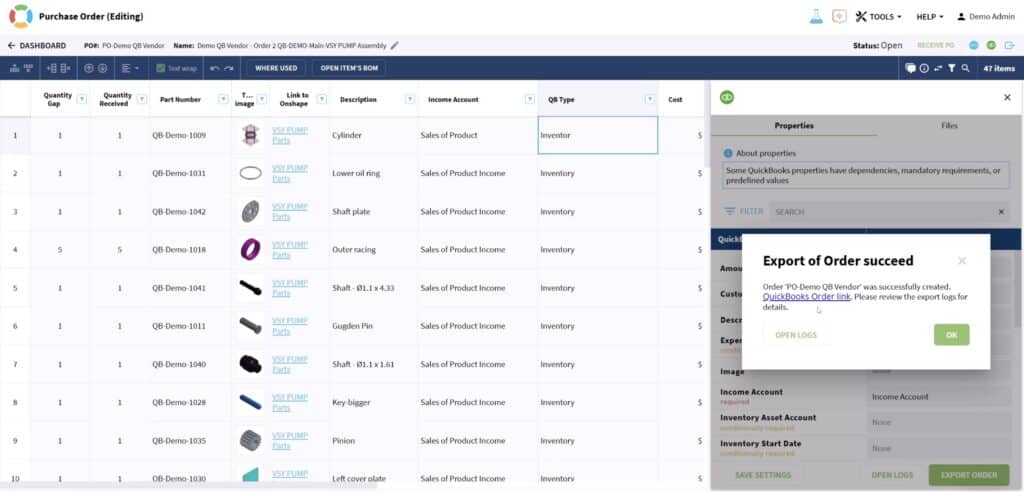
Export the order one more time. With Amount now mapped, the result is Export of Order succeed, and the confirmation includes a direct QuickBooks Order link.
Reopen the log to confirm what happened. The header row PO-Demo QB Vendor now reads Created with the detail Purchase Order created and Synced successfully, and it carries a working link. The parts show Updated rather than Created, because they already existed in QuickBooks from the first attempt and only needed refreshing.
Follow the link into QuickBooks itself for the final check. Purchase order #PO-Demo QB Vendor opens against Demo QB Vendor with every line present and a total of $47.00, exactly as the OpenBOM order specified.

Conclusion: What this exercise really teaches
The integration is not complicated once you understand that QuickBooks enforces required fields at two levels, the item and the order. Map the required item fields first, then verify the order-level fields like Amount before you commit. When an export fails, the log is not a wall, it is an instruction. In this case it named the missing field exactly, the Amount-to-Cost mapping closed the gap, and the second export went through without further changes.
OpenBOM connects to many engineering and enterprise software products. The integrations depend on the software, use cases and configurations. There are 40+ applications OpenBOM integrates out of the box and many others can be configured and integrated using API. Learn more about it here – OpenBOM Integrations.
REGISTER FOR FREE and check how OpenBOM can help.
Best, Oleg
Join our newsletter to receive a weekly portion of news, articles, and tips about OpenBOM and our community.