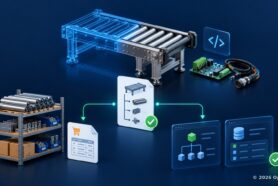
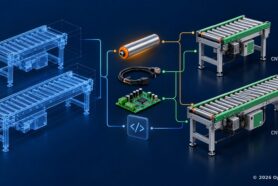
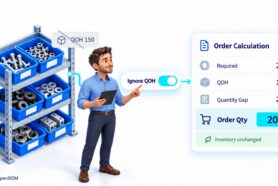
One of the most common questions I hear from engineering and manufacturing teams is simple: how do we move product data from CAD to ERP without turning the process into a spreadsheet nightmare?
It sounds straightforward at first. A product is designed in SolidWorks. SolidWorks has an assembly structure. ERP needs a bill of materials. So why not send the SolidWorks BOM directly to ERP?
In reality, the distance between CAD and ERP is much bigger than it looks.
CAD systems are designed for engineers. They describe geometry, assemblies, references, drawings, configurations, and design intent. ERP systems are designed for manufacturing, purchasing, inventory, costing, scheduling, and operations. They need vendors, costs, quantities on hand, item types, routings, lead times, purchasing units, and make/buy decisions. These are two fundamentally different worlds, and bridging them requires more than an export button.
This is why the journey from SolidWorks to ERP is not just a file transfer. It is a product data transformation process. And that transformation needs to be managed somewhere in between.
In this article, I want to walk through a practical example demonstrated by Pedro Branco in a recent OpenBOM video. The demo shows how product data flows from SolidWorks into OpenBOM and then into two ERP systems used as examples: Odoo and NetSuite. Odoo demonstrates a simple push-style integration where OpenBOM sends data to ERP. NetSuite demonstrates a more comprehensive embedded integration where OpenBOM runs inside NetSuite and allows ERP users to access, configure, and pull BOM data directly from within their familiar environment. The same integration principles apply to many other ERP systems that OpenBOM supports.
Why You Cannot Send a SolidWorks BOM Directly to ERP
The first thing to understand is that the BOM coming out of SolidWorks is not always the BOM you want to send to ERP.
In SolidWorks, engineers can control how assemblies appear in the BOM. Some assemblies are purchased as complete units and should not be exploded into all their child components. Others can be promoted or dissolved depending on how the team wants to represent the structure. In Pedro’s motorcycle example, some parts are treated as purchase units, while other structures are expanded into the bill of materials.
This is a critical point. Before sending anything to ERP, the team needs to decide what structure makes sense for manufacturing and purchasing. Sometimes the CAD structure is close enough. Sometimes it needs adjustment. Sometimes the ERP needs a manufacturing BOM that is structured entirely differently from the engineering BOM.
OpenBOM provides the intermediate layer where this transformation happens. It captures the SolidWorks BOM, keeps the connection to CAD data, allows teams to enrich the data with purchasing and operational information, and then sends the right structure to ERP. This is the difference between exporting a BOM and actually managing product data.
SolidWorks to ERP Integration: Push, Embedded, and API Options
OpenBOM is not a one-size-fits-all connector. Different companies have different ERP systems, different team structures, and different levels of ERP maturity. A ten-person mechanical engineering team running Odoo has very different integration needs than a larger organization running NetSuite with dedicated ERP administrators and formal change control processes.
This is why OpenBOM supports multiple integration patterns, designed to match the way your team actually works rather than forcing a single workflow on everyone.
The main integration models OpenBOM supports are:
Push. OpenBOM sends BOM data directly to ERP on demand. The engineering or operations team configures the connection, maps properties, and initiates the transfer with a single action. This is the simplest model and works well for teams that want fast results without complex ERP-side configuration. The Odoo integration in this article is a good example of this approach.
Embedded pull. OpenBOM is embedded directly inside the ERP interface. ERP users can open an item or assembly record in their ERP system, see the related OpenBOM BOM from within that interface, configure how the data should be mapped and transferred, and pull it into ERP without leaving their own environment. This model gives ERP users more visibility and control, and is better suited for organizations where ERP teams need to manage the integration parameters themselves. The NetSuite integration in this article demonstrates this model.
API-based and custom integration. For companies with more advanced requirements, OpenBOM also supports API-based integration, which allows custom workflows between OpenBOM and virtually any ERP or business system. This is useful when standard integration options need to be extended or when a company uses an ERP system that requires a tailored connection approach.
All of these options share the same underlying philosophy: the integration should be ready to use without a lengthy implementation project, and it should be accessible from the moment you subscribe.
How to Capture SolidWorks BOM Data in OpenBOM
The workflow always starts in SolidWorks. OpenBOM’s SolidWorks add-in allows users to extract the BOM directly from the CAD assembly and create a structured, multi-level bill of materials in OpenBOM.
In the video example, the SolidWorks motorcycle assembly is the source. OpenBOM captures the product structure, part numbers, descriptions, quantities, thumbnails, and other properties. Once the data is in OpenBOM, it becomes available in a collaborative browser-based environment where engineering, purchasing, and operations teams can review and enrich it before anything is sent downstream.
This matters because ERP rarely needs only the raw CAD data. ERP needs operational data: vendors, costs, lead times, item types, and purchasing information. OpenBOM gives the team a structured place to add and validate this information before it reaches the ERP system.
The result is a clean, organized BOM that maintains its connection to engineering but is also ready to support procurement, inventory, costing, and ERP integration.
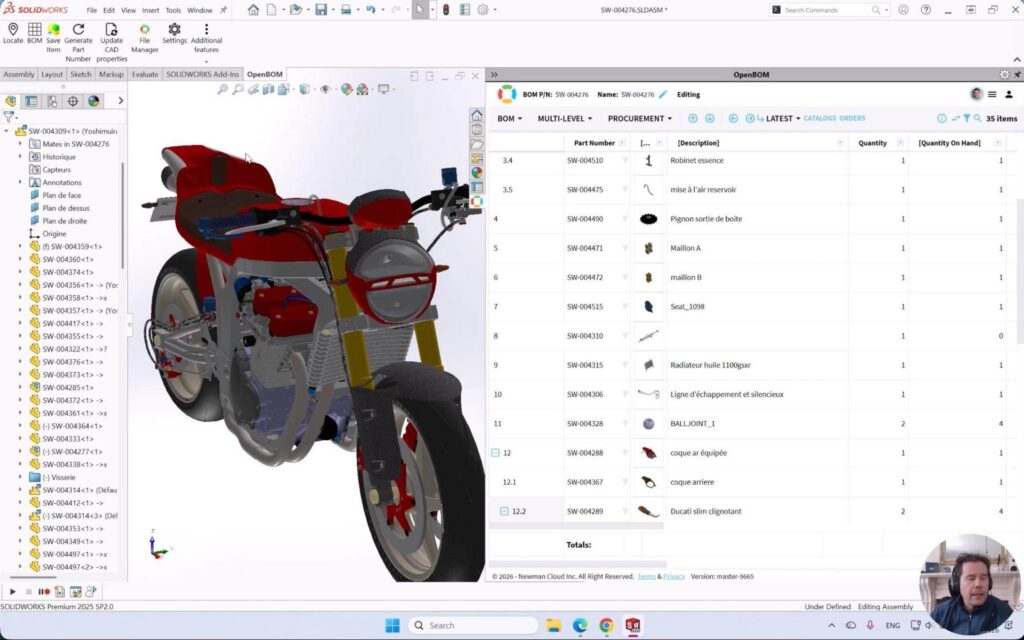
Image 1: OpenBOM captures BOM data directly from SolidWorks and makes it available for downstream ERP processes.
OpenBOM Odoo Integration: How to Push BOM Data from SolidWorks
The first ERP option demonstrated in the video is Odoo. This is a good example of a straightforward push-style integration.
The setup is minimal. OpenBOM is configured to connect to Odoo through a simple authentication and property mapping process. Users can define which OpenBOM properties map to which Odoo fields, choose whether to include thumbnails, drawings, and documents, and then initiate the transfer with a single action.
In the demo, the motorcycle BOM is pushed from OpenBOM into Odoo. The process completes and the full product structure, along with related files and data, appears inside Odoo as a manufacturing BOM.
This option is well suited for smaller teams or companies that want a fast path from engineering to ERP. There is no need for a large implementation project, no need for ERP-side developers to configure a custom connection, and no need for the engineering team to manually re-enter BOM data into the ERP system. The data flows from SolidWorks to OpenBOM and then into Odoo in a controlled, repeatable way.
For companies that are just starting their ERP integration journey, or that have relatively straightforward product structures and purchasing workflows, this model delivers immediate value with very little setup time.

Image 2: OpenBOM allows users to configure property mapping and file options before sending data to Odoo.

Image 3: The BOM transferred from OpenBOM appears in Odoo as a manufacturing structure with the full product hierarchy.
OpenBOM NetSuite Integration: Embedded BOM Access and Pull Configuration
The second ERP option is NetSuite, and it demonstrates a more advanced integration model built around a different set of user needs.
Instead of pushing data from the OpenBOM side, this integration embeds OpenBOM directly inside the NetSuite interface. NetSuite users can open an item record and see the related OpenBOM BOM from within NetSuite, without switching applications or logging into a separate system.
This is powerful because it creates engineering data visibility for ERP users inside their own environment. A NetSuite user can access an engineering BOM or manufacturing BOM from OpenBOM, review the product structure, check associated drawings or files, configure integration parameters, and pull the data into NetSuite, all from within the NetSuite interface they already use every day.
The NetSuite integration also provides a broader set of configuration options. Users can map OpenBOM properties to NetSuite fields, define item types for newly created records, control how part numbers and revision information are handled, and decide exactly which items and properties are transferred. This level of control matters for organizations where ERP processes are formal and where incorrect data in NetSuite can create downstream problems in purchasing, inventory, or financial reporting.
Creating or updating large BOMs manually in NetSuite is time-consuming work. A product with hundreds of components requires filling out many required fields, and any mistake can be expensive to correct. OpenBOM automates this process while preserving the flexibility teams need to match their specific NetSuite configuration.
In this model, OpenBOM becomes a window into engineering product data that lives inside the ERP experience. The ERP team sees the data, evaluates it, configures the transfer, and pulls it in on their own terms.

Image 4: OpenBOM embedded inside NetSuite gives ERP users direct access to engineering BOM data from within their own environment.

Image 5: NetSuite integration allows users to configure property mapping, item types, and other transfer parameters before pulling data.
Engineering BOM vs Manufacturing BOM: How to Send the Right Structure to ERP
One of the most important topics in the video, and one that often goes underdiscussed in conversations about ERP integration, is the difference between engineering BOMs and manufacturing BOMs.
In many companies these two structures are not the same thing. The engineering BOM represents how a product is designed. The manufacturing BOM represents how it is built, purchased, packaged, and assembled on the production floor. For simple products, the difference may be small. For more complex products, the gap can be significant.
A manufacturing BOM might include phantom assemblies that exist to organize the manufacturing sequence but do not correspond to purchased or stocked items. It might include packaging materials, raw material breakdowns, work-center-specific groupings, or purchased kits that have no direct representation in the CAD model. These structures exist because manufacturing needs different information than engineering, and ERP is designed to serve manufacturing.
This is where OpenBOM’s xBOM architecture becomes important. OpenBOM can maintain multiple BOM types for the same product. A company can manage an engineering BOM captured from SolidWorks, and then create a separate manufacturing BOM that is restructured for production and ERP. These two structures share the same part number foundation but can differ in hierarchy, content, and purpose.
In the video, Pedro shows an example where an engineering BOM is used as a starting point, and a manufacturing BOM is created as a distinct structure using OpenBOM’s copy BOM capability. This manufacturing BOM is then the one transferred to ERP, not the original engineering BOM.
This is the practical reality of product data management. The goal is not simply to move data from one system to another. The goal is to move the right data, in the right structure, to the right destination.

Image 6: OpenBOM xBOM architecture allows teams to manage multiple BOM types, such as EBOM and MBOM, for the same product and send the appropriate structure to ERP.
Watch the Video
Pedro Branco demonstrates the full workflow in the video, including SolidWorks data capture, Odoo push integration, NetSuite embedded integration, and EBOM-to-MBOM scenarios. It is worth watching to see how these integrations work in practice.
Why SolidWorks to ERP Integration Matters for Manufacturing Teams
The integration between SolidWorks, OpenBOM, and ERP is not just about saving time, although it certainly does that. It is about reducing the errors and miscommunications that happen when engineering data is transferred manually between teams.
Without integration, the typical process involves spreadsheets, manual re-entry, exported files, and email. A small mistake in a part number, quantity, vendor, cost, or item type can create downstream problems in purchasing, inventory, or production scheduling. These mistakes are common, and they are expensive.
OpenBOM addresses this by creating a controlled product data workspace that sits between CAD and ERP. Engineers continue working in SolidWorks. OpenBOM captures the product structure, gives the team a place to enrich and validate it, and then transfers the right BOM to ERP using whichever integration model fits the organization’s workflow.
For teams that want simplicity, the push model gets data into ERP quickly with minimal setup. For teams that need more control, the embedded model gives ERP users direct access to OpenBOM data and lets them manage the integration on their side. For teams managing complex products, the xBOM architecture ensures that the manufacturing BOM sent to ERP actually reflects how the product is built, not just how it was designed.
SolidWorks BOM to ERP: Start Your Integration with OpenBOM Today
The journey from SolidWorks to ERP is one of the most important processes in any manufacturing company. It connects engineering decisions with purchasing, inventory, production, and financial operations. Getting it right matters.
But this journey should not require endless spreadsheets, manual re-entry, or a lengthy implementation project to set up.
OpenBOM makes the process practical. It captures data from SolidWorks, gives teams a place to manage and enrich BOMs, supports multiple BOM views through its xBOM architecture, and transfers the right information to ERP systems including Odoo, NetSuite, and many others. The integrations are ready to use from day one of your subscription. There is no large consulting engagement required to get started.
The spreadsheet nightmare that so many engineering teams live with today is not inevitable. It is a workflow problem, and workflow problems have solutions.
To learn more about OpenBOM integrations, visit openbom.com/integrations.
REGISTER FOR FREE to check how OpenBOM can help.
Best, Oleg
Join our newsletter to receive a weekly portion of news, articles, and tips about OpenBOM and our community.