The buyer searches OpenBOM for ABC1234, the board on this week’s purchase order, and finds nothing. The BOM is there. It is called HV_Board, after the Altium project, and only the engineer who created it knows the two are the same board.
By default, the Altium BOM part number in OpenBOM is the document name. That works for a first test. It stops working once the board has a real part number that purchasing, the contract manufacturer and the product BOM all use, and it gets harder when one schematic produces two builds, each with its own number.
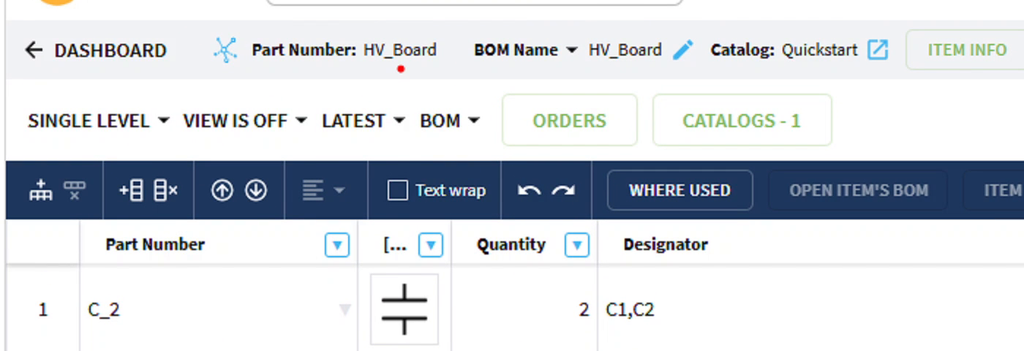
At OpenBOM, we keep the board’s part number in the design, next to the parameters engineers already maintain in Altium. The OpenBOM add-in for Altium Designer reads it from a parameter you choose: in the schematic when the design gives one board, or in a variant when it gives several. Set it once, and every BOM you create from the project carries it.
How do you set the part number of an Altium BOM?
By default, the OpenBOM add-in uses the document name as an Altium BOM’s part number. For the board’s real number, add a parameter to the schematic under Document Options, with the name chosen in Component Parameter to use as Part Number, and type the number as its value. A Part Number parameter in the active variant takes precedence over it.
The part number can come from three places:
| Where the part number comes from | Example for the board | BOM part number in OpenBOM |
|---|---|---|
| Default: the document name | Project HV_Board | HV_Board |
| Schematic parameter, under Document Options > Parameters | Part Number = ABC1234 | ABC1234 |
| Variant parameter, under Variant Management > Parameters | Part Number = X99876 in the active variant | X99876, ahead of the schematic’s number |
This article follows HV_Board, an illustrative high-voltage board with contactors, a bleeder resistor and two ways to connect the power supply: banana plugs or Phoenix connectors. The standard build is ABC1234. A second build that fits only the banana plugs is X99876.
Check which parameter holds the part number
Start in the add-in settings, because they decide which parameter OpenBOM reads.
Right-click the project and select OpenBOM > Settings. Component Parameter to use as Part Number names the parameter, for example Part Number. The list shows the parameters in the open documents.
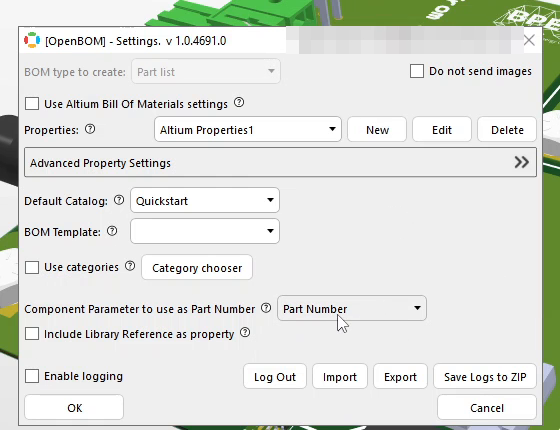
The same name does two jobs. On each component, the parameter gives the part its number in the BOM. On the schematic document, it gives the board its number. For HV_Board, both are Part Number, so there is one name to keep track of.
If you have not set up the add-in yet, start with creating your first Altium BOM in OpenBOM.
Add the part number to the schematic
With the name settled, the number goes into the schematic.
Open HV_Board.SchDoc. In the Properties panel, under Document Options > Parameters, select Add and add a parameter named Part Number. Type the board’s part number as its value: ABC1234.

Use the same name as in the settings. A parameter called PN is a different parameter, and the BOM keeps the document name.
Create the BOM and check the summary
Right-click the project and select OpenBOM > Create/Update BOM. Before the BOM is created, a summary lists what the add-in will do: the action, the part number property, the part number, the catalog and the BOM type. For HV_Board it shows Create, Part Number, ABC1234 and Quickstart. Select Create BOM.

In OpenBOM, the BOM now has part number ABC1234 instead of HV_Board. When the buyer looks for ABC1234, this is the BOM they find.
How do you create a separate BOM for each Altium variant?
Give each variant its own part number. In Variant Management, add a Part Number parameter to the variant with a unique value, activate the variant in the Projects panel, and select OpenBOM > Create/Update BOM. Because a variant’s part number takes precedence over the schematic’s, each variant numbered this way gets a BOM of its own in OpenBOM.
Use a variant when one schematic produces several boards: different components fitted, a different version, a build for a different customer. Altium resolves parameters in the same order, with the variant ahead of the schematic document, so ABC1234 stays the number of the standard build.
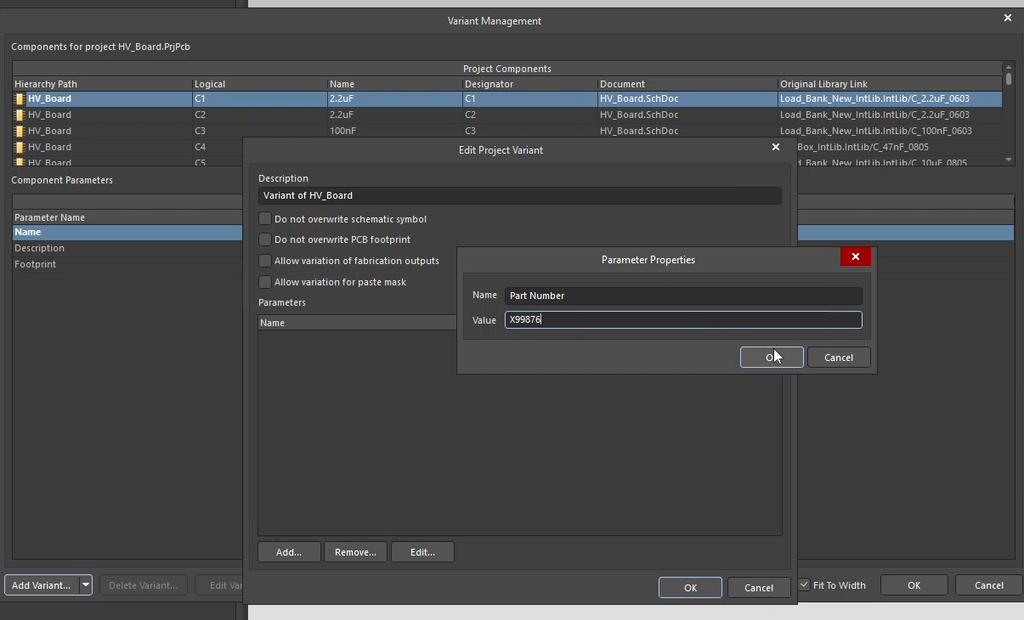
For HV_Board, open Variant Management and add a variant, or edit an existing one, and give it a name. The banana-only build is described as Variant of HV_Board. Under Parameters, select Add. In Parameter Properties, set the name to Part Number and the value to X99876, then select OK.
Activate the variant and update the BOM
The add-in works from the active variant, so make it active first.
In the Projects panel, expand Variants and double-click Variant of HV_Board. It shows in bold when it is active. To go back to the standard build later, double-click [No Variations] the same way.

Select OpenBOM > Create/Update BOM. This time the summary adds a Variant Name row, Variant of HV_Board, and the part number is X99876. Select Update BOM.
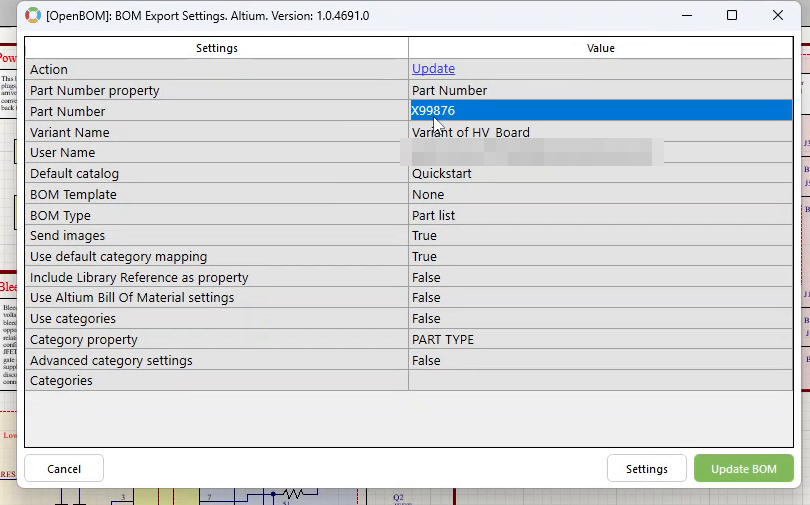
Read the Variant Name and Part Number rows before you select the button. On a project with several variants, they tell you which build you are about to send to OpenBOM.
OpenBOM now has a BOM for each build: ABC1234 for the standard board and X99876 for the banana-only version. The contract manufacturer quoting X99876 works from the BOM with that number.
A checklist for the next board
- Check the parameter name. Right-click the project, select OpenBOM > Settings and note the parameter in Component Parameter to use as Part Number.
- Number the board in the schematic. Add that parameter under Document Options > Parameters, with the board’s part number as its value.
- Create the BOM. Select OpenBOM > Create/Update BOM, check the part number in the summary, then select Create BOM.
- Number each variant. In Variant Management, add the same parameter to each variant, with its own part number.
- Activate before you update. Double-click the variant in the Projects panel so it shows in bold.
- Update the variant’s BOM. Select OpenBOM > Create/Update BOM, check the variant name and part number, then select Update BOM.
The part number then travels with the design. The buyer finds ABC1234, the contract manufacturer gets X99876, and nobody has to remember that both started as HV_Board.
Start an OpenBOM free trial to explore the Altium add-in and variant BOMs with your own PCB designs.
Join our newsletter to receive a weekly portion of news, articles, and tips about OpenBOM and our community.