Welcome to the OpenBOM May 2026 update!
Every month we work hard to make OpenBOM better — and this month is no exception. We listened to your feedback and focused on things that matter in your day-to-day work: getting data out of OpenBOM in the right format, working faster with large datasets, and continuing to weave AI more naturally into your workflows.
A big focus this month is export. Sounds simple, but for many teams, being able to export a BOM with the right metadata — revisions, descriptions, dates — directly into an Excel file or a properly named file is a real time-saver. It means you can share accurate lifecycle information with other departments, contractors, and suppliers without extra manual work. We’ve put a lot of care into making this seamless.
We also made some quality-of-life improvements for teams working with larger datasets — smarter list ordering, a search feature in the BOM delete dialog, and better access to Change Requests and Item Revisions. Small things, but they add up.
AI keeps getting more capable and easier to use inside OpenBOM. You can now switch between Assistant and Agent modes right in the AI panel, and we’ve continued improving AI-assisted workflows in CAD File Manager to Smart Sync to the Task Pane experience.
There are also important updates for billing and account access, plus a range of improvements for CAD-connected workflows in Onshape, Creo, and others.
Let’s dig in.
Configure Excel Export Header Rows for BOMs
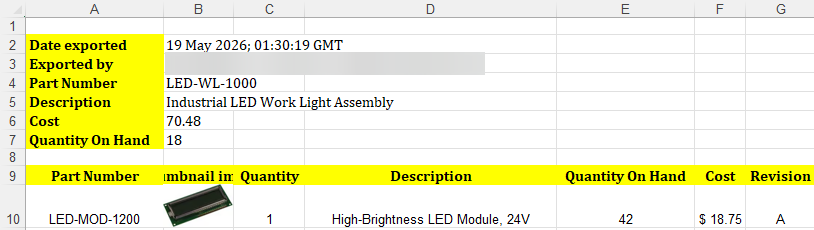
This release includes several improvements for teams working with BOM data outside OpenBOM. Excel exports are now more configurable, allowing you to add header rows from a selected View, making exported spreadsheets easier to review and share.

Excel Export Header Rows for BOMs
You can now add configurable header rows to Excel exports from BOMs. This makes exported spreadsheets easier to review and share by placing key BOM information above the BOM table.
When exporting to Excel, select an OpenBOM View to define which properties should be added as header rows. The export dialog includes a preview, so you can review the selected information before downloading the file.
This option is available for BOM Excel exports.

To use it follow these steps:
- Open the BOM you want to export.
- Click Export and choose Excel.
- Turn on [Add header rows from a View].
- Select the View that contains the properties you want to include.
- Review the preview.
- Click Export to download the Excel file with the selected header rows added above the BOM table.
Watch the video of how it works.
Include property values in export file names
We also added the ability to append selected property names and values to exported file names inside ZIP packages, helping teams keep downloaded files organized and easier to identify.

You can now append selected property names and values to exported file names when downloading files as a ZIP package. This makes exported files easier to identify, organize, and share outside OpenBOM.
When the Download ZIP including files option is selected, a new option becomes available to append selected properties to the exported filenames. You can choose one or more properties from the current document, use search to find the properties you need, and the exported files inside the ZIP will include those property names and values in their filenames.
This is useful when exported files need to carry additional context, such as Part Number, Description, Revision, Quantity, or other relevant item information.

To use it follow these steps:
- Open the document you want to export.
- Open the Export dialog.
- Select Download ZIP including files.
- Turn on Append selected properties to the filename.
- Select the properties you want to include.
- Use the search to quickly find a property.
- Click Export.
- The files inside the downloaded ZIP will include the selected property names and values in their filenames.
Note: Image, Reference, and Object Reference properties are excluded from filename selection.
Watch the video of how it works.
(S123 Export with Property in File name.mp4)
Search in BOM Delete Confirmation Dialog
We improved the usability of the delete function.
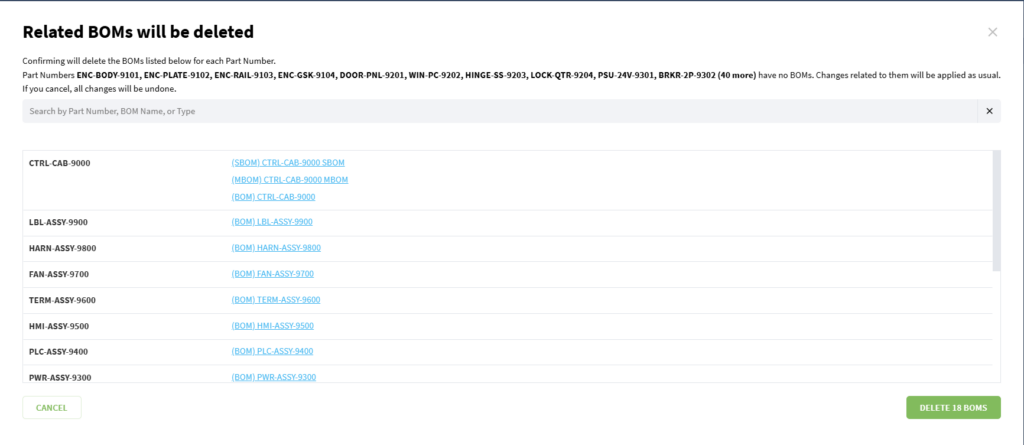

You can now search within the BOM deletion confirmation dialog when deleting items that are used in multiple BOMs. This makes it easier to review long deletion lists and confirm exactly which BOMs will be affected before proceeding.
When the confirmation dialog contains many BOMs, use the new search field to quickly filter the list by name or matching text. Clearing the search restores the full list.
The dialog also provides clearer deletion context by showing the total number of BOMs that will be deleted. When a search is applied, it shows how many BOMs are currently displayed out of the full deletion list.
Follow these steps to use it
- Open the catalog.
- Select one or more items for deletion.
- If the selected items are used in BOMs, the deletion confirmation dialog opens.
- Use the search field to find specific BOMs in the list.
- Review the filtered results.
- Clear the search field to show the full list again.
- Confirm deletion when the displayed information is correct.
OpenBOM AI Functions
We are continuing to enhance OpenBOM functionality such as AI support and co-pilot chat.
You can now switch between Assistant and Agent modes directly in the AI panel. This makes it easier to choose the right AI interaction style for the task you are working on.
Assistant mode is available for regular help, questions, and guidance, while Agent mode is designed for more action-oriented workflows. The mode selector is built into the AI panel, making switching quick and intuitive without leaving the current workspace.
Note: Agent requires a separate AI license. If the license is not available, Agent will not appear in the AI switch.
Follow these steps.
- Open the AI panel.
- Use the mode selector near the message input area.
- Choose Assistant or Agent AI.
- Continue the conversation in the selected mode.

Purchase OpenBOM licenses after Trial expiration
If you registered for the OpenBOM trial in 2026, you can now purchase an OpenBOM subscription online without contacting our support and sales.
To do so, you need to login as a Team Owner and go directly to Billing to purchase licenses for their team.
When the Trial has expired, the Team Owner will see a trial expiration message after sign-in and will be redirected to the Billing page. From there, they can purchase the licenses without needing support assistance.
Until licenses are purchased, Team Members and Team Admins will not be able to access the account and will be asked to contact their OpenBOM Team Owner. After the purchase is complete, access is restored according to the purchased and assigned licenses.
Follow these steps to do so.
- A team registered in 2026 reaches the end of its trial period.
- The Team Owner signs in to OpenBOM.
- OpenBOM shows a trial expiration message.
- The Team Owner is redirected to Billing.
- The Team Owner purchases licenses.
- Team Members and Team Admins can sign in again based on their assigned licenses.


CAD File Agent and PDM Functions
OpenBOM is continuing to develop agentic PDM functionality we announced last month. Check our earlier announcements, articles and videos. You can start here for the first demos.
CAD File Agent introduces a new way to manage SOLIDWORKS files using a conversational assistant built on top of OpenBOM’s cloud PDM platform. Instead of navigating complex menus or configuring traditional vault workflows, engineers can simply ask the agent to lock files, sync changes, create revisions, or retrieve older versions directly inside SOLIDWORKS.
The setup is designed to be simple. Users register an OpenBOM account, install the SOLIDWORKS add-in, select a project folder, and the agent automatically scans files, understands assemblies, parts, drawings, dependencies, and references. From there, it syncs the design structure to the cloud and prepares the project for managed collaboration.
Everyday workflows become more natural and contextual. The agent knows which file is open, what assembly it belongs to, and what state it is in. Engineers can lock files before editing, push only changed files using Smart Sync, and create revisions either top-down from an assembly or bottom-up from a changed part.
CAD File Agent also simplifies access to historical design states. Engineers can ask for a specific revision, and the agent retrieves the exact combination of files that belonged to that revision. The result is a PDM experience that keeps the essential capabilities—version control, revision management, dependency tracking, and access control—while removing much of the setup complexity and daily friction traditionally associated with PDM.
If you missed our earlier announcements, here are first demos:
In this update we bring a few enhancements.
🔒 Structural File Locking (AI Experience)
Introducing assembly-level Lock/Unlock for CAD projects. Locking a SOLIDWORKS assembly now automatically propagates locks to all files in its dependency graph across all Design Folders. Other team members are blocked from changes and receive a clear notification indicating who holds the lock. Unlocking the assembly releases all associated locks at once. Additionally:
- Improved conflict messages in SolidWorks Add-In when attempting to edit locked files.
- Clear messaging when a team member tries to unlock files locked by an admin.
- Windows notification now confirms successful lock/unlock of the entire project.
🤖 AI Agent Improvements
- Redesigned Revision Downloader — the AI now recognizes revision titles (A, B, C…) in addition to numbers, and offers interactive button controls for selecting revisions to download.
- “Submit All” safety — the button is now disabled until all workflow steps have been reviewed, preventing accidental execution.
- Better guidance for Smart Sync — the AI now informs users when no project folder is selected before starting a sync.
- Chat conversations persist over longer sessions.
📁 Design Folders & Smart Sync
- Project name collision fix — resolved conflicts when the project and root folder names are identical.
- Folder path visibility — the File Sync Report folder selector now displays full paths to distinguish folders with the same name.
- Smart Sync lifecycle improvements — clearing a conversation no longer removes the Design Folder manifest, preventing data inconsistencies.
- Reduced excessive Windows notifications during Smart Sync.
🖥️ SOLIDWORKS Task Pane Redesign
- Unified Task Pane — Inner Browser and File Manager are now consolidated into a single Task Pane button with a built-in context switcher, making it easier to toggle between functions without cluttering the toolbar.
- Design BOM support in Inner Browser — you can now manage Design BOMs directly from within the Inner Browser, handling Design revisions seamlessly.
- Cleaner tab layout — tabs have been reordered, renamed for clarity, and streamlined by removing redundant icons.
- Persistent tab selection — your selected tab is now preserved when switching between SOLIDWORKS documents, eliminating unnecessary resets.
- Eliminated video flashing during SOLIDWORKS context switching in Agentic Mode.
How It Works
- Request OpenBOM to join CAD FIle Agent beta program.
- Start SOLIDWORKS
- Open any assembly
- Open task pane
- Start working

CAD File Agent PDM functions are available in the conversational user interface directly from the SolidWorks environment.

OpenBOM Bug Fixes and Other Improvements
This release also includes a set of refinements aimed at improving stability, consistency, and day-to-day usability across change management, item revisions, orders, integrations, and CAD workflows:
- Newest Change Requests now appear at the top of the list in the Item Revisions panel, making recently created requests easier to find and open.
- Item Revisions are now sorted with the latest revision first in the Item Revisions panel, providing faster access to the most recent revision across revision lists and panels.
- Improved OpenBOM to Visma synchronization by ensuring deleted BOM items are removed correctly during updates, helping prevent duplicate entries and incorrect item counts.
- Improved Onshape BOM updates for mid-level assemblies with configurations, helping prevent duplicate subassembly BOMs during update workflows.
- Improved Creo BOM export reliability for Team Admin users with Team Settings enabled, ensuring the correct BOM command is executed in the add-in workflow.
- Improved standalone part export support in Fusion and Creo by fixing STEP and STL export behavior and adding DXF export support for standalone parts.
Thank you for your support and feedback! If you have any questions, please contact support@openbom.com
Best, Oleg
Join our newsletter to receive a weekly portion of news, articles, and tips about OpenBOM and our community.