Welcome to the OpenBOM July 2026 update!
The July 2026 update focuses on helping engineering and manufacturing teams improve BOM quality, work more smoothly with spreadsheet data, and connect OpenBOM more effectively with CAD and ERP workflows.
A major highlight of this release is BOM Review, a new automated validation workflow for checking the quality and completeness of Bills of Materials before they move forward to purchasing, manufacturing, or release. BOM Review helps teams find missing values, inconsistent data, and structural issues earlier, with clear review results, grid highlights, issue navigation, and full reports that cover the selected BOM and its nested BOMs.
This release also improves day-to-day spreadsheet usability. Working with side panels no longer interrupts editing in the grid, making it easier to move between supporting panels and spreadsheet data without unnecessary state changes or extra steps.
We also continued improving connected CAD workflows. The Onshape integration includes a redesigned flyout, direct BOM table insertion into drawings, support for Onshape’s latest Where Used capabilities for Derived Files, and fixes that improve BOM selection and property synchronization. File Manager also gains stronger support for multi-level Design Folders, including the ability to create folders directly from File Manager, preserve folder hierarchy, and configure Smart Sync rules before synchronization begins.
For ERP-connected teams, QuickBooks Online sync workflows now support multiple catalogs in a single guided setup. Teams can sync records into OpenBOM catalogs more efficiently, review catalog names before syncing, and see sync history across the team.
Alongside these larger updates, this release includes refinements to multi-level BOM structure accuracy, Where Used relationships, change history, Onshape catalog handling, and property updates for root assemblies and child components.
In the sections below, I’ll walk through what is new in the July 2026 release and explain how these improvements can help your team review BOM data, manage CAD-connected files, and synchronize business records more efficiently.
BOM Review: Automated Validation for BOM Quality
OpenBOM now includes BOM Review, a new way to validate the quality and completeness of a Bill of Materials before moving forward with purchasing, manufacturing, or release.
Specifically validating the key important structural features and data mistakes that often lead to failed manufacturing processes. Here are examples of some checkcards BOM Review runs:
- Missing Cost or Description
- Missing Vendor
- Poor BOM Structure (eg. Circular References such as PN100 references PN100)
- Part Number inconsistencies (eg. Part Numbers don’t match settings)
- PCB: Quantity and Reference Designator are misaligned or do not match
BOM Review helps teams identify common BOM issues earlier by checking the product structure and surfacing problems in a clear, actionable report. Instead of manually searching for missing values, inconsistent data, or structural issues, users can run an automated review and quickly see what needs attention.
The first version of BOM Review introduces an initial set of ‘check cards’, but OpenBOM plans to enhance the set of cards and make them customizable for your company needs. Future check cards will be enhanced by allowing to add a variety of tests using AI agents and more.
The review checks the selected BOM and its nested BOMs, helping teams validate the full product structure. Results are grouped into easy-to-understand review cards, such as Part Number validation, property completeness, and structure validation. Issues are marked as Errors or Warnings so users can focus on the most important problems first.
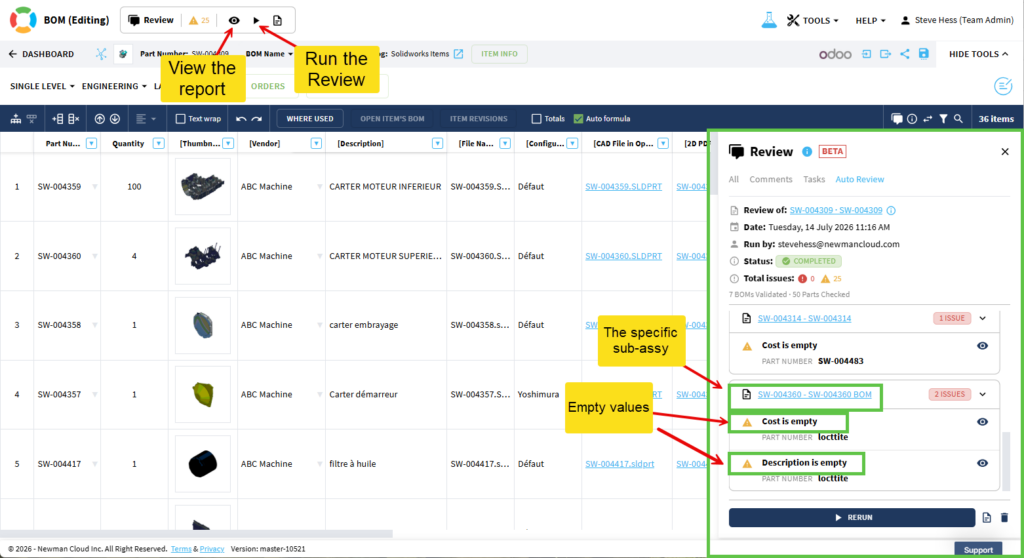
When the review is complete, OpenBOM highlights affected rows and cells directly in the BOM grid. Users can open the Auto Review panel to review findings in context, jump directly to the affected cell, and decide what needs fixing. A full report is also available for reviewing all findings across the complete BOM structure.
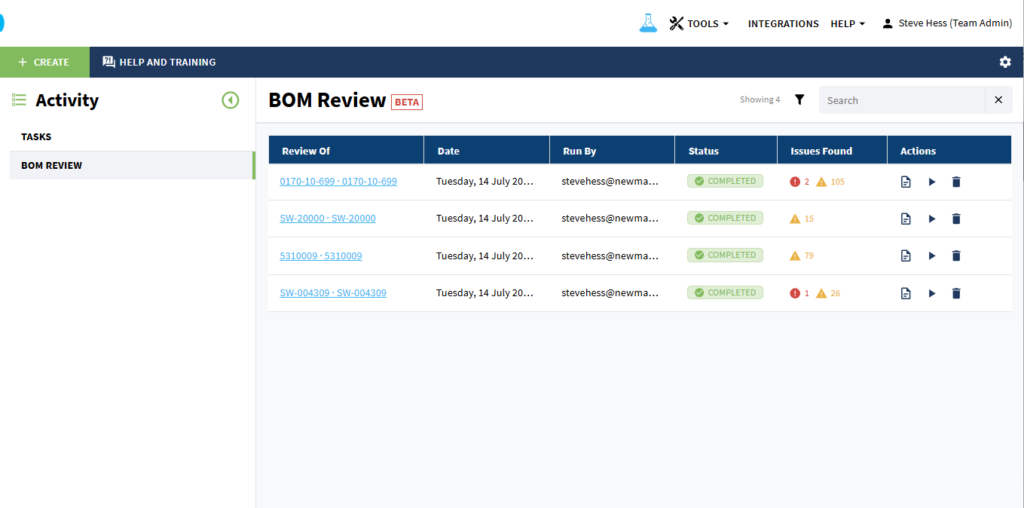
BOM Review reports can also be accessed from the Activity dashboard, giving teams a central place to review recent BOM validation activity without opening each BOM individually.
Steps to run BOM Review
- Open a BOM.
- Open the Review panel and go to the Auto Review tab.
- Click Run to start the BOM Review.
- Continue working while OpenBOM validates the BOM structure in the background.
- When the review is complete, OpenBOM displays a summary of Errors, Warnings, and Passed Checks.
- Review the highlighted rows and cells in the BOM grid.
- Expand review cards to see specific findings.
- Use the eye icon to jump directly to the affected cell.
- Fix the BOM data as needed.
- Run the review again to confirm that the issues have been resolved.
The full BOM Review report can also be opened from the Auto Review panel or from the Activity dashboard. It presents findings for all BOMs included in the review, making it easier to assess the overall quality of the product structure.
How it works:
BOM Review UI appears in the header of all BOMs

Getting started:
Open a BOM, click the Arrow to begin the Review


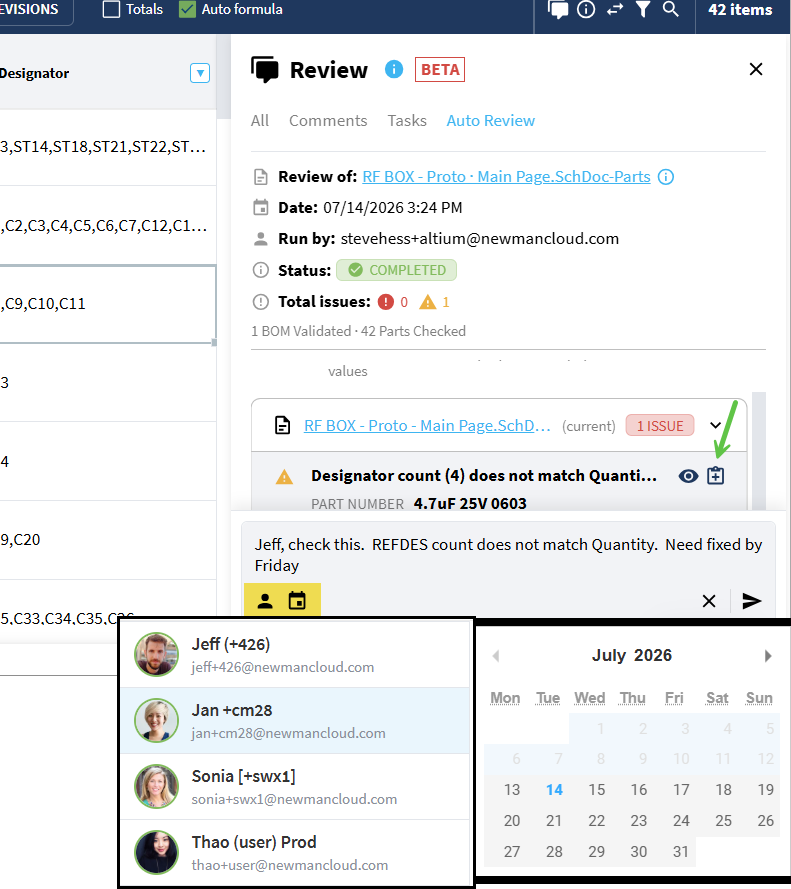
Dive deep and assign issues to team members for remediation (you can create comments, tasks and assign tasks to people in your team)
Check the Dashboard to understand issues for a specific product’s BOMs. Run & manage reviews, validate fixes.
Watch the video with the demo:
Improved Grid and Panel Interaction
Working with collaborative (spreadsheet-like) workspace panels no longer interrupts editing in the grid.
When a panel is opened, the grid keeps the same state it had before. If the grid was editable, it remains editable. If it was already read-only, it stays read-only. This makes it easier to review information in panels while continuing to work with BOM, Catalog, and other spreadsheet data.
Focus now follows the user’s action. Clicking inside a panel directs keyboard input to the panel. Clicking back into the grid returns keyboard navigation and editing to the spreadsheet.
How It Works
- Open a spreadsheet page in OpenBOM.
- Open any side panel.
- Review or update information in the panel.
- Click back into the grid to continue editing or navigating spreadsheet data.
- Continue working without closing the panel.
This improvement makes panel-based workflows more predictable and reduces unnecessary interruptions when moving between the grid and side panels.

Include Non-Modeled Properties in BOM on Onshape Drawing
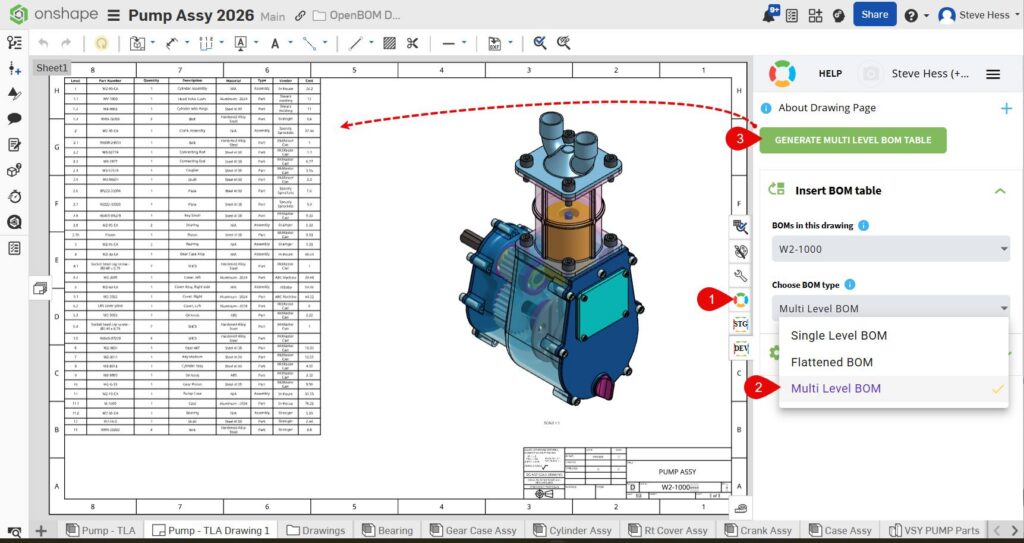
This release brings a redesigned OpenBOM for Onshape flyout with an improved user experience and an easier way to insert BOMs into Onshape drawings.
The REAL benefit here is the ability to include non-CAD items & properties in your BOM. For example, you track Vendor and Cost in OpenBOM (as you should; these properties do not belong in CAD), but you wish to include them on the drawing for your buyer or subcontractor.
Or, if you want to add labor or glue, then show it on the drawing.
You can easily do that with OpenBOM.
How It Works
First, prepare your BOM in OpenBOM using the OpenBOM for Onshape application. Then follow these tasks:
- From your favorite drawing, click the OpenBOM Flyout
- Choose the BOM type (Single, Flat, Multi-Level)
- Insert the OpenBOM Bill of Materials
Place the BOM using the OpenBOM table controls.
Use the additional settings to configure the OpenBOM properties for the table.
Video:
Design and File Manager Multi-level folders
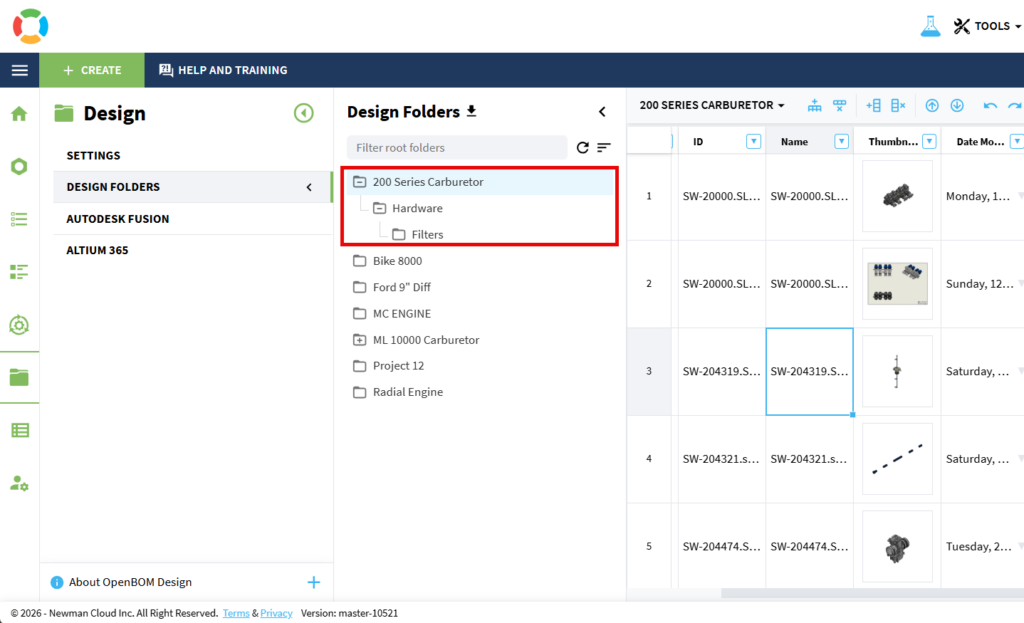
This release brings the Multi-Level nested folder structure to Design, so hierarchical CAD file folder relationships are clear at a glance! We are happy to deliver this very popular enhancement.
CAD File Manager is the key to managing your CAD files in OpenBOM. More about CAD Design Projects here: <<insert Design Projects blog here>>
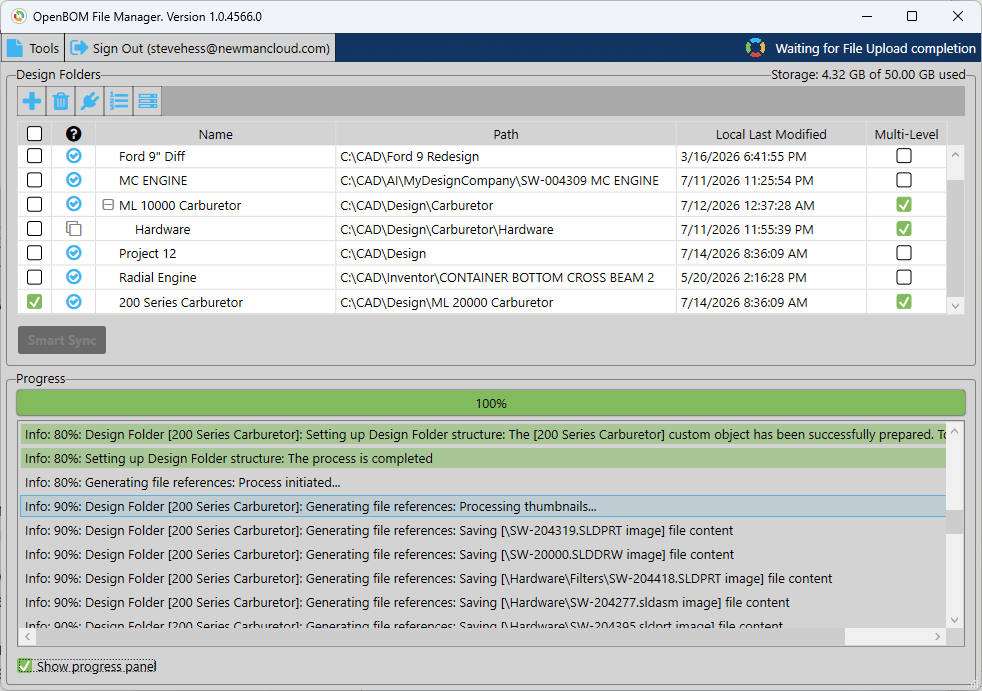
In more detail, you may invoke the CAD File Manager Create Design Folders function directly from the File Manager — as either legacy flattened or multi-level. Multi-level Design Folder structures are displayed immediately on the site and in the File Manager, making the File Manager’s look and feel much more like your PC folder structure.
How It Works
- Be sure you set the CAD File Manager to be invoked in Stand-Alone mode. This may mean changing the following setting in CAD.
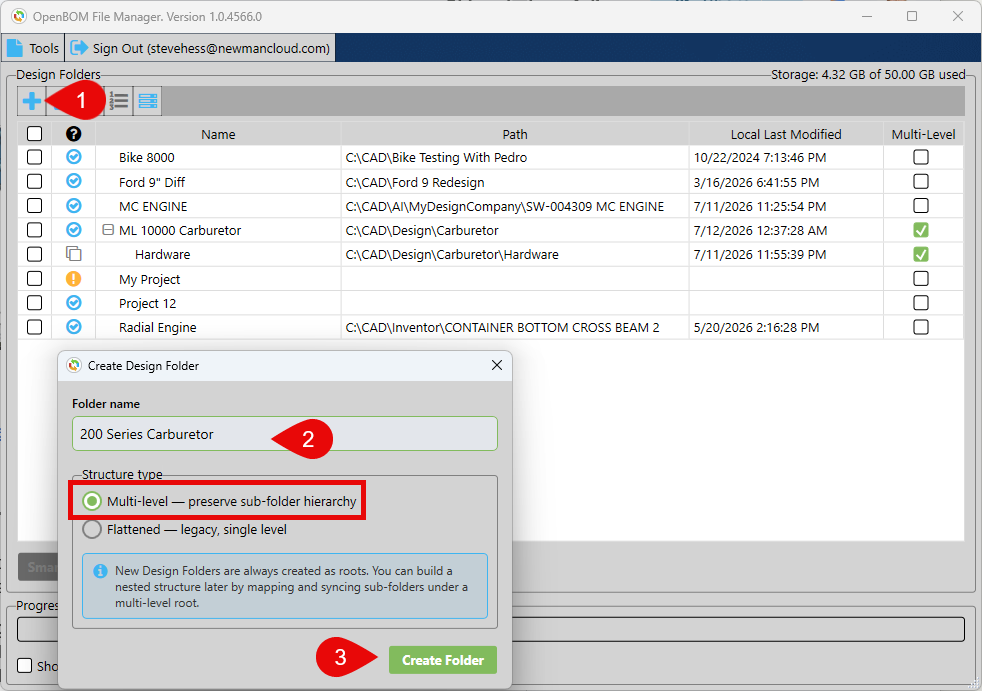
- Create Design Folders from File Manager — You can now create Design Folders directly in the File Manager and choose the structure type during creation: legacy flattened or the new multi-level
- Multi-level structure display — Multi-level Design Folder structures are shown both on the site and in the File Manager, presented as a structured hierarchy rather than a flattened list, making parent–child relationships easy to follow.
Configure your CAD settings to instruct OpenBOM Caf File Agent to run in Stand-Alone mode

Next, create a Design Folder and choose Multi-Level. This instructs OpenBOM to mimic the local disk folder structure in the Design Project (eg., Multi-Level Design Project)
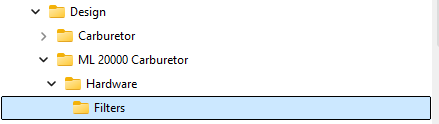
Given you have a local folder structure similar to this one, with a top level CAD assembly file in C:\CAD\Desogh\ML 200 Carburetor as shown below
Open the OpenBOM CAD File Manager from the Windows Start->CAD File Manager and create a new Project similar to that shown below
Next, Map and Smart Sync the folder

Your entire folder structure from that point on down will Smart Sync to OpenBOM Design Projects and maintain the folder structure. Earlier releases of CAD File Manager flattened the structure.
OpenBOM creates the Multi-Level folder structure inside the Design Project.
Video:
Bi-Directional ERP and Finance System Integrations
We are working on delivering bi-directional out-of-the-box integrations. OpenBOM REST API allows you to customize the integration as you need. But we plan to deliver better out-of-the-box integration.
As part of this work, in this release, we deliver a beta release of OpenBOM QuickBooks out-of-the-box integration. Check with our support team if you want to know more about it.

Other Fixes and Improvements
This release also includes improvements focused on BOM structure accuracy, Onshape workflows, property synchronization, and more consistent behavior across integrations:
- Improved multi-level BOM structure updates when using [Move item to level up or Move item to level below], so Where Used reflects actual BOM relationships and change history records the affected Part Number correctly.
- Fixed an issue where the BOM selector in Onshape drawings showed only the subassembly BOM when a drawing contained both a root assembly and a subassembly. Both BOMs are now available for selection.
- Fixed inconsistent handling of the Onshape Items catalog between the BOM Items settings flyout and the Save Item flow, so the catalog now behaves consistently across both workflows.
- Fixed Send properties to Onshape so it now updates properties on the root assembly as well as child components.
Conclusion
We are excited to release one more update of OpenBOM with the new list of features and capabilities. If you have any please contact support@openbom.com
To test OpenBOM existing and new capabilities, REGISTER FOR FREE to get an instant 14 day trial of OpenBOM.
Best, Oleg
Join our newsletter to receive a weekly portion of news, articles, and tips about OpenBOM and our community.