Every time an engineer opens a product data management system, they face a small but real cognitive task before any actual work begins. Where was I yesterday? What changed overnight? What needs my attention today? What should I do first? These questions are not complicated, but answering them requires clicking through menus, opening reports, checking task lists, and scanning change logs, often across multiple parts of the system. By the time a user has reconstructed their working context, several minutes have passed and the system has already created friction before a single productive action has taken place.
This is not a problem unique to any one tool. It is a structural issue in how most engineering and manufacturing software was designed. These systems were built around object types and modules: items, BOMs, orders, files, changes. Navigation was organized to match that structure. That architecture makes sense from a data organization perspective, but it does not match how people actually start their day. People do not begin work by thinking about modules. They begin by asking what matters now.
The new OpenBOM Home Dashboard is designed around that question.
What Is the OpenBOM Home Dashboard?
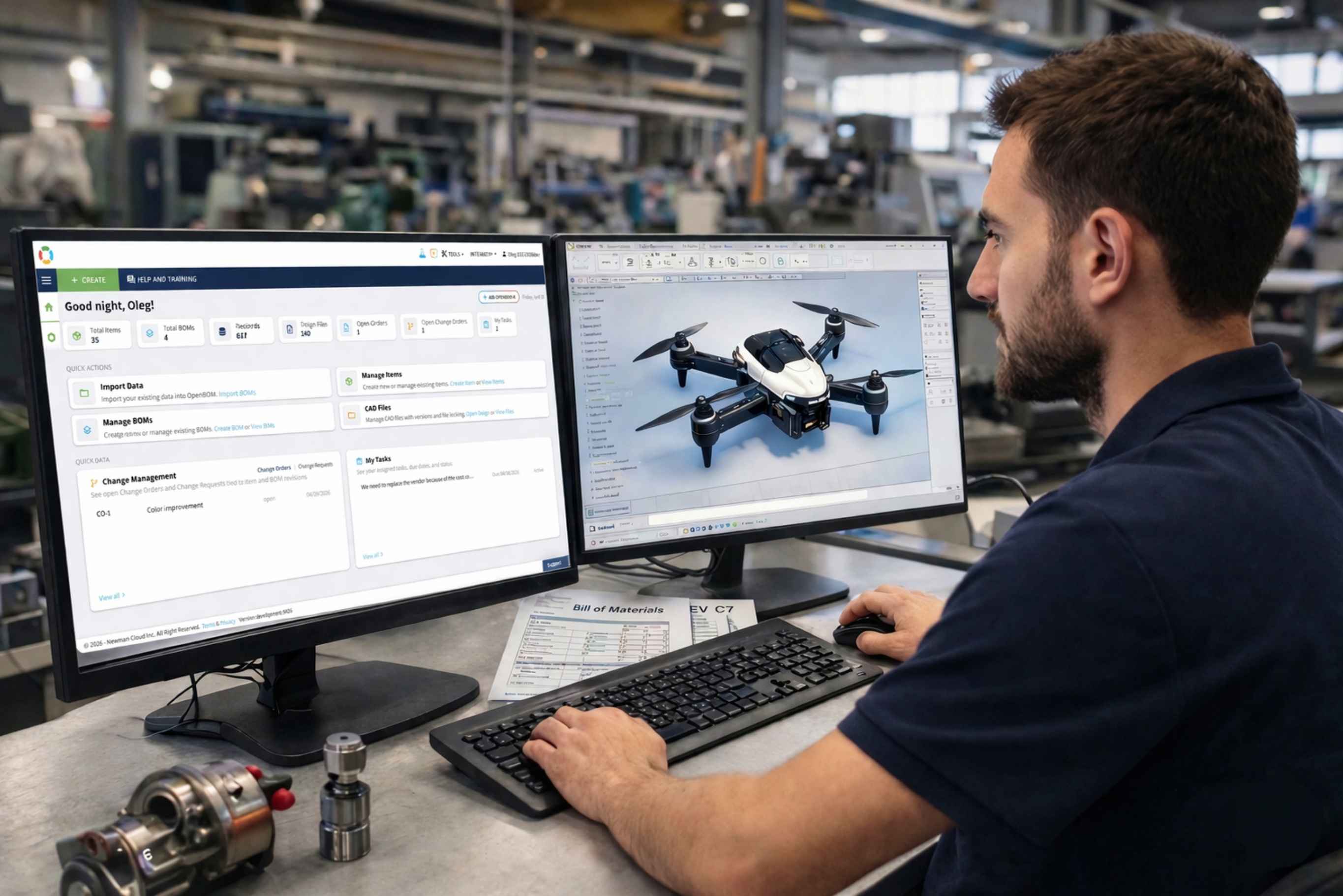
Home is a new default landing experience in OpenBOM that brings together the most important information a user needs at the start of any working session. Rather than arriving at a blank workspace or the last object they had open, users now land on a page that provides immediate orientation: what exists in the system, what is active, what needs attention, and where to go next.

The design is intentionally clean and direct. OpenBOM already had strong BOM management, item tracking, change management, and file handling capabilities. What was missing was a unified entry point that made all of those capabilities visible and accessible without requiring users to remember where everything lives. The new Home Dashboard fills that gap. It is not a replacement for any existing module. It is a smarter starting point that connects everything together.
The page greets users by name, displays the current date, and immediately surfaces the information that shapes how the rest of the session unfolds. For teams managing complex product data across engineering, procurement, and operations, that orientation matters more than it might appear.
Workspace Status at a Glance: Items, BOMs, Orders, and Change Activity
At the top of the Home Dashboard, a row of summary cards gives an instant snapshot of the full workspace. Users can see total items, total BOMs, records, design files, open orders, open change orders, open change requests, and assigned tasks, all without navigating anywhere.
These are not decorative metrics. They represent the live state of the product data environment, and any non-zero number in the change or task columns is an immediate signal that something requires attention. A user can read the complete operational state of their OpenBOM workspace in under ten seconds. For engineers managing multiple active projects, for procurement staff tracking open orders, and for operations teams monitoring change activity, that instant visibility changes how the day begins.
This kind of workspace-level status has traditionally required either a dedicated reporting module or manual navigation across several sections of a system. Bringing it to the starting page means users arrive informed rather than arriving blind.
Quick Actions for BOM Management, Item Tracking, and CAD Files
Below the status row, the Quick Actions section provides direct entry points to the most common daily operations in OpenBOM: Import Data, Manage Items, Manage BOMs, and CAD Files. Each action includes a short description and inline links for the most frequent paths: Create Item, View Items, Create BOM, View BOMs, Open Design, View Files.
This section is worth paying attention to because of what it is not. It is not a navigation menu and it is not a list of modules. It is a set of operational shortcuts organized around the tasks that OpenBOM users perform most often, reducing the number of clicks between opening the application and starting real work.
For teams that use OpenBOM daily for BOM management and item tracking, this will feel immediately familiar and faster. For SOLIDWORKS teams in particular, where managing derivative files, BOMs, and design versions across engineering and procurement is a daily operational challenge, the CAD Files quick action provides a direct path to design management without hunting through menus. If you are a SOLIDWORKS user new to OpenBOM, the New OpenBOM for SOLIDWORKS: A Simpler Way to Start, Connect, and Automate article walks through how the connection works in practice. For occasional users, procurement team members, operations staff, or collaborators who access the system less frequently, it removes the need to remember where specific functions live. The most common actions are already on the starting page.
Change Management and Task Tracking Built Into the Dashboard
The lower section of the Home Dashboard introduces something more significant than navigation shortcuts. The Quick Data area surfaces live operational content directly on the starting page, without requiring users to open a separate module or generate a report.
The Change Management widget shows open change orders and change requests tied to item and BOM revisions. Users can see the change number, description, status, and date at a glance. For engineering teams managing product revisions and tracking changes across the BOM, this means the current state of change activity is visible the moment they open the application rather than after they remember to check it.
The My Tasks widget works the same way. It shows assigned tasks with due dates and current status. In a real working environment, a task might read: “We need to replace the vendor because of the cost issue” with a due date and an active status. That single line tells an engineer or procurement manager exactly what one of their open responsibilities is, without navigating to a separate task management view.
Together, these two widgets transform the Home page from a static dashboard into something closer to an operational briefing. Users arrive at Home not just to find where they need to go, but to understand what is happening and what they are responsible for. That is a meaningful shift in how a product data management system supports daily work.
Integrated AI Assistant for Engineering and Manufacturing Teams
OpenBOM has offered AI-powered support capabilities for some time, but until now that capability lived inside the Help section, useful when a user specifically went looking for it, but largely invisible during the flow of everyday work. The new Home Dashboard changes that by placing the OpenBOM AI Support Assistant directly in the primary workspace, accessible from the Home page without any navigation step.
This matters more than it might first appear. The gap between knowing a system exists and knowing how to use it confidently is a persistent challenge in engineering and manufacturing software. Users encounter practical questions constantly during normal work, not complex support issues, but immediate workflow questions. Can OpenBOM handle this specific situation? What is the right way to set this up? Where does this particular feature live?

Previously, answering those questions meant stopping work, switching to Help, searching for documentation, and then returning to whatever task prompted the question. The integrated AI assistant eliminates that context switch entirely.
A concrete example from the dashboard captures how this works in practice. A user asks mid-session: “Can you double check about PDF for drawings? I think they are supported.” The assistant responds immediately with a specific, accurate answer, confirming that OpenBOM supports automatic PDF generation for Onshape drawings, explaining that this applies even to drawings nested deep within assemblies, and noting that the resulting files will be available alongside BOM, STEP, and STL outputs. The response also includes a reference link for further research. The entire exchange happens within the Home Dashboard, without the user leaving their working context.
This is what integrated AI assistance actually means in practice. It is not a chatbot appended to the side of an application. It is a support layer built into the place where users spend the most time, answering questions in the context of active work rather than in a separate help environment.
The assistant is also transparent about the limits of its knowledge. When asked a question it cannot answer with confidence, it says so directly and points the user toward the right resource. That behavior builds trust and makes the assistant more useful over time. Users can engage with it confidently because they know it will be honest when it does not have an answer.
Why a Unified Dashboard Improves Product Data Management Workflows
It would be easy to describe the new Home Dashboard as a cleaner interface or a more organized starting point. That description would be accurate but incomplete. What the Home Dashboard actually does is reduce the cognitive overhead that accumulates before useful work begins.
Most product data management systems are designed to be comprehensive. That comprehensiveness is a genuine strength in terms of capability, but it creates a usability cost: users must carry a mental model of where everything is, what state everything is in, and what they were working on previously. Every session starts with a reconstruction effort. The Home Dashboard absorbs much of that effort on the user’s behalf. It shows the state of the system, surfaces what is active, provides direct access to common actions, and now offers contextual AI assistance for the questions that arise along the way.
For new users, this reduces the time needed to become productive in the system. For experienced users, it eliminates the habitual navigation steps that accumulate over the course of a workday. For occasional users who access OpenBOM for specific tasks rather than daily work, it provides immediate orientation that makes the system accessible without relying on memory of where things are.
The result is a product data management experience that meets users where they are at the start of every session, rather than asking them to orient themselves from scratch each time.
OpenBOM Home: A Connected Starting Point for Engineering and Manufacturing Work
The new OpenBOM Home Dashboard reflects a principle that has always been central to how OpenBOM approaches product data: the system should reduce the effort required to work with product information, not add to it. That principle has shaped decisions about BOM structure, data connectivity, change management, and collaboration workflows. The Home Dashboard applies the same principle to the moment every working session begins.
By bringing together workspace status, BOM management shortcuts, change tracking, task visibility, and integrated AI support in one place, Home makes OpenBOM easier to use on the first day and on the five hundredth. The information users need to orient themselves is already there. The actions they need most are one click away. The help they need when questions arise is available without breaking their working context.
That is not a feature update, but an improved workflow for every OpenBOM user. It is coming in the next update and we look forward to your feedback.
REGISTER FOR FREE and check how OpenBOM can help you.
Best, Oleg
Join our newsletter to receive a weekly portion of news, articles, and tips about OpenBOM and our community.