A practical guide to working folders, Smart Sync, design structure, locking, revisions, and conversational commands inside SOLIDWORKS
Introduction: Why PDM Needs to Change
For many engineering teams, Product Data Management still means a familiar set of actions: save files in folders, check files in and out, create revisions, synchronize changes, and make sure nobody overwrites the wrong version. These are important capabilities, but the way engineers interact with them has not changed much for decades.
Traditional PDM was designed around controlled transactions. A user performs an action, the system records the result, and the next person continues from there. This model works when the process is simple and linear. But modern engineering work is rarely linear. A design is constantly changing. Assemblies depend on parts, drawings, configurations, and derived files. Engineers explore alternatives, make local changes, test ideas, return to previous baselines, and collaborate with others while the product structure is evolving.
Rather than forcing engineers to constantly think about PDM commands, folders, dependencies, and rules, an agent works alongside them. It understands the design context, watches changes, captures relationships, provides alerts, performs commands, and helps engineers navigate the product structure directly from the CAD environment.
OpenBOM CAD File Agent is the first step in this direction. It brings together CAD-aware file management, automatic data capture, conversational commands, dependency understanding, revision control, and a user experience embedded directly into CAD systems such as SOLIDWORKS.
The goal is simple: let engineers work naturally with files while OpenBOM continuously builds the product memory behind the scenes.
1. The Embedded CAD Experience: Working Where Engineers Already Work
A common weakness of traditional PDM systems is that they pull engineers away from their design environment. The engineer is working in CAD, but file management happens somewhere else: a separate client, a browser, a vault interface, or a disconnected workflow tool.
OpenBOM CAD File Agent is designed to be embedded directly into the CAD system. In SOLIDWORKS, the agent experience appears inside the environment where engineers already spend their time. PDM actions are not abstract administrative tasks — they are part of design work. When an engineer decides to lock a file, sync changes, create a revision, or retrieve a previous revision, that decision is connected to the current design activity.

The OpenBOM File Manager panel inside SOLIDWORKS. Engineers can analyze a root folder and set up Smart Sync, review sync status for an existing root folder, or download files from a Design BOM revision — all without leaving the CAD environment.
The embedded user interface makes these actions available without forcing the user to leave the CAD context. At the same time, the system is not limited to CAD. The user can navigate to browser-based OpenBOM views or trigger CAD-specific actions when needed. This creates a hybrid experience: the engineer stays inside CAD for day-to-day actions, while OpenBOM provides broader product data navigation, structure management, and collaboration capabilities in the browser.
2. The Working Folder: Defining the Scope of Engineering Work
Every engineering activity starts somewhere. In file-based CAD work, that place is usually a folder. The folder can represent a complete product, a customer project, a machine, a subsystem, or even a temporary workspace used to explore a design alternative.
In OpenBOM CAD File Agent, the working folder becomes the starting point for agentic PDM. When you define a working folder, you define the scope of the agent’s work. The agent begins by understanding what files exist in that folder, which files are important, how they relate to each other, and what design structure they represent.
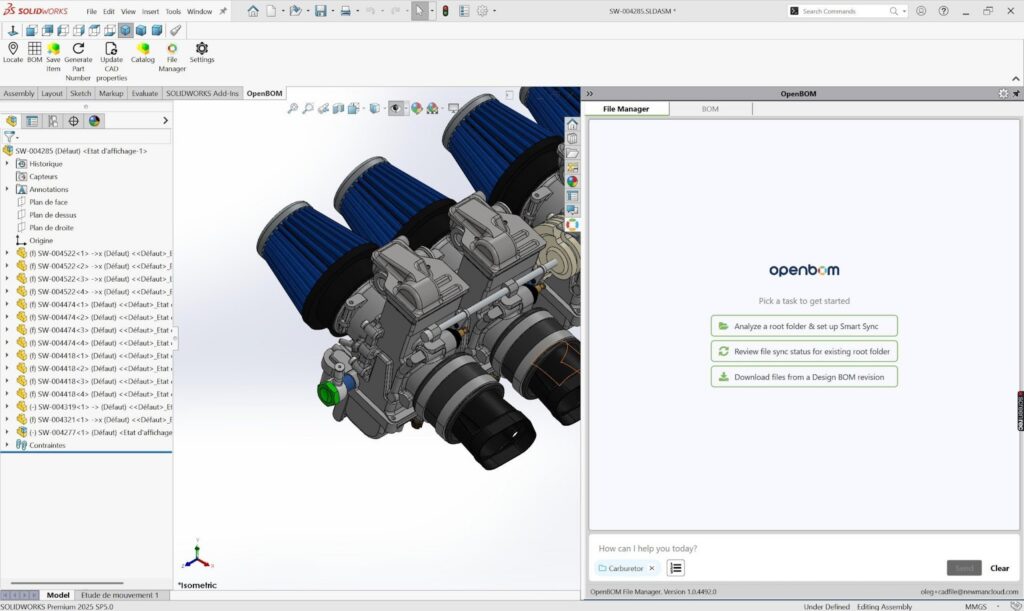
Figure 2: Selecting the working folder as the scope of work. The Carburetor folder becomes a managed engineering workspace. The agent uses this folder as the boundary for analysis, synchronization, file status, and all subsequent commands.
Once the folder is captured, OpenBOM CAD File Agent can observe the files, analyze them, detect changes, synchronize versions, and provide guidance based on the context of the design. This is the first shift from traditional PDM to agentic PDM. The system does not start from a form, a vault transaction, or a manual data entry process. It starts from where the engineer already works.
3. Automatic File Data Capture: Turning CAD Files Into Context
CAD files are not just documents. They contain structure, dependencies, metadata, references, configurations, and design intent. But in many environments, this information remains hidden inside files and folders until someone manually extracts it.
OpenBOM CAD File Agent automatically analyzes CAD content and captures file data, dependencies, and relationships. This process turns a folder of files into an understandable design context. The agent identifies assemblies, parts, drawings, and related files. It captures how files reference each other and builds a structure that can be used for navigation, control, synchronization, revisioning, and future automation.

Figure 3: Smart Sync captures CAD files and validates the project. The workflow resolves the SOLIDWORKS context, prepares files for upload, generates Design BOMs and catalogs, and validates all references. Nine files uploaded successfully with no external references, stale assemblies, or blocking issues. This captured context is what makes agentic behavior possible.
This automatic capture is foundational. Without context, an agent cannot act intelligently. It cannot know which files belong together, which parts are used by which assemblies, or what downstream impact a change may have. The system also continuously captures versions as engineers work — every sync creates a stream of design changes. Instead of treating file management as a sequence of disconnected check-in events, OpenBOM builds a continuous history of how the design evolves.

4. File Control and Alerts: Helping Engineers Avoid Wrong Actions
File control remains one of the most important functions of PDM. Engineers need to know when a file is safe to change, when it is locked, when someone else is working on it, and when an action can create a conflict.
In traditional systems, these rules are often enforced through rigid commands and error messages after the fact. OpenBOM CAD File Agent takes a more contextual approach: it provides file control and alerts that guide users before they make inappropriate actions.

Figure 5: File control alert when a file is edited without being locked. When a user attempts to modify a file that has not been locked by them, the agent warns immediately — before any sync can occur. The message explains that Smart Sync will not be able to capture those changes, and asks whether to continue.
Alerts are part of agentic behavior. They connect rules, file status, and design context to the user’s current activity. The result is a more collaborative and safer way to manage CAD files — guidance in the moment rather than error recovery after the fact.
5. Design Structure Browser: Seeing the Captured Product Structure
Once OpenBOM captures file data and dependencies, the information becomes visible through the Design Structure Browser. Instead of looking at files as isolated objects in a folder, engineers can browse the actual product structure represented by assemblies, subassemblies, parts, drawings, and dependencies.
This is important because engineering decisions are usually made in context. A part is not just a file. It belongs to an assembly. A subassembly may be used in multiple places. A drawing may describe a part or assembly that is part of a larger product. The Design Structure Browser gives users a way to see these relationships directly inside SOLIDWORKS.
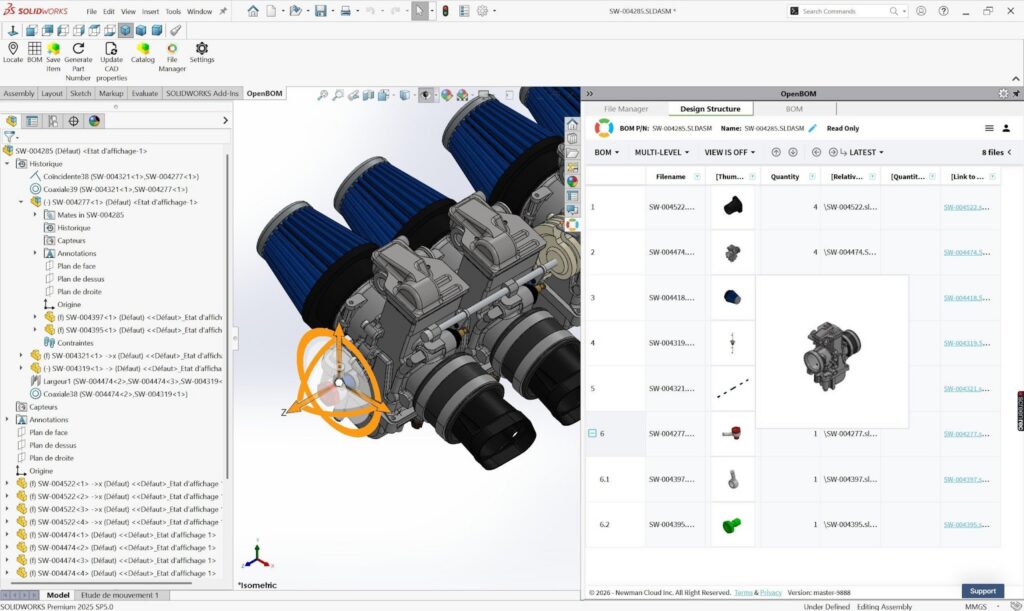
Figure 6: The Design Structure Browser inside SOLIDWORKS. The captured BOM structure appears as a table showing part numbers, thumbnails, quantities, relative file paths, and links — directly alongside the 3D model. Engineers can navigate the product structure without leaving CAD.
This visibility is essential for agentic PDM. The agent can only help effectively when the product structure is visible and understandable to both the system and the user. Practical questions — which files depend on this part, what should be locked together, what should be revised together — can only be answered when structure is captured and browsable.
6. Revision Commands: Creating a Design Baseline
Engineering teams need baselines. A baseline is a trusted point in time that represents a known state of the design — used for release, manufacturing, procurement, review, customer delivery, or future comparison.
A revision is more than a saved copy of a file. It represents a controlled design state. When a revision is created, the system captures the relevant files and relationships so the design can be understood and retrieved later. OpenBOM CAD File Agent supports revision workflows that understand dependencies, so when users revise a file or structure, the system can help manage the dependent subassemblies and assemblies that must also be addressed.

Figure 7: Creating a revision baseline for the top-level assembly. The Save Revision dialog shows Revision A being established for the top-level assembly. The checked option to save the revision for all levels means OpenBOM will baseline the top-level BOM and all sub-level BOMs and files in a single operation.

Figure 8: Revision created and revision history available. The Design Structure Browser confirms the revision with a green banner. The Latest dropdown now shows the available states: Latest for ongoing work, Rev 4 A as the established baseline, Save new revision to continue, and History for the full audit trail.
7. Conversational Commands: Managing PDM Actions From Chat
One of the most visible changes introduced by agentic PDM is the ability to perform actions conversationally. Instead of navigating multiple menus and dialogs, users can ask the agent to perform commands such as sync, revise, lock, unlock, retrieve, or navigate. The chat window becomes an operational interface for PDM actions.
PDM actions still follow rules. Files still have status. Locks still matter. Revisions still create controlled baselines. But the user experience becomes more natural — engineers think in terms of intent rather than system commands. They can say what they need to accomplish, not remember every step required to perform it.
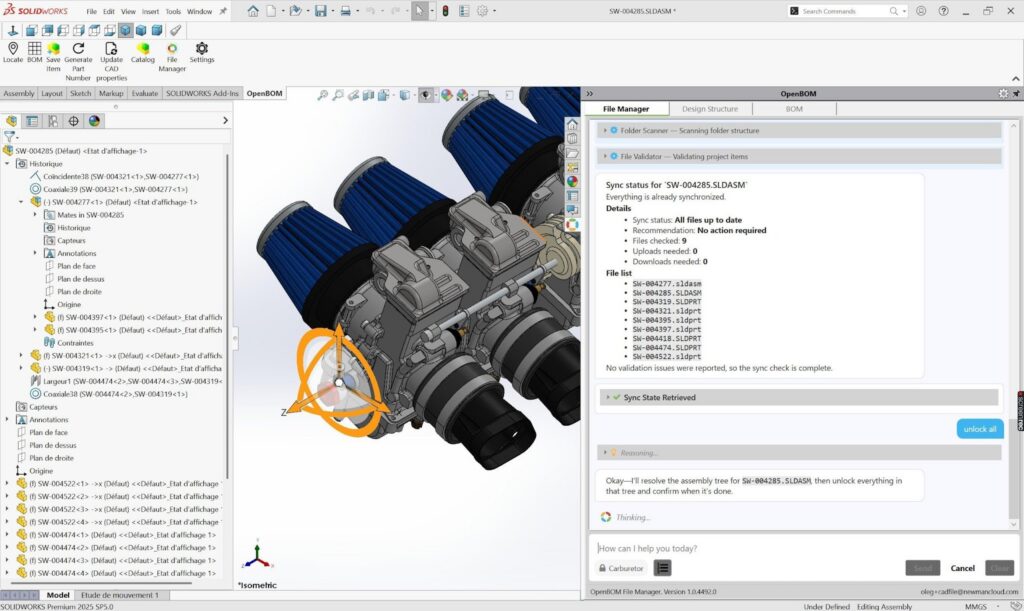
Figure 9: Reviewing sync status and using conversational commands. The sync check confirms all nine files are up to date. The user triggers an unlock operation, and the agent responds that it will resolve the assembly tree for SW-004285.SLDASM and unlock everything in that tree — explaining what it is about to do before acting.
8. Locking With Dependencies: Single File, Branch, or Complete Structure
Locking is one of the classic PDM functions, but in CAD it is rarely as simple as locking a single file. A file may have dependencies. A part may be used by an assembly. A subassembly may include many child parts. A top-level assembly may depend on multiple branches of the product structure.
OpenBOM CAD File Agent supports locking with dependency options. Users can lock a single file, a branch with dependencies, or an entire structure. The key is that the system understands the design relationships and can help the user apply the right level of control.
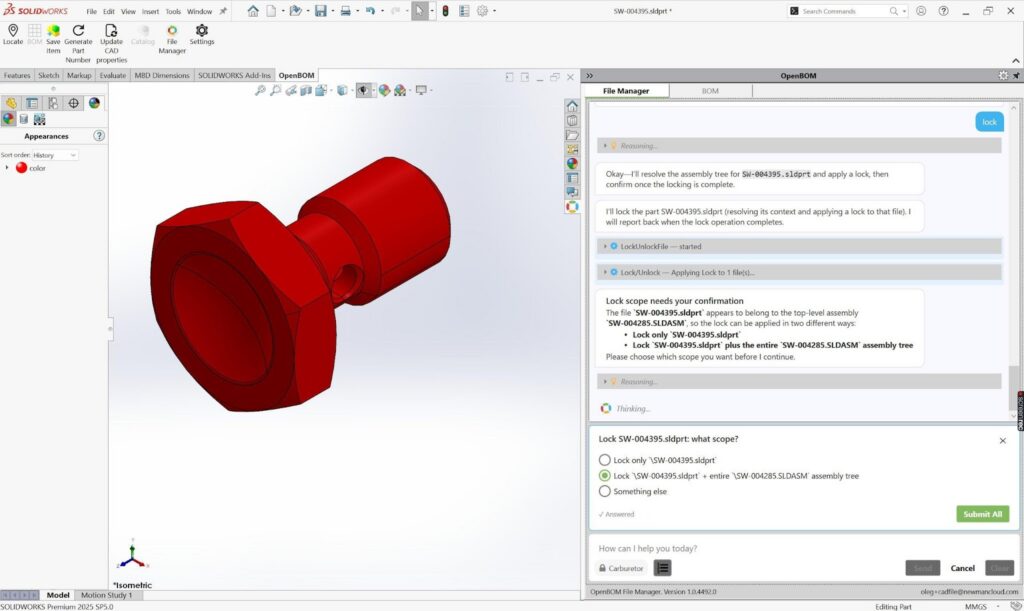
Figure 10: Lock scope confirmation when a file belongs to a larger assembly. When the user asks to lock a single part, the agent detects that it belongs to the top-level assembly and pauses to ask which scope is intended: lock only the selected part, or lock it together with the entire assembly tree.
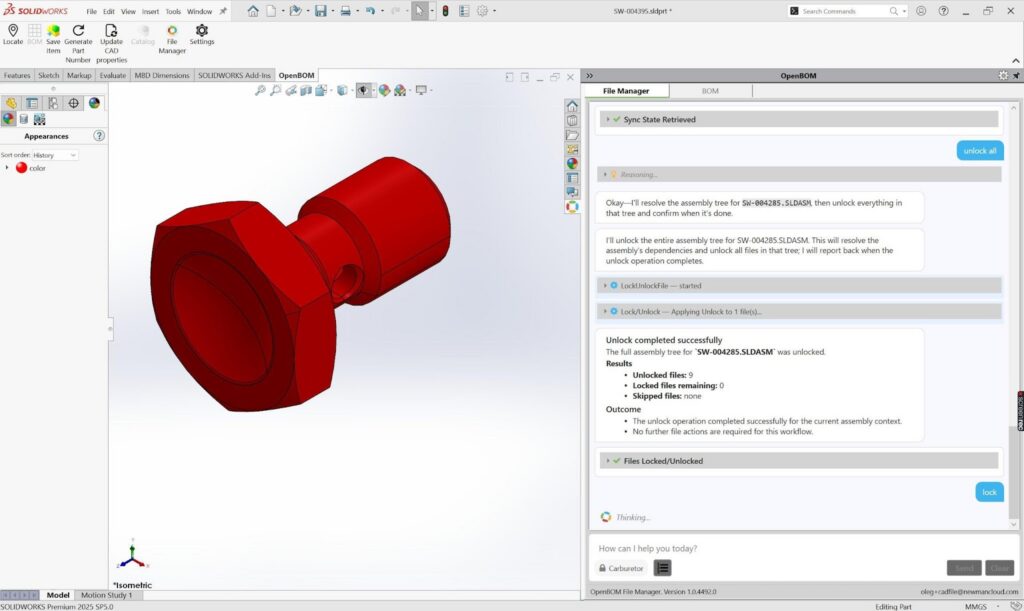
Figure 11: Lock and unlock completion report. After the unlock operation runs, the agent reports the outcome clearly: nine files unlocked, no locked files remaining, none skipped. The agent does not execute commands silently — it reports results in a way that confirms what happened and builds user confidence.
9. Revision With Dependent Up-Rev: Managing Change Impact
Creating a revision in a CAD design often creates a chain reaction. When a part changes, the subassembly that uses it may need to be revised. When a subassembly changes, the top-level assembly may need to be revised. In many traditional environments, users must handle this manually — remembering what depends on what and deciding what should be revised.
OpenBOM CAD File Agent helps manage revision with dependent up-rev of subassemblies and assemblies. When dependency-aware revisioning is available, users can establish baselines with more confidence. The system helps ensure that the design structure reflects the intended state of change.

Figure 12: Creating a new revision for a changed part with parent assembly up-rev. When revising an individual part (Revision B for SW-004395.sldprt), the checked option instructs OpenBOM to also create revisions for any updated upper-level parent files that use this file. Only files that were actually updated during this change receive new revisions.
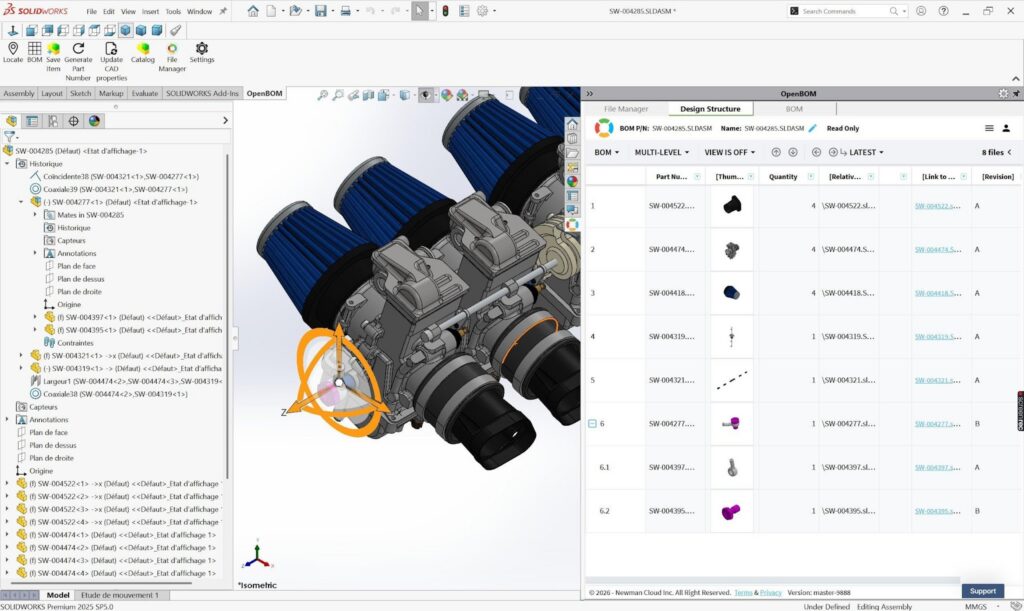
Figure 13: Design Structure view with mixed revision values after dependent up-rev. The Revision column shows the result: most files remain at Rev A, while the changed part (SW-004395) and its parent subassembly (SW-004277) have advanced to Rev B. This makes it immediately clear which parts of the design changed.
10. Retrieving Previous Revisions: Working With History and Branches
Engineering work often requires going back in time. A user may need to retrieve a previous revision to compare designs, recover a known state, investigate a problem, or explore an alternative approach.
OpenBOM CAD File Agent supports retrieving a specific previous revision and downloading it to another folder. This allows engineers to work with historical design data without overwriting the current design state. It also creates a practical way to work with branches: retrieve a previous revision into a separate folder, make changes, experiment, and later return those files to the original working folder where they can be synchronized.

Figure 14: Smart Sync complete with a revision retrieval request. After confirming all files are synchronized and the project is clean, the user types a simple request — get rev B — directly in the chat. The agent will resolve the available revisions for the assembly and retrieve the matching baseline.

Figure 15: Revision lookup and resolved revision download. The agent resolves the available Design BOM revisions for SW-004285.SLDASM, filters to the requested revision, and confirms: Revision title B, revision number 5, one match out of two available. A Download button gives a one-click way to pull the resolved baseline into a separate folder.
11. From Commands to Product Memory
The individual commands in OpenBOM CAD File Agent are important: capture, sync, lock, revise, retrieve, and navigate. But the bigger idea is what these commands create together.
They create product memory.
Product memory is not just a database of files. It is the accumulated context of the design: files, structures, dependencies, versions, revisions, relationships, actions, and changes over time. This memory is what makes agentic behavior possible. Without captured context, an agent is only a chat interface sitting on top of disconnected files. With context, the agent can understand what the user is working on, what files are related, what actions are allowed, what dependencies matter, and what history is available.
This is why CAD File Agent starts with working folder capture and automatic analysis. The agent must first understand the design before it can help manage it.
Agentic PDM is not about replacing engineers with automation. It is about giving engineers a co-worker that understands the file environment, remembers the design history, and helps perform work safely and efficiently.
12. Why This Matters for Engineering Teams
Engineering teams are under pressure to move faster, collaborate better, and manage increasing product complexity. At the same time, many teams still rely on a mix of local folders, shared drives, Pack-and-Go files, spreadsheets, email, and disconnected PDM tools.
This creates predictable problems. Files are copied without context. Dependencies are broken. Revisions are unclear. Engineers are not sure who changed what. Teams struggle to know which version is safe to use.
OpenBOM CAD File Agent addresses these problems by making PDM more continuous, contextual, and interactive. Instead of forcing users to stop their work and operate a separate system, the agent works inside the engineering flow. It captures data automatically, understands dependencies, provides alerts, supports conversational commands, and helps users manage file control and revisions in context.
This is especially valuable for teams working with file-based CAD systems such as SOLIDWORKS. These teams need the discipline of PDM, but they also need flexibility. They need to manage files without losing the natural way engineers work. Agentic PDM provides this bridge.
Conclusion: The First Step Toward Agentic Engineering Workflows
OpenBOM CAD File Agent introduces a new way to think about PDM. The foundation is still familiar: folders, files, versions, locks, revisions, dependencies, and synchronization. But the experience is different.
The system captures context automatically, works inside CAD, guides users with alerts, exposes design structure, supports conversational commands, and helps engineers work with baselines and branches. This is what makes it agentic.
The agent is not just a chatbot. It is a CAD-aware co-worker connected to product memory. It understands the scope of work through the working folder. It captures design relationships. It monitors changes. It helps control files. It supports revisions. It makes previous design states available for reuse and exploration.
For engineering teams, this means PDM can become less of an administrative burden and more of an intelligent workspace for design work. OpenBOM CAD File Agent is the beginning of this transition — bringing agentic PDM to the place where engineering work starts: the CAD files, the working folder, and the design structure engineers use every day.
Join our newsletter to receive a weekly portion of news, articles, and tips about OpenBOM and our community.