Welcome to the OpenBOM September 2026 update!
The September update focuses on giving teams tighter control over who sees what data, while making everyday navigation and administration faster and clearer.
A major highlight of this release is the ability to combine a Read-Only license with By View access. Teams migrated to the Seat-Based model, or registered in 2026, can now give suppliers, contractors, and other internal or external participants a scoped view of exactly the data they need — without consuming a Core license.
We also expanded the Where Used dialog with search, sorting, multi-selection, and the ability to open one or many BOMs at once. The Users Dashboard gets new sorting and filtering so admins can find team members and review access settings faster, and updated Dashboard navigation helps users discover and understand each section’s purpose.
Integration improvements make it easier to complete a first QuickBooks export, restore STEP file generation for Autodesk Fusion assemblies, and create Design Folders directly from the embedded File Manager in Integration Mode.
Additional fixes and refinements improve user preferences, BOM and revision workflows, exports, Change Management, Catalogs, Design Folder synchronization, the AI assistant, and CAD integrations.
In the sections below, I’ll walk through the main improvements included in the OpenBOM September 2026 release.
Assign By View Access to Users with a Read-Only License
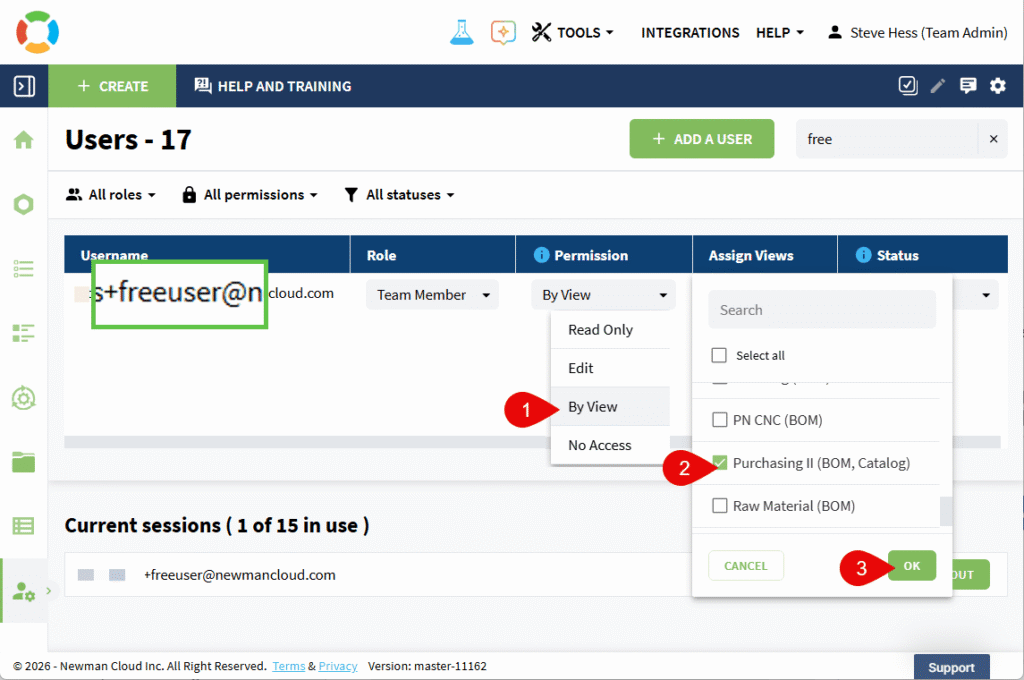
OpenBOM now lets you assign By View access to users who have a Read-Only license. This gives you a free way to bring suppliers, contractors, and other collaborators into your team without exposing more data than they need.
This capability is available under the new Seat-Based licensing model — for users who registered in 2026, and for existing teams that have transitioned to Seat-Based licensing.
Previously, a Read-Only license gave a user visibility into all team data, and restricting them to a single View meant upgrading them to a paid Core license. Now you can assign the By View role directly to a Read-Only user, and they’ll see only the data included in that View.
The Users dashboard also gets a new Licenses column, so admins can see each user’s assigned licenses at a glance while configuring access.
One thing to note: Read-Only always wins. Even if the assigned View allows editing, a Read-Only user still can’t create, edit, or delete data.
How it works
- As an Administrator, go to the Users dashboard.
- Find a user with a Read-Only license or add a new Read-Only user.
- Open the user’s Role selector and select By View.
- Select a View to control the user’s visibility.
- The user will see only the data included in the assigned View.
This makes it easier to collaborate with suppliers and other outside participants without buying extra Core licenses or exposing data they don’t need.
Sort, Search, and Open Multiple BOMs from Where Used
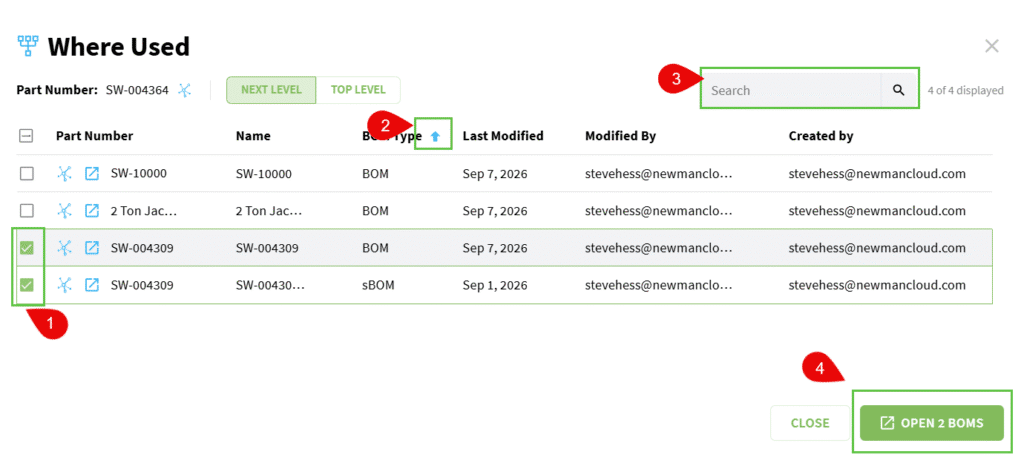
The Where Used dialog is now much easier to work with when a part shows up across many BOMs. You can search, sort, and open one BOM — or several at once — right from the dialog.
A new search field filters across every visible column: Part Number, Name, BOM Type, Last Modified, Modified By, and Created By. The result counter updates as you type, so you always know how many BOMs match.
You can also click any column header to sort — handy for finding the most recently modified BOM or grouping by type or author.
How it works for any of these options
- Open Where Used for an item to see all BOMs in which it is used.
- Enter a value in the search field to filter the list across all visible columns.
- Click a column header to sort the results by that column.
- Click Open next to an individual BOM to open it while keeping the Where Used dialog available.
- Select multiple BOMs using Ctrl or Shift and click Open Selected to open only those BOMs.
- Click Open All to open every displayed BOM. If a search is active, it opens only the filtered BOMs.
Each BOM opens in a separate browser tab. If you select more than 10 BOMs, OpenBOM displays a warning before opening them. Your browser may also require permission to open multiple tabs.
These improvements make it faster to review and navigate BOM relationships without repeatedly reopening Where Used or searching for each BOM separately.
Faster Sorting and Filtering in the Administrator Users Dashboard
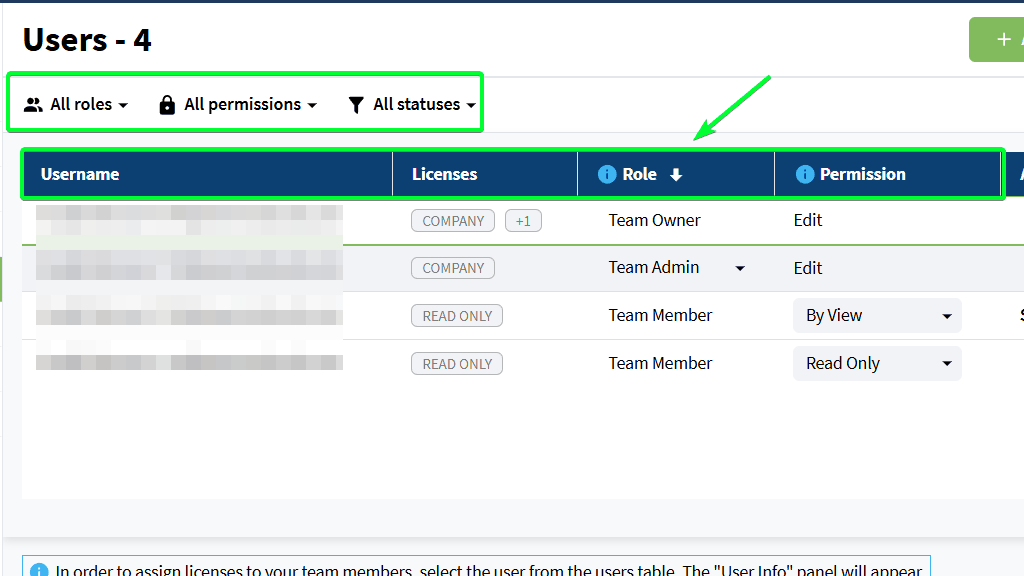
Managing a larger team just got easier. Every column in the Administrator Users Dashboard is now sortable, and new filters help admins zero in on users with specific access settings.
You can filter by Role, Permission, and Status—combine them with each other, or with the existing search—to narrow the list fast. OpenBOM remembers your sorting and filter choices, so you return to your preferred view next time.
How it works
- Go to Dashboard → Administration → Users.
- Click a column header to sort the Users Dashboard by that column.
- Use the Role, Permission, or Status filters to narrow the list.
- Combine multiple filters or use them together with the user search.
- Review the updated table counter to see how many users match the selected criteria.
These improvements make it easier to navigate large user lists, review access configurations, and find the required team members without repeatedly rebuilding the same table view.
Clearer Navigation for Dashboard Panels
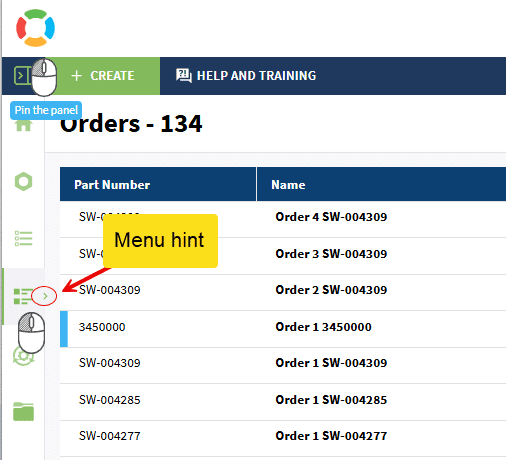
Dashboard navigation is easier to recognize and use. Every panel tab now has an arrow showing it can be opened, and hovering shows a clear tooltip — like “Show Change Management panel.”
The expanded Home navigation panel also now includes a short description for every section, so it’s easier to tell where each tab leads.
How it works
- Locate the panel icon in the Dashboard navigation.
- Hover over the icon to see its tooltip and available actions.
- Click the icon to open the corresponding panel.
- Hover over the main navigation control to expand and pin the full navigation panel.
- Use the same control to collapse the navigation panel when you no longer need it.
- Open the Home navigation panel to see the name and description of every available section.
These improvements make dashboard panels easier to discover and understand.
A Smoother First QuickBooks Export
The first five minutes with OpenBOM’s QuickBooks integration just got a lot friendlier.
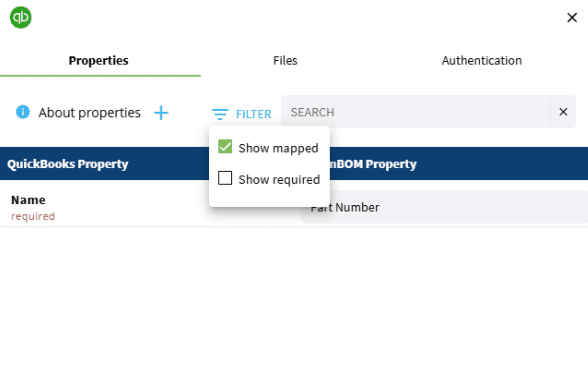
Exporting a Purchase Order to QuickBooks for the first time requires mapping a minimum set of properties between OpenBOM and QuickBooks. Previously, there was no guidance on what was required — so an incomplete or incorrect mapping produced an error message that didn’t tell you how to fix it.
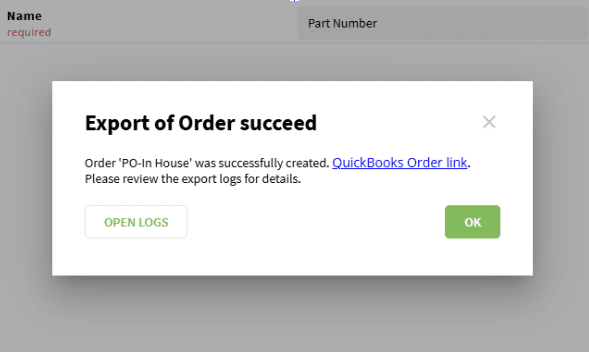
Now, OpenBOM defines the minimum required mapping and gives clear, actionable guidance the moment something’s missing or invalid, so first-time users can export a PO without contacting support.
How it works
- Log in to your OpenBOM account
- Go to Purchase Orders and open the one you need
- Click the QuickBooks (QB) icon
- Log in to your QB account
- Export your Purchase Order (PO)
- PO will export with only 1 required mapped property (Part Number). If OpenBOM discovers any more required fields, you will receive actionable guidance on which mappings are missing or invalid.
STEP File Generation Is Back for Autodesk Fusion Assemblies
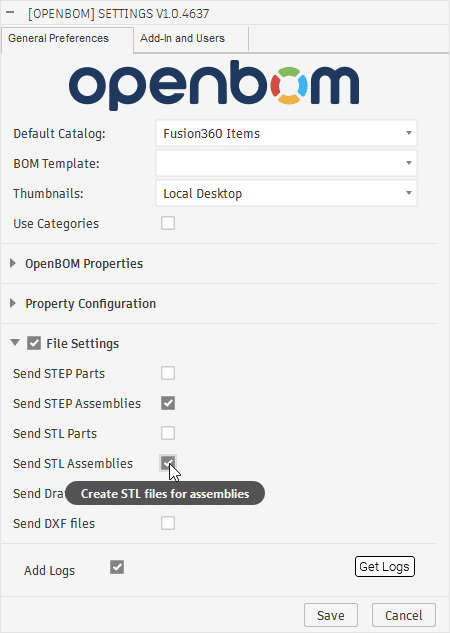
Autodesk previously had an issue that forced OpenBOM to disable STEP file generation for assemblies in the Fusion integration. Autodesk has since fixed that issue, so you can use the STEP Assembly export option again.
How it works
- Start Autodesk Fusion
- Log in to your OpenBOM account
- Open the Fusion assembly you need to export
- Select STEP as the export/generation format
- Create a BOM/Save item — the STEP file will now be generated successfully, including for large assemblies
Create Design Folders from the SOLIDWORKS Embedded File Manager
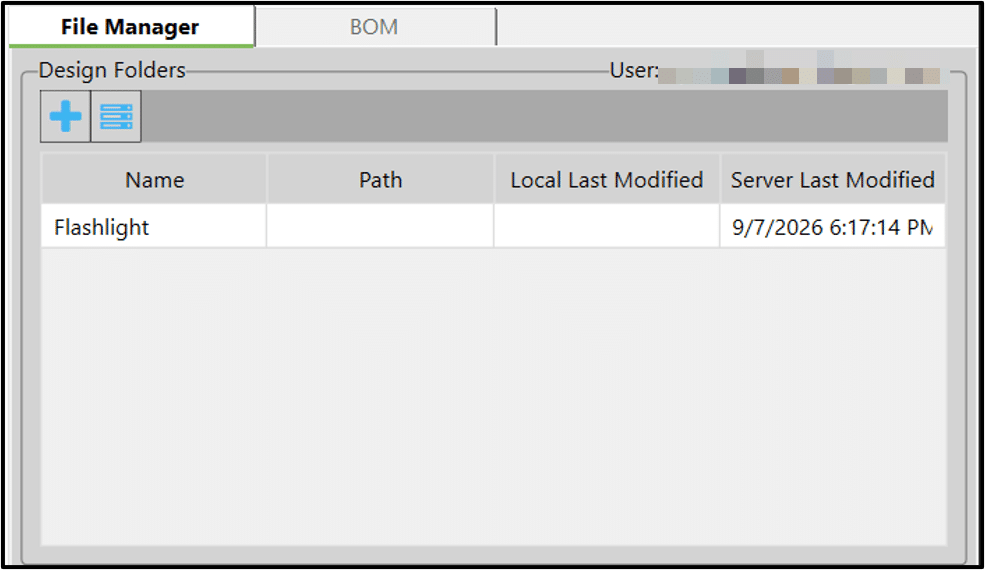
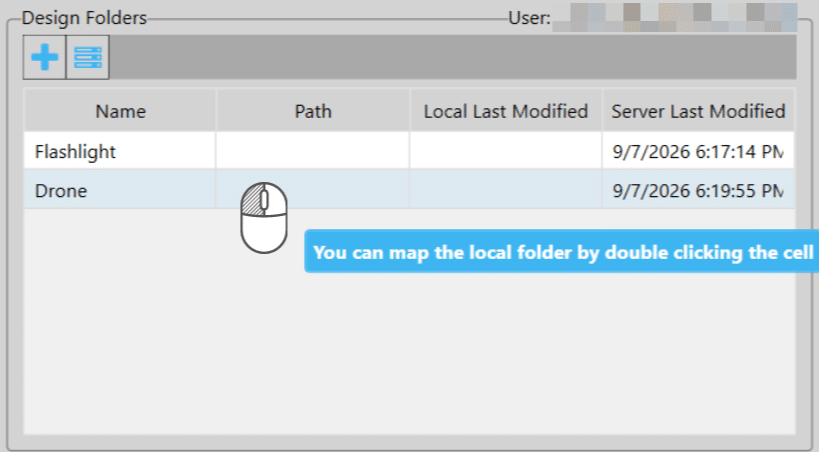
This feature brings the “Create Design Folder” experience to the embedded SOLIDWORKS File Manager within the mapping context. Previously, users had to detach the File Manager to create a design folder; now this action is fully supported directly in the embedded view, without leaving the mapping context.
How it works
- Start SOLIDWORKS
- Open the needed assembly/part
- Open the embedded File Manager in the mapping context (no need to detach it)
- Use the “Create Design Folder” option directly within the embedded view
- The design folder is created without leaving the mapping context

Other Fixes and Improvements
- A new User Preferences page brings personal settings together in one place.
- Item Info on the Parts page now shows selected part data instantly, without unnecessary delay.
- Creating a Revision in Flattened mode no longer triggers an unneeded alert and page reload when the selected View doesn’t include Revision properties.
- BOM headers now fall back to the BOM Name when the previously selected header property isn’t available in the opened BOM.
- The Currency Format dialog adds currency search, consistent alphabetical sorting, and a way to restore the default format.
- File export rules now let you exclude property names when appending property values to filenames.
- Fixed Change Order templates with different approver lists so they work together correctly, without losing approval data or throwing approval errors.
- Fixed the Data Records count on the Home page so it updates correctly after Design Folders and their files are deleted.
- Automatic Part Number generation now respects the configured Start value when a Catalog already has manually assigned Part Numbers.
- Fixed Catalog item creation so it’s available again after an exhausted Part Number range is changed or an item is deleted — no page refresh or numbering reset required.
- Fixed Catalog images so they appear correctly in the Items Dashboard even when the image is the only item property that changed.
- Fixed the info block shown when creating a Design Folder so it adjusts correctly for the flattened folder type.
- New multi-level folders now default to Regular Smart Sync and skip the “Set up Sync Rules” prompt.
- Duplicate-item conflicts (Design BOM / Catalog) are now caught during the Agentic upload flow.
- Fixed SOLIDWORKS components inside multi-level folders so the mapping handler recognizes and syncs them correctly.
- Fixed the “+” (Create Design Folder) icon so it appears correctly after a Team Member is promoted to Admin, without requiring a re-login.
- Fixed the “Clear” button in the AI assistant panel so it no longer disappears or gets cut off at narrower widths when a long project name is selected.
- External references are no longer incorrectly flagged as DBOM duplication.
- In SOLIDWORKS, on the OpenBOM login screen, you can now click the eye icon in the password field to show or hide your password.
Conclusion
We are excited to release one more update of OpenBOM with the new list of features and capabilities. If you have any questions, please contact support@openbom.com
To try out OpenBOM’s existing and new capabilities, REGISTER FOR FREE to get an instant 14-day trial of OpenBOM.
Best, Oleg
Join our newsletter to receive a weekly portion of news, articles, and tips about OpenBOM and our community.