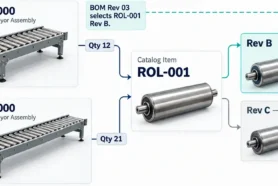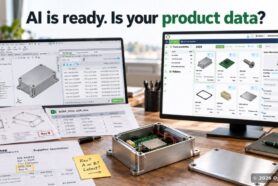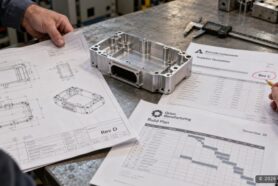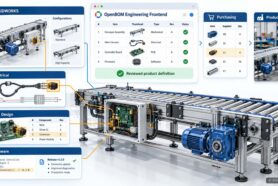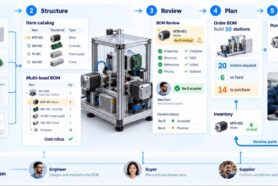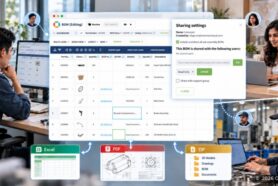
Managing Bills of Materials (BOMs) and product data effectively is essential for any design and manufacturing workflow. OpenBOM provides a seamless cloud-based integration with Onshape, allowing you to efficiently generate, modify, and sync BOM data. If you are new to OpenBOM or looking to enhance your Onshape workflow, this guide will help you get started.
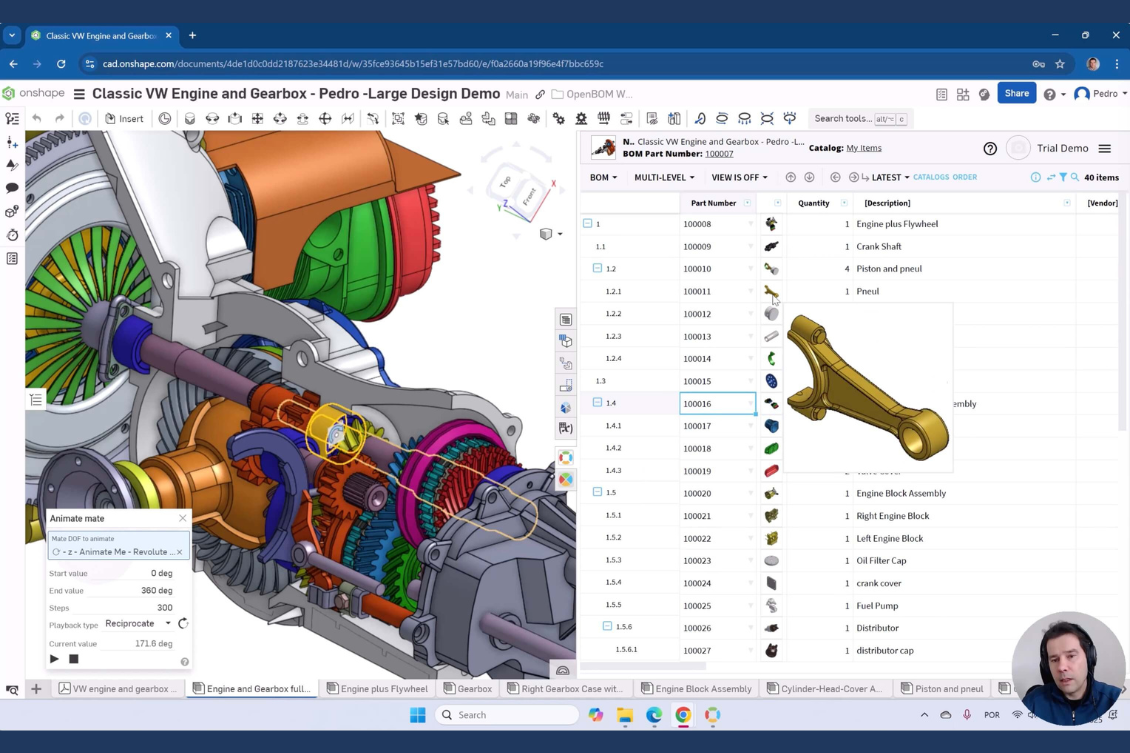
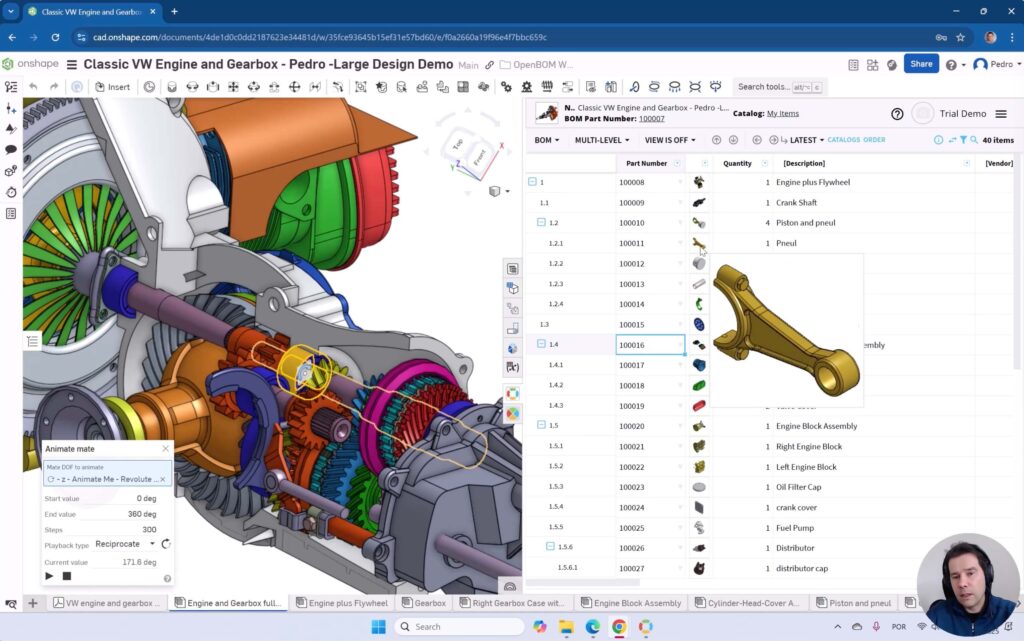
OpenBOM provides a comprehensive and interactive interface allowing access to multiple OpenBOM PLM functions directly inside of Onshape from different interfaces – documents, drawings, product structure, part studio, etc.
Here is an example of Graph Navigator and Impact Analysis for Onshape data.
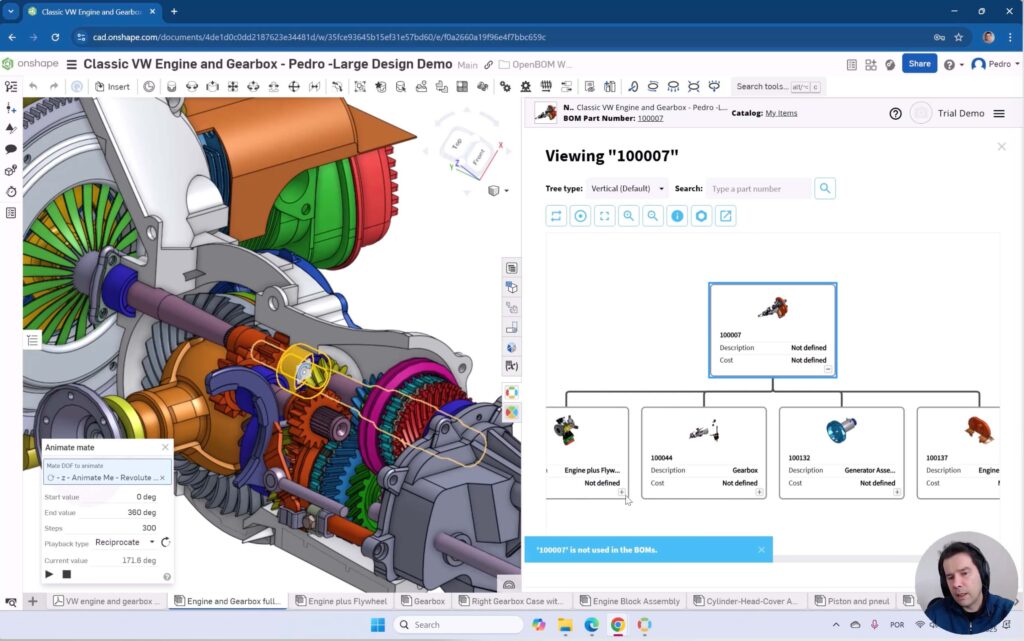
In this tutorial, we’ll walk you through the key steps to set up and use OpenBOM with Onshape, covering essential features such as part number generation, bi-directional data updates, working with drawings, and more.
1. Setting Up the OpenBOM App for Onshape
The first step is to install and set up OpenBOM within Onshape:
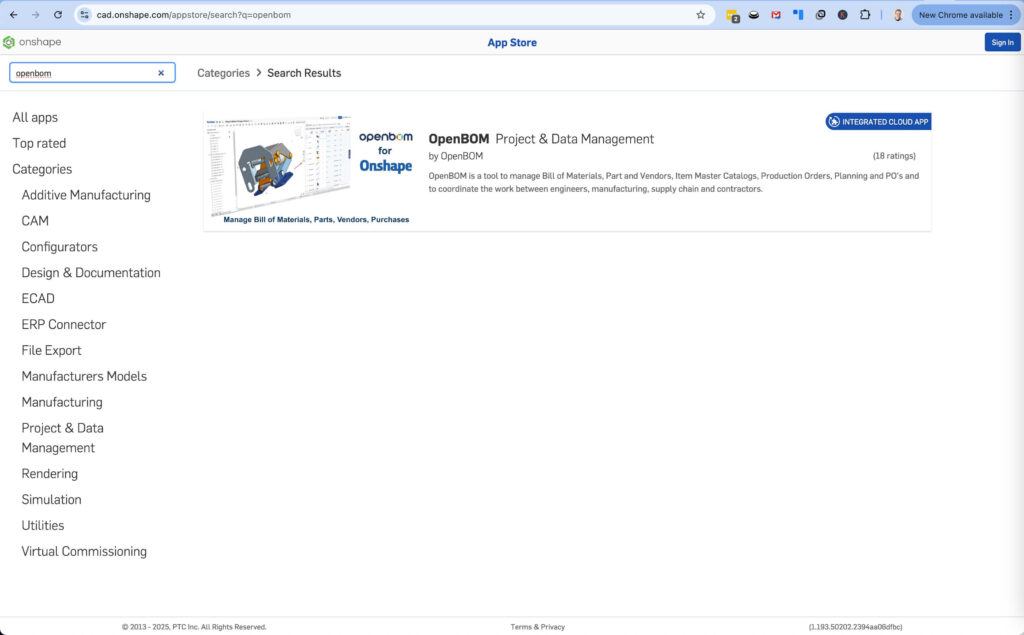
- Go to the Onshape App Store and search for OpenBOM.
- Install the OpenBOM app and authorize the integration with your Onshape account.
- Once installed, OpenBOM will be accessible directly from your Onshape interface.
2. Basic Data Mapping and Configuration
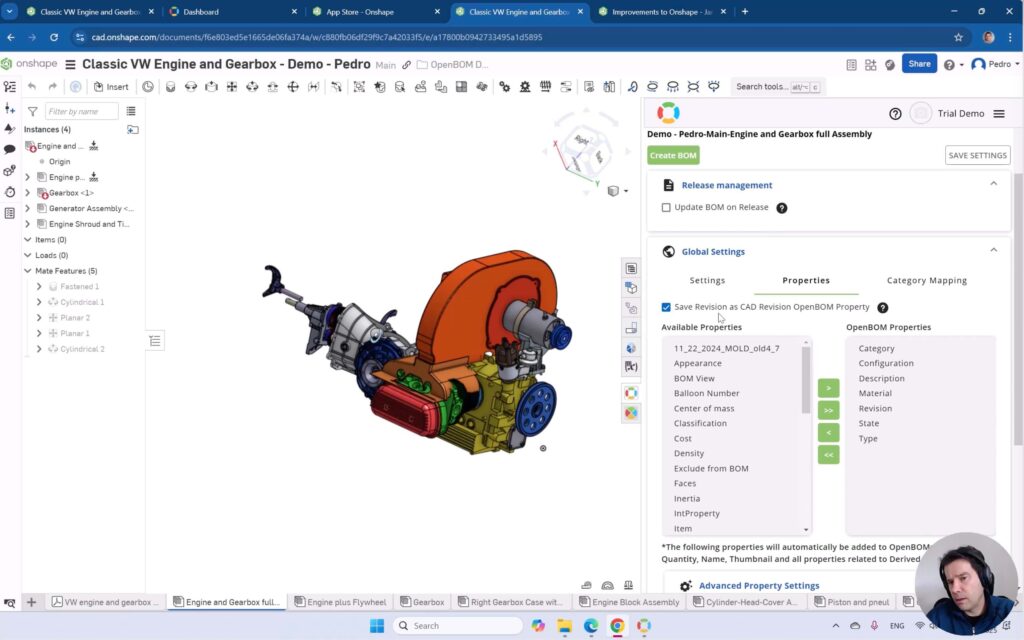
Before generating BOMs, it’s important to configure your data correctly. OpenBOM allows you to map Onshape properties (such as Part Numbers, Descriptions, and Materials) to OpenBOM fields.
- Use the OpenBOM settings to define how Onshape properties will be mapped.
- Ensure that all relevant part and assembly metadata is correctly captured.
3. Generating Part Numbers in OpenBOM
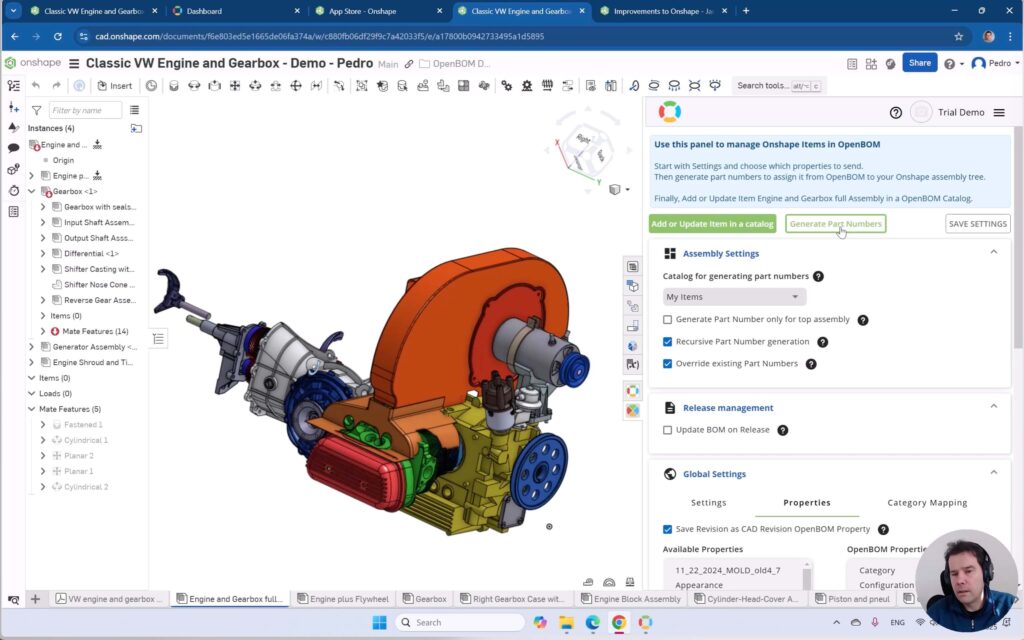
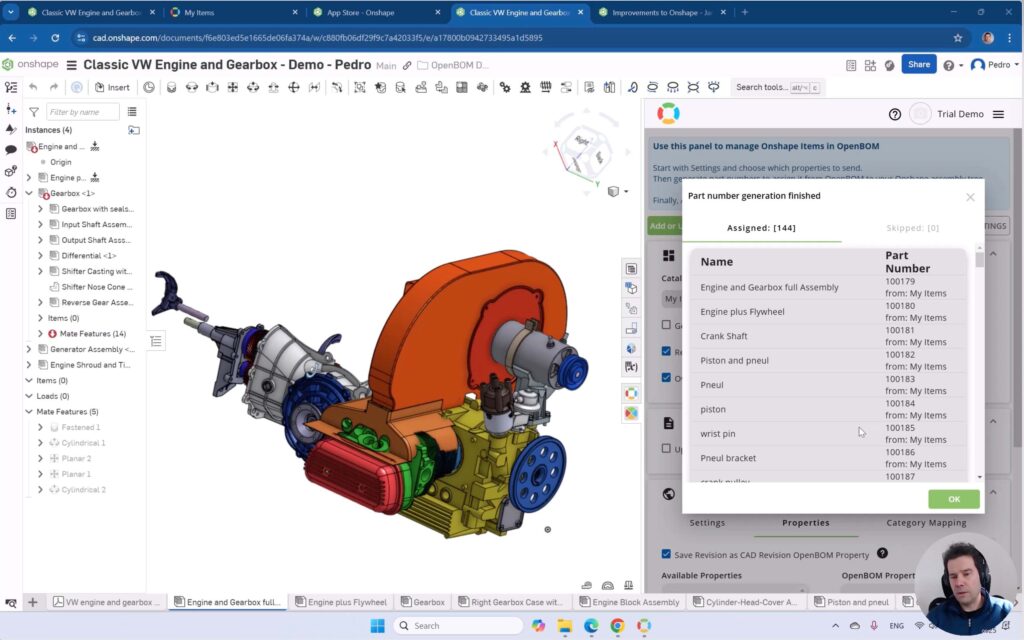
Managing part numbers is a critical step in organizing your BOM data. OpenBOM provides built-in tools to:
- Generate sequential or custom part numbers automatically.
- Use a numbering scheme that aligns with your organization’s standards.
- Apply unique identifiers to ensure accurate tracking of components.
4. Generating a BOM from Onshape
With your setup complete, you can now generate a BOM directly from your Onshape design:
- Select an assembly in Onshape.
- Click on the OpenBOM app to extract the BOM.
- OpenBOM will automatically pull in the parts list, quantities, descriptions, and any mapped properties.
5. Bi-Directional Data Update – Saving Data Back to Onshape
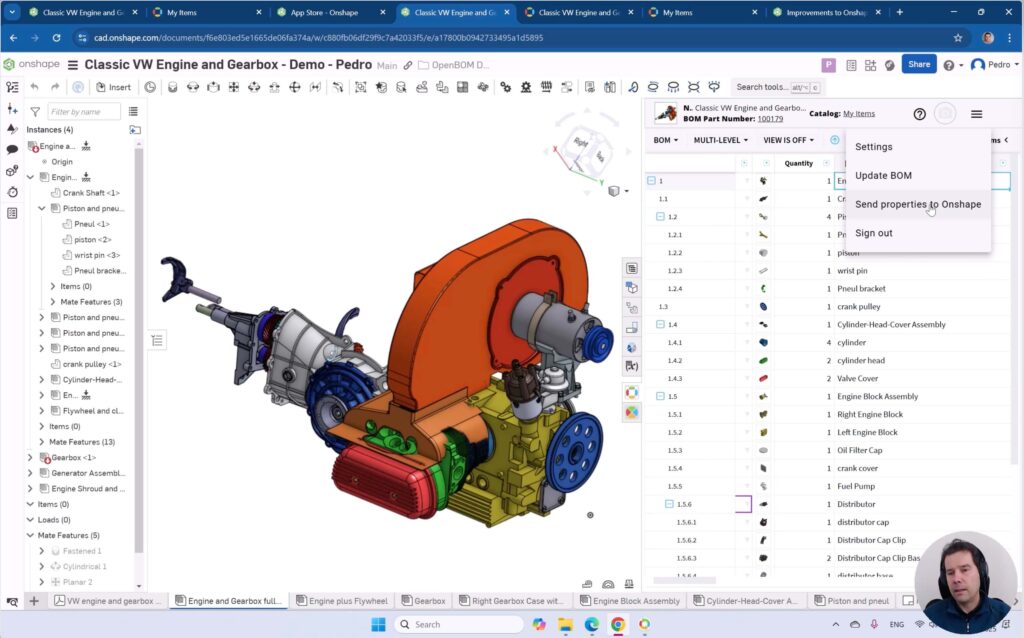
One of OpenBOM’s powerful features is its bi-directional data update, allowing you to modify BOM data and push updates back into Onshape:
- Edit part properties (e.g., cost, supplier, lead time) within OpenBOM.
- Save the updated data back into Onshape.
- Maintain a synchronized workflow without manual data entry.
6. Working with Drawings in OpenBOM
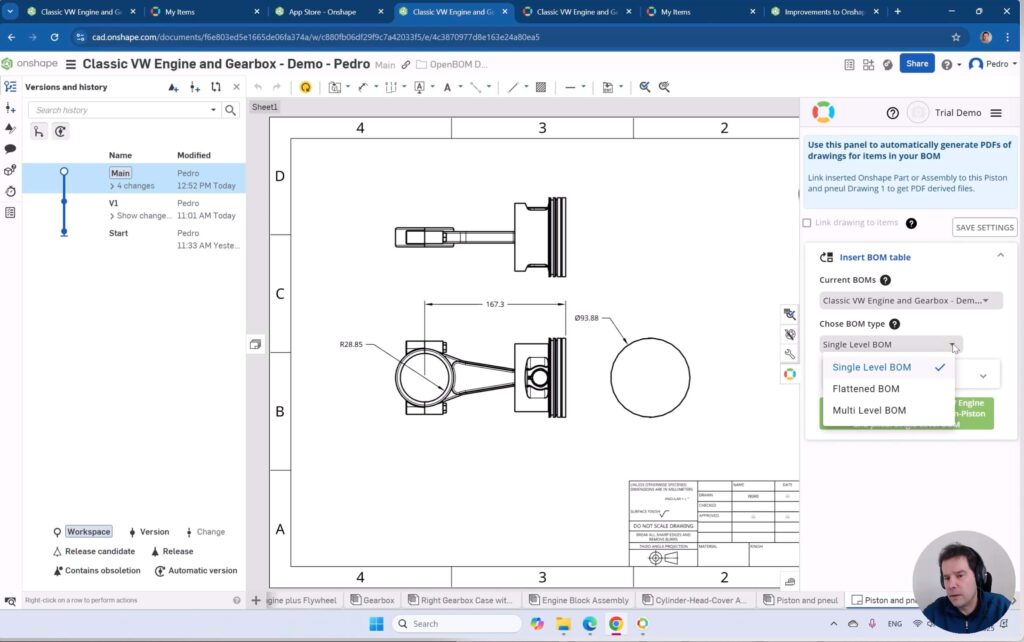
OpenBOM extends its functionality to Onshape Drawings, allowing you to link BOM tables directly within your drawings:
- Select an Onshape Drawing.
- Use OpenBOM to generate and insert a BOM table.
- Customize the BOM layout to display the most relevant part details.
7. Creating a BOM Table and Inserting It into a Drawing
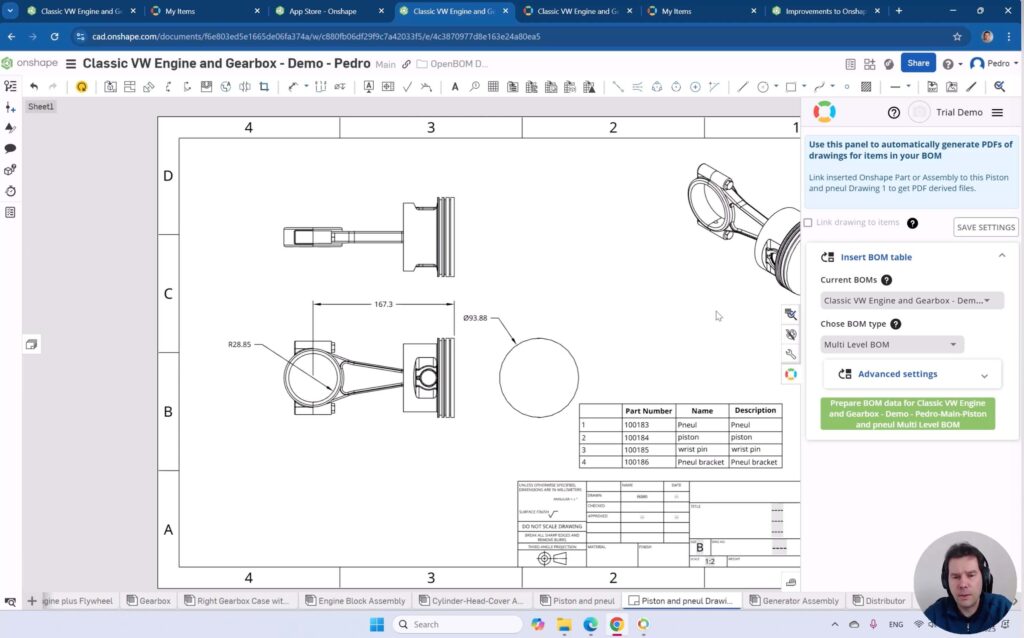
For manufacturing and documentation purposes, you may need to include a BOM table in your drawing:
- Generate a BOM in OpenBOM.
- Insert it directly into your Onshape Drawing.
- Ensure all parts and quantities are correctly displayed for reference.
8. Generating Derivative Files – STEP, PDF for Drawings
To facilitate collaboration and manufacturing, OpenBOM enables you to generate derivative files:
- Export part and assembly data as STEP files for compatibility with other CAD tools.
- Generate PDF drawings for documentation and production.
- Share files easily with suppliers and manufacturing teams.
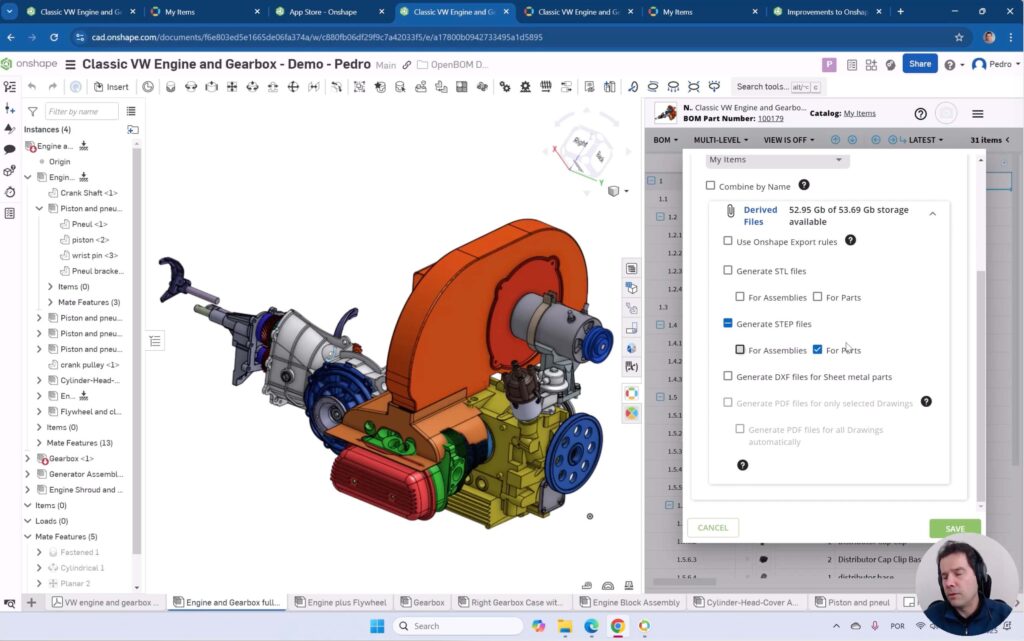
Watch the tutorial video
We provide a full step-by-step tutorial on how to set up, configure, and use OpenBOM for Onshape.
Watch the full tutorial video here: 👉
Conclusion
Integrating OpenBOM with Onshape simplifies BOM management, enhances data accuracy, and improves collaboration across teams. With automated part numbering, bi-directional data updates, and seamless drawing integration, OpenBOM helps streamline your product development process.
🔹 Ready to try OpenBOM with Onshape? Sign up and get started today! 👉
🚀 For more OpenBOM tutorials, visit our resource center.👉
Do you have questions or want to share your experience using OpenBOM with Onshape? Drop a comment below! 🚀
REGISTER FOR FREE and check OpenBOM today!
Best, Oleg
Join our newsletter to receive a weekly portion of news, articles, and tips about OpenBOM and our community.