How thumbnails, drawings, lightweight 3D files, and an integrated viewer help a team move from a BOM finding to a controlled change.
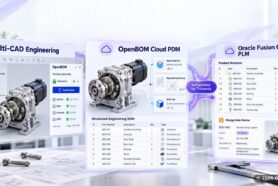
Visualization plays an important role in the process of design and manufacturing. At OpenBOM we pay close attention to how to provide different visualization capabilities for engineers, procurement and production teams. In this article today, I’m going to review the visualization capabilities OpenBOM provides with the example of change management and review.
Let’s take a look at a drone that includes a camera that is obsolete and discuss all possible steps the engineering team can take with it.
BOM Review flagged it in seconds: a GoPro camera marked obsolete was still sitting in the bill of materials. Finding the problem was the easy part. The next questions are the ones that usually cost a meeting. Which camera is it? Where does it sit in the product? Is it one purchased part or an assembly of CAD files? What else moves if we replace it, and who has to agree?
In my experience, change processes rarely stall at approval. They stall earlier, at understanding. In engineering change management, visual collaboration means connecting what each reviewer sees, whether a thumbnail, a PDF drawing, a lightweight 3D file, or an interactive model, to the exact item, BOM, CAD structure, and change record they are deciding on.
In this article, I use one obsolete camera to show how the visualization options in OpenBOM work together, and why the connections between them matter more than any single viewer.
Visual Collaboration Options
When people hear “visual collaboration,” they picture a 3D viewer. A viewer is useful, but it answers only one kind of question. The buyer looking at the camera wants to know which part it is. The manufacturing engineer wants dimensions and notes. A contractor wants to turn the design around in 3D without installing CAD. The design engineer wants to know which files reference it. Each question calls for a different representation, and each representation has its own cost to produce and its own risk when you share it.
That is why I think about the options in OpenBOM as a ladder. Each step up adds fidelity. Each step down widens the audience and exposes less of your design.
| Representation | The question it answers | Who usually asks |
|---|---|---|
| Thumbnail and item image | Which part are we talking about? | Everyone, especially buyers and approvers |
| PDF drawing and neutral files (STEP, DXF, STL) | What dimensions, notes, and geometry do I need to make or quote it? | Manufacturing and suppliers |
| Lightweight 3D: 3D PDF and SOLIDWORKS eDrawings | What does it look like in 3D if I do not have CAD? | Contractors and reviewers outside engineering |
| Integrated 3D viewer (Autodesk Platform Services, or custom for enterprise subscription) | Where does it sit, and what surrounds it? | Engineers and change reviewers |
The bottom rung is the one people underestimate. OpenBOM CAD integrations capture thumbnails of parts and assemblies automatically, so every BOM row carries a picture. In a large BOM, that turns a list of part numbers into a visual index of the product. A buyer may not recognize an internal part number, but they recognize a camera the moment they see it.
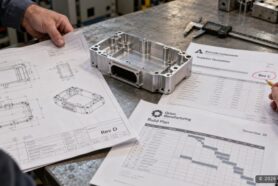
The next rung is the documentation downstream teams actually work from. Depending on the CAD system and your settings, OpenBOM add-ins generate PDF drawings, STEP, DXF, STL, and other formats as part of the normal save workflow, and SmartSync keeps those files connected to the right item and BOM. A supplier quoting a mounting part needs a drawing and a STEP file. Sending them your native assembly gives away more than the job requires.
Above that are formats built for looking rather than editing. 3D PDF and SOLIDWORKS eDrawings let someone rotate, zoom, and inspect a design with a free viewer and no CAD license. For a contractor or a reviewer in operations, that often answers the question without anyone opening the authoring tool. 3D PDF generation depends on the CAD integration (our SOLIDWORKS and Solid Edge add-ins support it), and eDrawings are specific to SOLIDWORKS.
How to plug the view into the product record
The top rung is an interactive 3D viewer inside OpenBOM, and it comes with an architectural choice that is easy to miss. OpenBOM does not make your product data depend on one proprietary viewer. The viewer is a component connected to Design Projects, while OpenBOM keeps the items, BOMs, files, revisions, and change records.
The viewer in the video is the Autodesk Platform Services (APS) viewer, opened from the design item. It gives reviewers a browser-based way to navigate an assembly, see where a component is installed, and understand what surrounds it. Getting there takes a one-time setup: you create an APS application and enter its credentials in the Design Project viewer settings. Companies with enterprise visualization requirements can connect other viewers through the same open architecture.
I care about this separation because viewing technology changes faster than product data. A company should be able to choose the viewer that fits its CAD mix and security rules without rebuilding its change process around a rendering engine.
Video story – One obsolete camera, from BOM finding to Change Request
The video follows the camera through a single review. It starts in BOM Review, where a check reports that a component marked obsolete is still used in the product. The camera’s thumbnail sits right in the BOM, so nobody has to guess which part we mean.
The reviewer then opens the design item behind the camera and loads it in the integrated 3D viewer. Questions a part number cannot answer now have answers: what the camera looks like, where it is installed, and what sits around it. Nobody had to ask an engineer for screenshots or book a screen share. The issue can be assigned right away as a task to whoever owns the replacement.
From the design item, the reviewer moves into the Design Project, the PDM layer in OpenBOM, and sees the CAD reference structure. Here the camera turns out to be a SOLIDWORKS assembly with its own component files. The reviewer adds a comment directly on the CAD file with a note to replace the camera. I explained how Design Projects connect files, data, and collaboration in Design Projects Explained. What matters here is that the discussion stays attached to the component it is about, instead of living in an email thread nobody can find six months later.
Once the team agrees the camera has to go, the work moves into formal change management. A Change Request is started on the affected item, and related requests can be grouped into a Change Order for review and approval. The video shows only the start of that process, because its subject is visual context; I walked through revisions, Change Requests, and Change Orders in Stop Managing BOM Changes by Email.
The last step is sharing. PDF drawings and eDrawings are generated from the design, and read-only users can open them next to the BOM without receiving editable native files. Because OpenBOM offers unlimited free read-only seats, bringing an approver or supplier into the review does not require buying another license.
Multiple representations in CAD and BOM – Design vs Purchasing
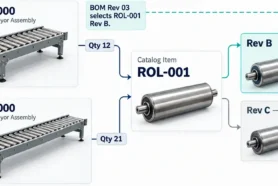
The most instructive moment in the video is easy to skip. In the Design Project, the camera is an assembly with several component files. In the BOM, it is a single purchased item with nothing below it.
That is not an error. The CAD structure describes how the geometry was modeled. The BOM describes how the product is bought, built, and supported. Nobody purchases the camera’s internal parts, so the BOM correctly stops at the camera.
OpenBOM follows the decision the designer already made in CAD. In SOLIDWORKS, the camera’s BOM options are set to hide its child components, and OpenBOM treats it as a purchased assembly. Onshape and most other CAD systems have an equivalent setting. Autodesk Fusion does not, so OpenBOM provides that behavior for Fusion users. I covered purchased and phantom assemblies in more depth in our EBOM how-to series.
In a change review, this distinction decides who does what. Replacing the camera changes one BOM line and one purchasing decision. It may also touch a mounting part, a drawing, and several CAD references. A reviewer who can move between the two structures sees both sets of consequences before approving anything.
Diversity of the use cases – from visualization to validation
A viewer shows geometry. It does not prove that a replacement camera fits, performs, or passes qualification; that remains engineering work in native CAD, done by the person who owns the design. Lightweight formats depend on the source system, and the APS viewer needs its one-time configuration before anyone can use it.
For many reviews, the lower rungs are enough. If a buyer only needs to confirm which part is being replaced, a thumbnail and a description will do. Reach for the full viewer when location and surroundings actually matter to the decision.
Make the picture part of the change record
The camera started as one flagged finding in BOM Review. By the end of the video, it had a thumbnail everyone recognized, a 3D context anyone on the team could inspect, a CAD structure that explained what really had to change, a comment and a task with owners, and the start of a formal Change Request.
That is what I mean by visual collaboration: images, drawings, lightweight 3D files, an interactive viewer, CAD structures, and BOMs connected to the same item and the same change. When everyone can see what is changing, far fewer changes stall at the question “which part?” If you want the wider view of how design, BOMs, and change connect, the OpenBOM Product Tour walks through it end to end.
Watch the video for the full walkthrough.
REGISTER FOR FREE to try OpenBOM with your own CAD data.
Best,
Oleg
Frequently asked questions
What is visual collaboration in engineering change management?
Visual collaboration connects what reviewers see, such as thumbnails, PDF drawings, lightweight 3D files like 3D PDF or SOLIDWORKS eDrawings, and interactive 3D models, to the exact item, BOM, CAD structure, and change record under review. It helps people understand a change before they approve it. It does not replace engineering validation of form, fit, or function.
Do reviewers need a CAD license to see 3D models in OpenBOM?
No. Reviewers can open lightweight derivatives such as 3D PDF and SOLIDWORKS eDrawings with free viewers, or use the integrated Autodesk Platform Services viewer in the browser. The APS viewer requires a one-time setup of an APS application in the Design Project viewer settings, and which derivatives are available depends on the CAD integration.
Which 3D viewer does OpenBOM use?
OpenBOM uses an open viewer architecture that connects a 3D viewer to Design Projects instead of locking product data to one proprietary viewer. The Autodesk Platform Services viewer is the documented example and opens from the design item. Organizations with enterprise visualization requirements can connect other viewers, which may involve integration work.
Why does the CAD structure differ from the BOM for a purchased assembly?
The CAD structure describes how geometry is modeled, while the BOM describes how a product is purchased, built, and supported. A purchased assembly such as an off-the-shelf camera may contain many CAD files but appears as a single item in the BOM. OpenBOM follows the CAD system’s BOM setting where one exists, as in SOLIDWORKS and Onshape, and provides equivalent behavior for Autodesk Fusion.
Join our newsletter to receive a weekly portion of news, articles, and tips about OpenBOM and our community.