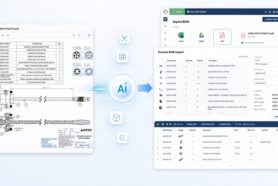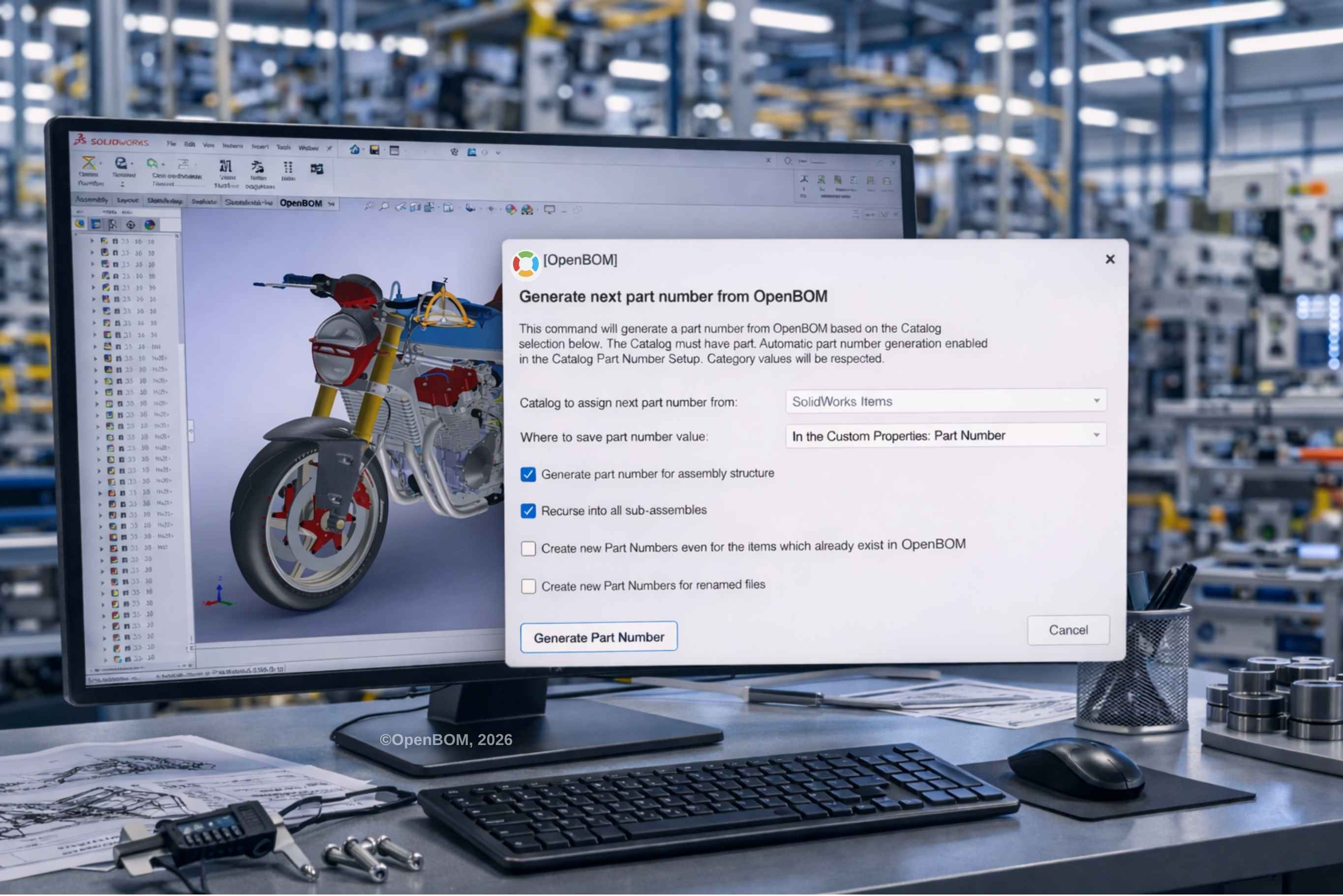
Part numbering sounds simple until a design project starts to grow. At the beginning, many teams use whatever feels convenient. Some rely on file names, some manually assign part numbers through SOLIDWORKS properties, and some need separate numbering logic for hardware versus custom-designed parts. Over time, that flexibility becomes difficult to manage, especially when the same identifiers need to flow into BOMs, drawings, PDFs, procurement processes, and downstream systems.
The goal is not to force every engineering team into one rigid method. The better approach is to support the way a team currently works, while giving it a clear path toward a more structured and scalable numbering strategy. That is exactly what this walkthrough covers. OpenBOM can work with your existing SOLIDWORKS part-numbering practices, preserve part numbers that are already defined, and generate new ones automatically when you are ready to bring more structure to the process.
This guide walks through three common scenarios: when no explicit part number exists and the system falls back to the file name, when a component already has a user-defined part number that should be preserved, and when you want OpenBOM to generate and assign part numbers automatically. It also covers how categorization can route hardware and custom components into separate numbering schemes, and how that connects to BOM creation and derivative management.
How OpenBOM Reads Part Numbers from SOLIDWORKS
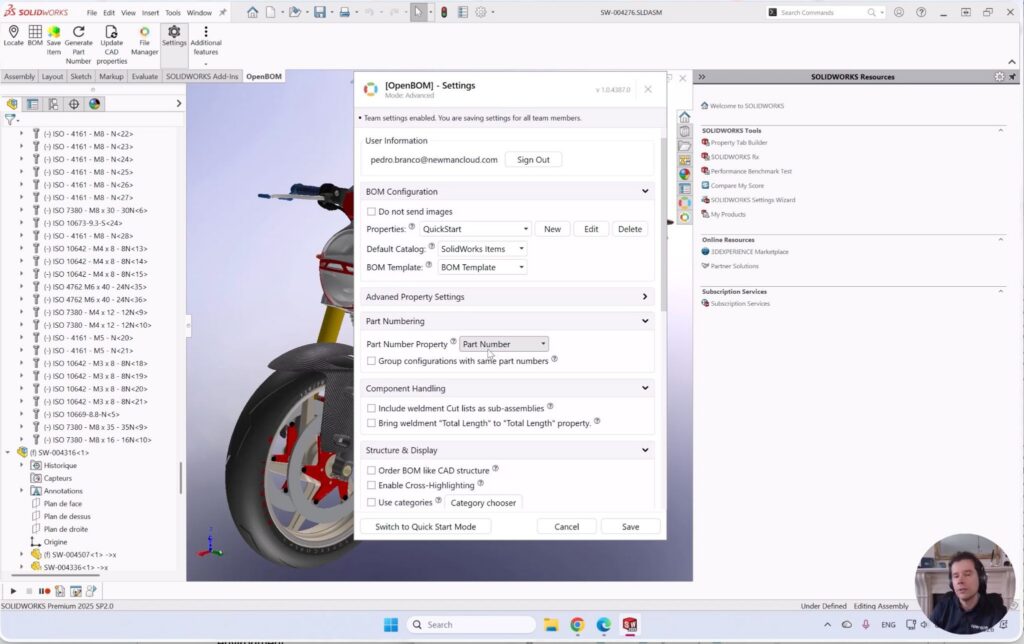
Before getting into the scenarios, it helps to understand the basic setup. OpenBOM lets you define which SOLIDWORKS file property is treated as the part number. SOLIDWORKS commonly uses a default property called PartNo, but you can configure this to match whatever convention your team has adopted. In this demo, the selected property is Part Number.
This setup step matters because it establishes the direct link between design data in SOLIDWORKS and structured item data in OpenBOM. Once that connection is in place, the system can follow different strategies depending on how your files are currently organized. It is also worth noting that some configuration options, including categorization settings, are only visible in Advanced mode, so make sure that is enabled before you begin.
Scenario 1: Using the SOLIDWORKS File Name as the Part Number
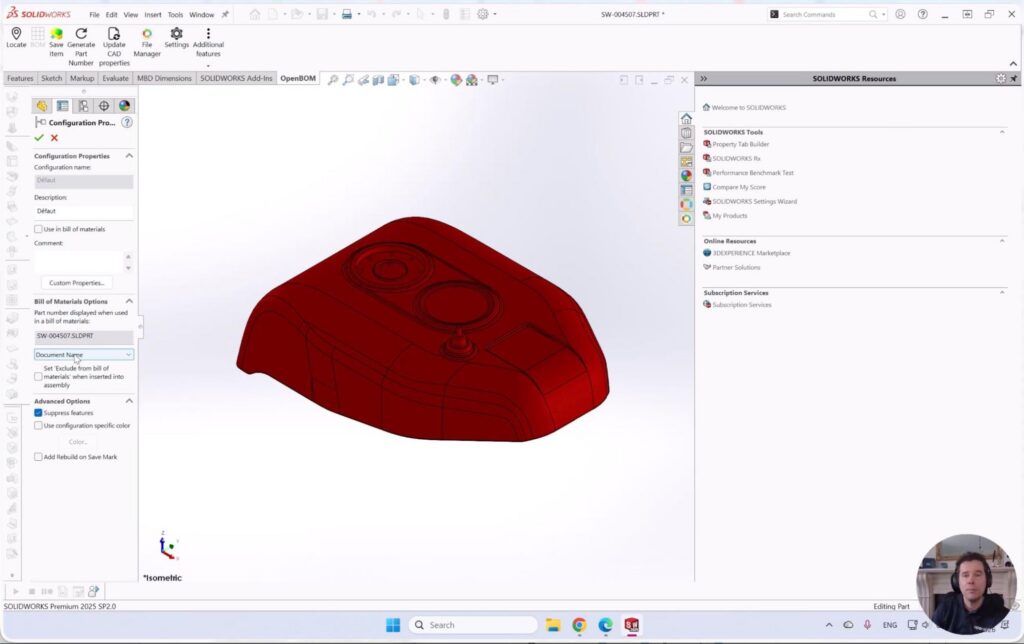
The first scenario is the most common in early-stage or informal design workflows. If a file does not contain a dedicated part number property, either at the file level or in configuration-specific properties, OpenBOM falls back to SOLIDWORKS default behavior and uses the document name, which is the file name.
This is a practical starting point for teams that are already using file names as identifiers and do not want to disrupt their current process. You can save the item to OpenBOM, create the BOM, and get a clean result with the file name captured as the part number. At the same time, you can also autogenerate related derivatives such as STEP files, PDFs, and drawings, so the item record is complete from the start.
The key takeaway here is that you do not need to change your current habits to get started. OpenBOM can work with what already exists in your SOLIDWORKS environment.
Scenario 2: Preserving an Existing User-Defined Part Number from SOLIDWORKS
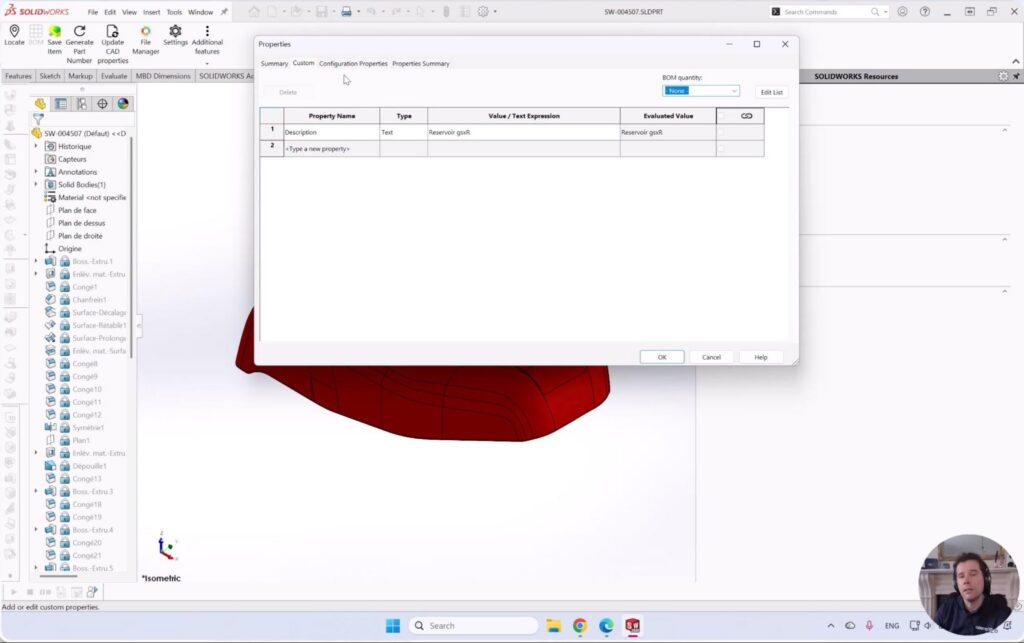
The second scenario is equally important because it shows that OpenBOM is flexible rather than destructive. If a component, such as a toolbox item or standard hardware part, already contains a user-defined part number in SOLIDWORKS, OpenBOM simply detects the existing value and carries it forward. There is no need to override or reassign it.
This matters in real engineering work because not every part should be renumbered. Standard components, purchased parts, and reused library items often already follow supplier or company conventions. A good numbering workflow should know when to preserve what exists, not just when to create something new. OpenBOM handles both cases in the same environment.
Scenario 3: Automatically Generating Part Numbers with OpenBOM Catalogs
The third scenario is where the process becomes more powerful. This is the situation where a company wants to improve or formalize its numbering strategy, whether because the product is still in early prototyping, because existing CAD data has inconsistent identifiers, or because a more disciplined approach is needed as the design scales.
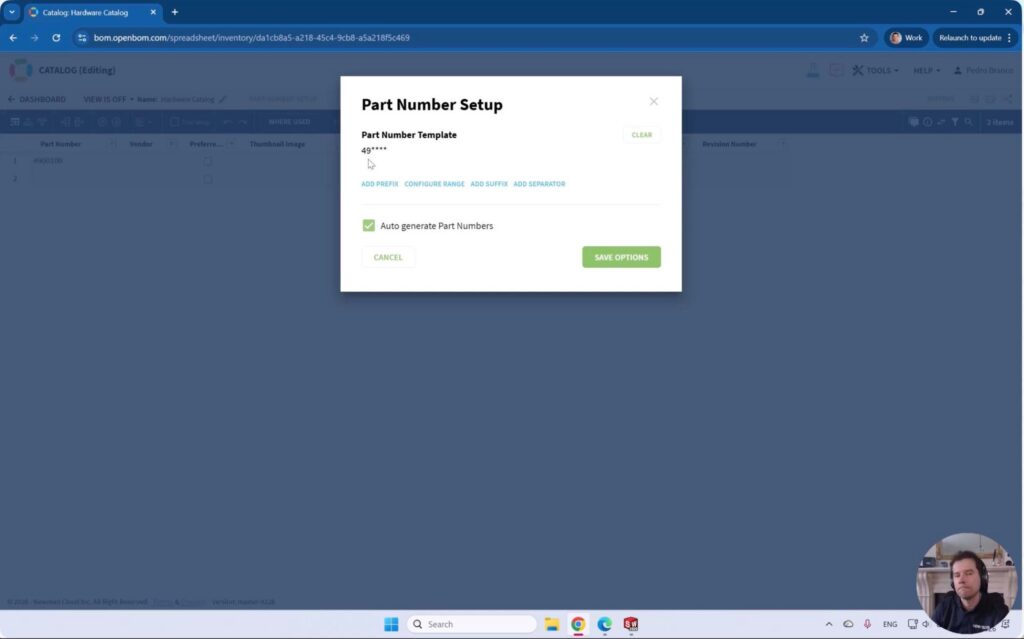
OpenBOM can generate part numbers automatically using catalog settings with defined prefixes and counters. In this demo, the main catalog uses a prefix of 5 followed by a seven-digit counter. A separate hardware catalog uses a different prefix starting with 49. This gives each category of parts its own structured numbering sequence, all managed from within OpenBOM without editing individual SOLIDWORKS files.
This moves the conversation from passively reading what already exists to actively defining how numbering should work going forward. That is often the real challenge in engineering organizations. The problem is not just where to store a part number. It is how to establish a repeatable logic that scales as designs grow more complex.
Using Categories to Separate Hardware and Custom Components
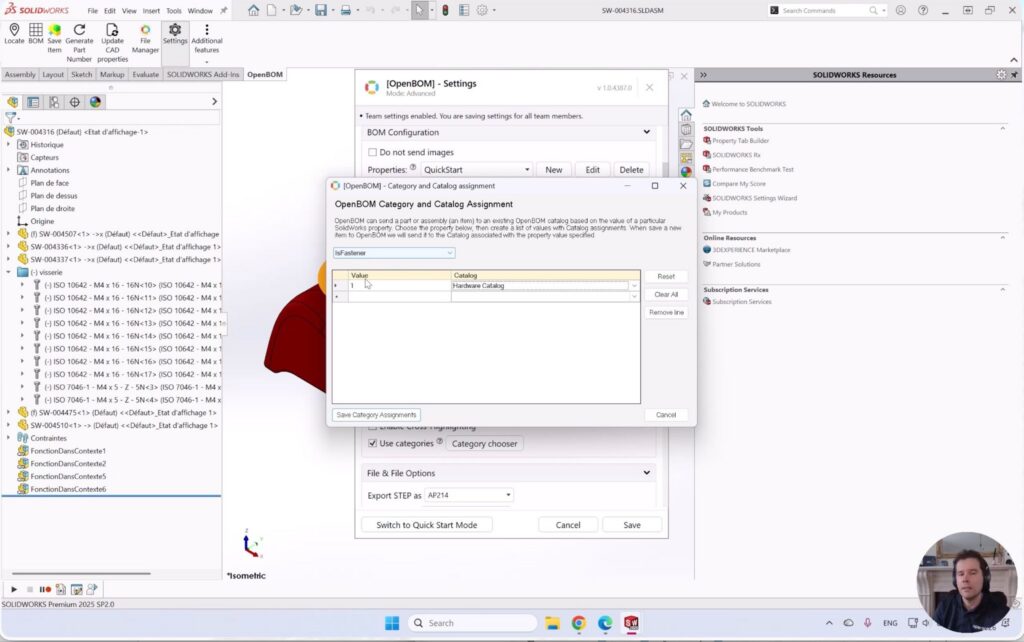
Once the catalog structure is in place, the next step is to configure categorization so that different types of parts are routed to the correct catalog automatically. In this demo, the rule is based on a SOLIDWORKS property called IsFastener. If that property is set to true, the component is treated as hardware and sent to the hardware catalog, where it receives a part number with the 49 prefix. All other components go to the main catalog and follow the 5 prefix sequence.
This is where part numbering becomes connected to product classification rather than just a counter. Hardware is often managed differently from custom-engineered parts. Purchased items may need one scheme, while designed components need another. By linking categorization rules to numbering logic, OpenBOM lets the numbering process reflect the actual structure of how your organization thinks about product data. That is a much more scalable foundation than forcing every component into a single flat numbering model.
How to Reassign Part Numbers Across a SOLIDWORKS Assembly
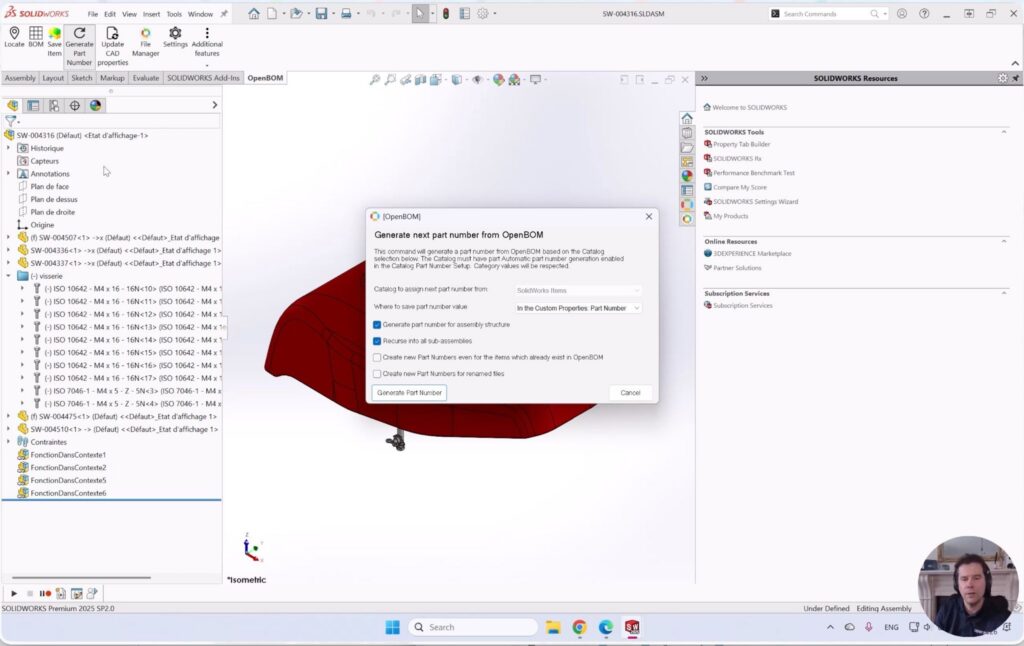
With the catalog and category configuration in place, the Generate Part Number command can be applied across the full assembly. The command can process all components recursively through subassemblies, which makes it practical for assemblies of any size.
Importantly, OpenBOM does not blindly overwrite everything. It provides a log, recognizes items that already have part numbers assigned from previous sessions, and only generates new numbers where appropriate. In this demo, the two components that were already numbered manually are recognized and preserved. The remaining components receive generated numbers based on their catalog assignment: items with IsFastener routed to the hardware catalog with the 49 prefix, and everything else receiving a number from the main catalog.
This is the kind of controlled, auditable process teams need when working with real CAD data rather than starting from scratch.
Reviewing the Final BOM with Part Numbers and Design Derivatives
Once the numbering step is complete, the final action is to create the BOM and review the output. The result brings everything together in one place: assigned or preserved part numbers, item descriptions, categorization, and generated derivatives including drawings, STEP files, and PDFs.
This is worth emphasizing. Part numbering is not just a labeling exercise. It is the foundation that makes engineering data usable downstream. A structured part number becomes more valuable when it is tied to a BOM, connected to derivative files, and ready to support communication with manufacturing, procurement, and other parts of the business. The final BOM view in OpenBOM shows that connection clearly.
Conclusion: Building a Practical Part Numbering Strategy for SOLIDWORKS Projects
What makes this workflow practical is that it does not assume every company starts from the same point. Some teams are already using file names as identifiers. Some have part numbers defined in SOLIDWORKS properties that should be preserved. Some need to clean up inconsistent legacy data or introduce a formal numbering method for the first time. OpenBOM supports all three situations within the same environment.
The process is designed to be incremental. You can start with your data exactly as it is today, bring it into a structured environment, and refine your numbering strategy over time as your product and team mature. For engineering teams working in SOLIDWORKS, that kind of flexibility is what makes the difference between a system that fits into real workflows and one that requires everyone to stop and change how they work before they see any benefit.
REGISTER FOR FREE to check how OpenBOM can help.
Best, Oleg
Join our newsletter to receive a weekly portion of news, articles, and tips about OpenBOM and our community.