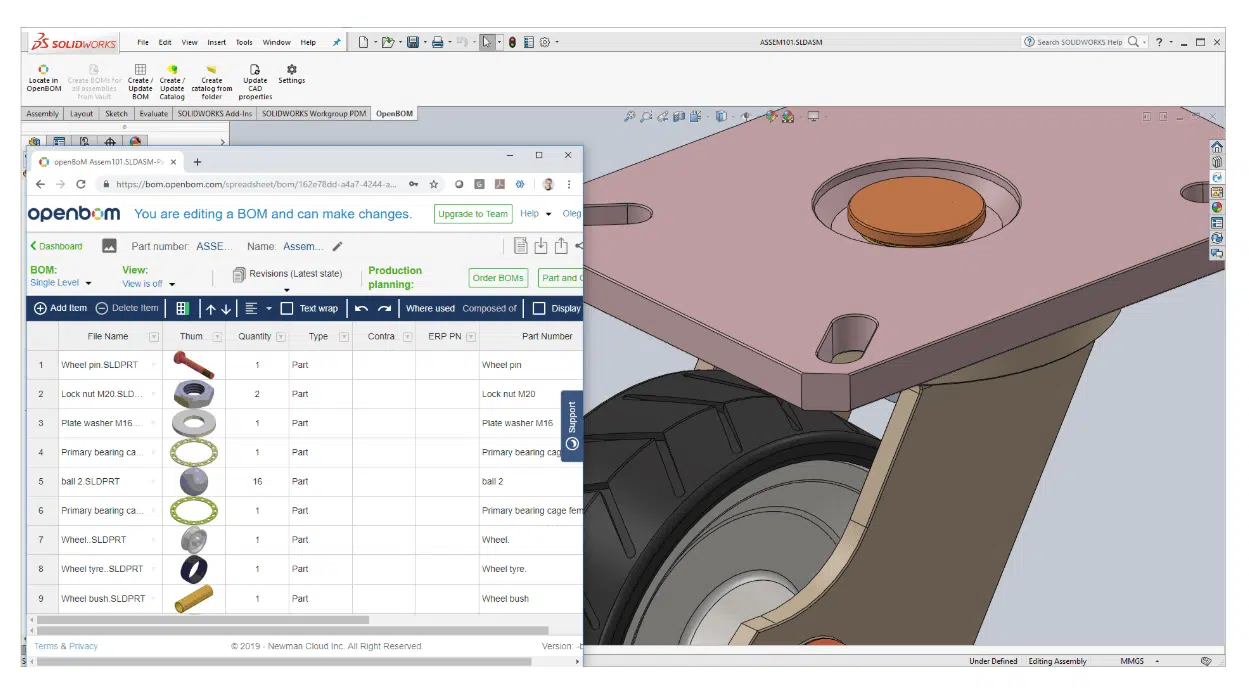
Management of Part Numbers is often causes some confusion for customers working with Solidworks. The questions about Part Number settings are coming so often, so I decided to write a short article to help our users installing OpenBOM for Solidworks to get around.
First thing first. How Solidworks manages part numbers. There are 3 main options how to set Part Numbers in Solidworks:
1- To use file name as part number
2- To use configuration name as a part number
3- To have user specific value as a part number
Solidworks standard part number configuration
You can find these settings by navigating to Solidworks part number settings
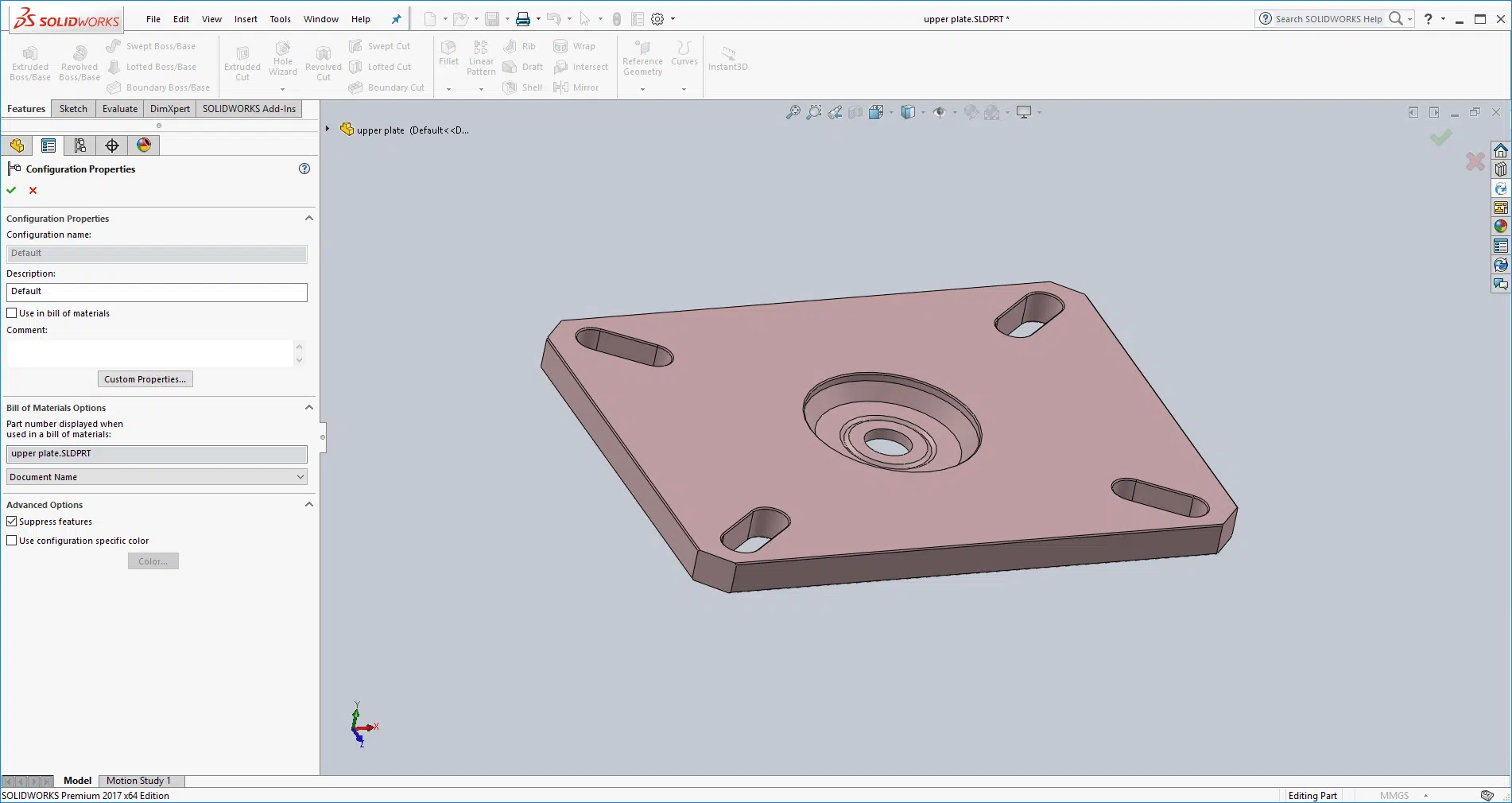
If you one of these rules OpenBOM add-in settings are very simple. You need to add “Part Number” to OpenBOM template.
To start Template editor, navigate to OpenBOM add-in settings and then to edit (or add new template).
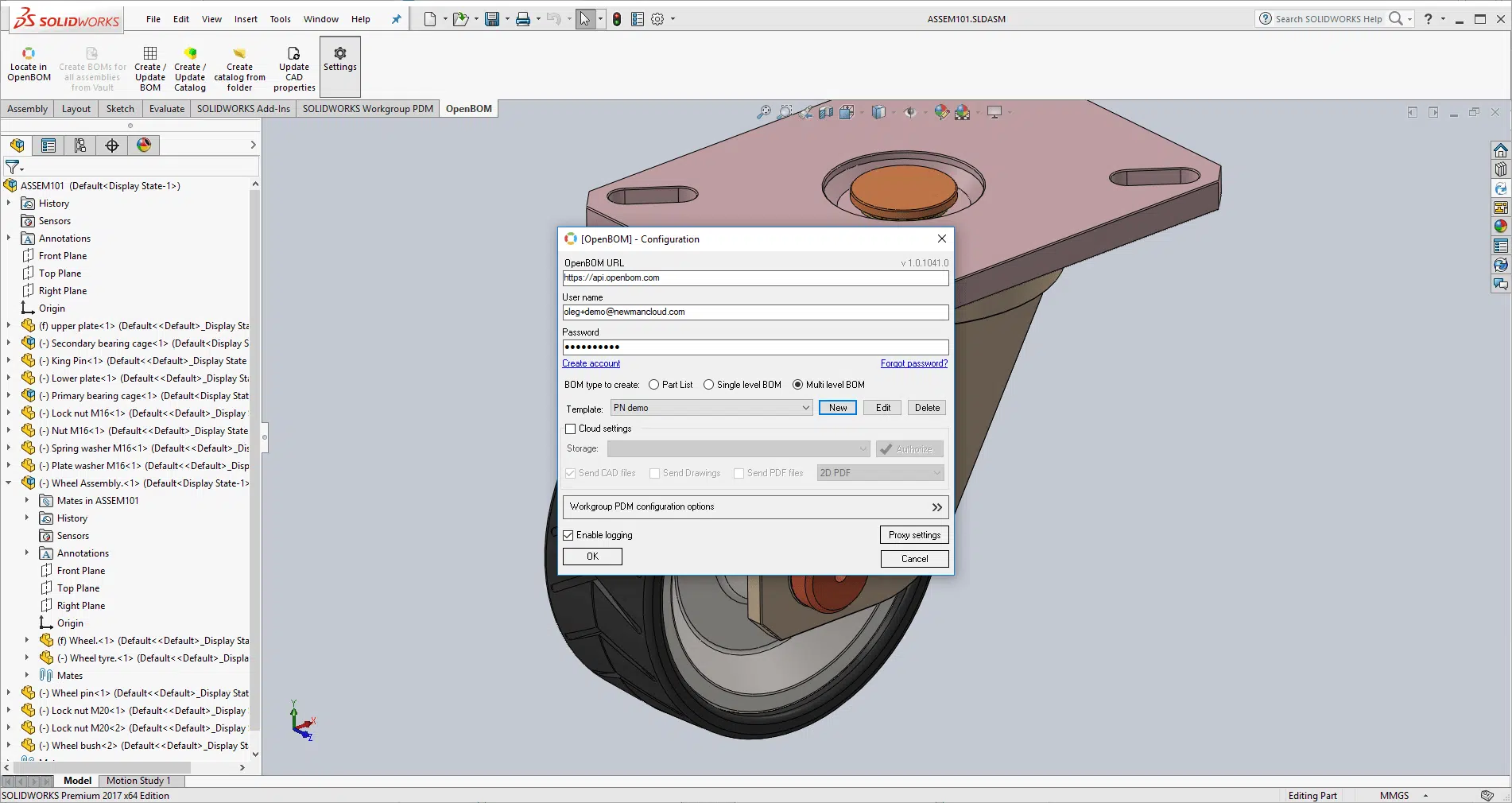
Then add “Part Number” to the template using “Add” command.

That’s it. Everything else will happen automatically. OpenBOM will extract Part Number from Solidworks (using one of the settings and you will get it in the BOM as Part Number. Note- OpenBOM is using a combination of File Name and Configuration Name (optional) to map data between OpenBOM and Solidworks. Part Number will be just another property OpenBOM will extract from Solidworks.

Non-standard Part Number settings
We learned that many customers aren’t using standard Solidworks Part Number setting and creating an alternative ways to represent Part Numbers in Solidworks. The most often used way is to create a custom attribute (eg. MY PART NUMBER or anything similar).
OpenBOM can support such situations as well. In such a case, please ensure this property is added to all Solidworks parts and assemblies, so OpenBOM will able to extract it. To configure OpenBOM add-in to extract a special Part Number property, you need to add this property from the list of available properties in settings to OpenBOM template. Note- it is case sensitive data.
In the picture below ERP_PN is such property

How to pass data in/out between Solidworks and OpenBOM?

Use OpenBOM update CAD property command on the toolbar to save data from OpenBOM to Solidworks. Note, that such method has some limitations. As such, if you configure to capture Part Number from Document Name or Configuration Name, OpenBOM won’t be able to change it.
Note, OpenBOM is using an active template, which is set in OpenBOM add-in settings to save data back to Solidworks. So, if you’re using multiple templates, you should verify the right template is set before clicking on Update CAD property command.
Conclusion
OpenBOM provides sophisticated ways to synchronize data between CAD and OpenBOM. Solidworks settings for different parts can be vary and it depends how you create parts – from a template, downloading from components catalogs or from suppliers Depending on these settings, OpenBOM may not extract all data properly. If you’re facing problems, check your files first and if you still have difficulties, please contact OpenBOM support – support at openbom dot com. We are always happy to help.
Best, Oleg @ openbom dot com.
Let’s get to know each other better. If you live in the Greater Boston area, I invite you for a coffee together (coffee is on me). If not nearby, let’s have a virtual coffee session — I will figure out how to send you a real coffee.
Want to learn more about PLM? Check out my Beyond PLM blog and PLM Book website
Join our newsletter to receive a weekly portion of news, articles, and tips about OpenBOM and our community.